

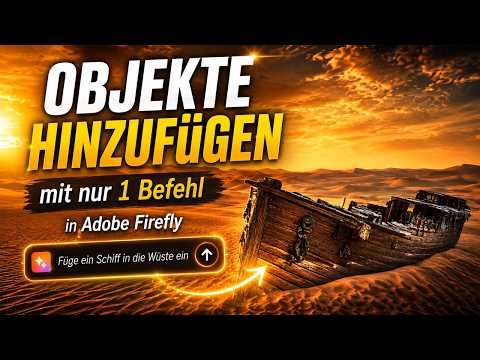
With the “Generative Fill”, you can not only change image content but also add completely new elements that are physically correct (light, shadow, perspective) in your photo.
The video is only loaded from YouTube when you play it – data (including your IP address) is then transmitted to YouTube/Google. More in the privacy policy
Step 1: Prepare the Playground

- Go to firefly.adobe.com and log in.
- Navigate in the menu to “Generative Fill” (under the “Image” tab).
- Click on “Upload Image” or drag and drop your photo directly into the browser window.

Step 2: Swing the Brush
Once your image is loaded, you will automatically be in “Insert” mode.
- Mark Area: Paint with the brush over the area where the new object should appear.
- Adjust Brush: Use the menu at the bottom to vary the brush size.
- Corrections: Did you select too much? Click on “Subtract” to remove parts of the selection.
- Zoom: Use
Ctrl+Mouse Wheelto zoom in for fine details.
Step 3: The Perfect Prompt
Now tell the AI what to do. Enter your description in the text box below.

- Example from the Video: “Ancient pirate shipwreck made of weathered wood, half buried in sand.”
- Then click on “Generate”.
Step 4: The Dread of Choice
Adobe Firefly always delivers three to four different variants directly.

- Click through the previews at the bottom.
- Pay particular attention to how the AI has adapted the light and shadow cast of the new object to the surroundings.
- Don’t like any of them yet? Click on the “+ More” symbol to generate additional variants.
Step 5: Seal the Work

If you are satisfied, click on “Keep” and then at the top right on “Download”. Your masterpiece is ready!
Pro Tips for Better Results
- The Size of the Selection Matters: The AI relies heavily on the size of your brush marking. If you want a huge ship, you need to mark a correspondingly large area. A small dab for an entire ship often leads to strange results.
- Utilize Light Mood: Firefly is exceptionally good at recognizing the light mood. If the sun is coming from the left, your generated object will also cast its shadow to the right. Most of the time, you don’t even have to mention this in the prompt – the AI “understands” the space.
- Be Specific, but Not Complicated: Instead of just writing “ship”, use adjectives like “weathered”, “antique”, “metallic”, or “moss-covered”. This gives the AI the necessary direction for the textures.
- Background Check: When adding objects to the horizon, mark the area so that it also includes a piece of the ground/background. This way, the AI can make the transition (e.g., the sand surrounding the ship) much more natural.
Good luck experimenting – whether it's a pirate ship, a crashed UFO, or a lonely telephone booth, let your imagination run wild!

Comments
Register and comment.