
HTML & CSS for beginners

- All the essential basics of HTML & CSS explained
- Learn web development from the ground up and expand your knowledge with confidence
- Optimal practical relevance: the implementation of a layout for a tax consultant
If the digital world is far away: explore it! When you code your first website at the end of this course, you'll be really proud of yourself!
51 Videos, 613 minutes
Entry
HTML & CSS (01): A first look at HTML, CSS & Co.
11 minAnyone who wants to create websites will come into contact with HTML sooner or later. That's why we'll be conquering the beautiful world of HTML together in the upcoming video training courses. You will see step by step what this language is all about and how it can be used in combination with stylesheets to create websites. At the beginning, however, there is one question: What is HTML and stylesheets all about? At the end of this video training, you will also find out which software you need to create and test websites.
HTML & CSS (02): The first HTML page
11 minIn contrast to programming languages such as Java, you can achieve your first results very quickly in HTML without any major training. All you need to get started is an editor and a browser. In this video training course, you will create your first HTML document and get direct output in the browser. You will also learn how HTML documents, i.e. websites, are structured and what basic structure they follow.
HTML & CSS (03): Elements, tags and attributes
10 minYou already know the relationship between the terms element, tag and attribute from the first part of this series. Now it's all about how these things can be used practically in HTML documents. At the end of this video training, you will learn how to check your HTML code for syntactical correctness.
HTML & CSS (04): Structuring texts
13 minYour websites will certainly not only consist of images, but also of texts. And texts should be structured sensibly, if only for the sake of good readability. HTML provides numerous elements for this. This video training introduces the most important structuring elements for texts. You will also learn how HTML's own characters can be masked and how program listings can be output.
HTML & CSS (05): Make texts prettier
12 minProper formatting is necessary for good readability of texts. And this goes beyond pure structuring elements such as headings and text paragraphs. In HTML, for example, you can mark quotations and display individual passages in bold or italics. This video training provides the necessary tools for this.
HTML & CSS (06): Lists
10 minElements that you will encounter again and again in HTML are lists. This applies not only to to-do lists and contact details, but also to the definition of menus. Lists therefore play a very central role in HTML. Reason enough to take a detailed look at them. In this video training, you will get to know all the list variants that HTML has to offer. These are bulleted lists, numbered lists, definition lists and menu lists. You will also get tips on how to customize lists visually if required.
Basics
HTML & CSS (07): Tables (01)
11 minTables still play an important role on websites. However, this only applies to the presentation of data. When CSS did not yet exist or was not really supported by browsers, tables also served a completely different purpose: they were used to implement layouts. The individual page elements were placed within the table cells. Fortunately, the resulting layout table monsters are now a thing of the past thanks to CSS. Today, tables in web design are used exclusively for what they are actually intended for: the clear presentation of data.
HTML & CSS (08): Tables (02)
12 minTables that look coherent do not necessarily have to consist of an identical number of cells within a table row. This video training shows you how to link table cells together. In the second part, you will learn about the labeling of tables. This aspect is important as it allows you to show visitors what data is ultimately involved. The video training concludes with a detailed look at the design of tables in HTML. A lot has changed in this sector compared to previous HTML versions.
HTML & CSS (09): Graphics for the web (01)
14 minHardly any website can do without graphics. So it's no wonder that the topic of graphics also plays an important role in this series. In this and the following video tutorials, we will show you how to integrate graphics into your website. At the beginning, however, the focus is on another aspect: Which image formats are suitable for online use? The second part then deals with how image paths can be referenced.
HTML & CSS (10): Graphics for the web (02)
11 minHow images can be referenced was shown in the previous section. However, this is by no means the end of the story when it comes to images. In fact, images can be described in more detail using corresponding attributes. This is the subject of the first part of this video. The second part describes how captions can be implemented using HTML5 syntax.
HTML & CSS (11): Define hyperlinks (1)
13 minThe salt in the Internet's soup is the ability to connect content with each other using hyperlinks. If these hyperlinks did not exist, the internet in its current form would be unthinkable. In this and the next video training, you will find out which variants HTML offers you in terms of hyperlink definitions.
HTML & CSS (12): Define hyperlinks (2)
12 minWhen it comes to hyperlinks, HTML offers even more possibilities than what was shown in the previous video training. For example, you can define e-mail links and offer files for download. You will learn about these and other hyperlink variants in this video training.
HTML & CSS (13): Forms (1)
10 minTo anticipate this: Forms have made a quantum leap in HTML5 in particular. Thanks to numerous new field types, very interesting forms can be created. You will of course get to know these new possibilities. However, this video training starts with the tools you need to define forms. To begin with, we will look at creating single-line input fields. You will see how these can be defined, how they can be pre-assigned with values and how they can be set to non-writable. You will also learn how to define password fields. After all, this is a field type that you can use from time to time.
HTML & CSS (14): Forms (2)
14 minIn this video, you will learn about other field types that you can use to equip your forms. Specifically, it's about selection fields, radio buttons and checkboxes. These are all important elements that you need again and again in forms. Reason enough to take a closer look at these and other elements.
HTML & CSS (15): Forms (3)
11 minHTML5 has changed a lot, especially when it comes to forms. Reason enough to take a detailed look at the numerous new form functions that can now be used. No more boring input fields. Finally, sliders, date fields etc. can also be defined - and all without the use of JavaScript.
HTML & CSS (16): Forms (4)
12 minThe previous video training has paved the way into the world of HTML5 forms. However, this is by no means the end of the story. In fact, HTML5 has much more to offer in this area.
HTML & CSS (17): Forms (5)
14 minIn HTML5, there are numerous other interesting aspects in addition to the field types presented. For example, you can now implement an autocomplete function for form fields along the lines of Google with very little effort. This and other things are shown in this video training.
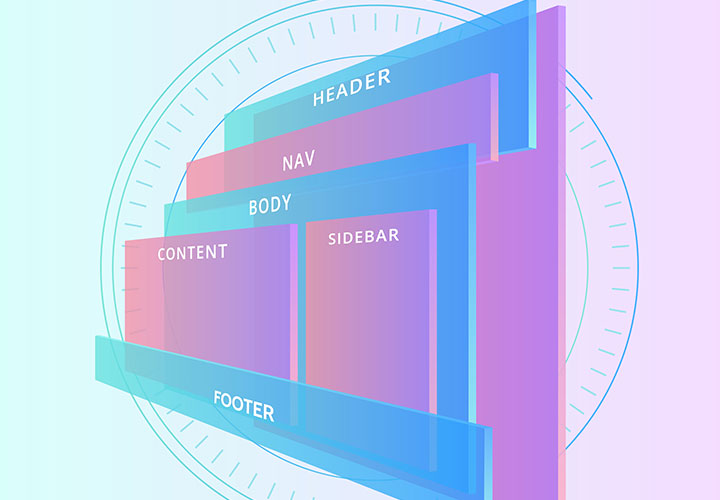
HTML & CSS (18): Semantics for the web (1)
11 minAnyone working with HTML5 cannot avoid the topic of semantics. In this and the next video training sessions, you will get to know the most important elements that HTML5 brings with it, with which you can structure documents sensibly. In fact, this logical structure is essential if you want to make your website future-proof.
HTML & CSS (19): Semantics for the web (2)
10 minHTML5 introduces numerous new structuring elements. We have already shown you what these are in principle in the previous video training. Now it's time to put these elements into practice. After all, it is these elements that ensure the semantic structuring of documents. In this video training, you will primarily get to know the two elements article and section. These provide the basic structure of HTML documents. At the end of this video, we will also take another look at the differences between div, article and section.
HTML & CSS (20): Semantics for the web (3)
9 minIn HTML5, documents can not only be divided into articles and sections. In fact, there are many additional elements for semantic structuring with header, footer & Co. These are definitely worth taking a closer look at.
HTML & CSS (21): Semantics for the web (4)
11 minIn this last video training of the semantic element series, you will get to know more structuring elements. In fact, HTML5 also offers elements for navigation areas, marginalia and summaries.
HTML & CSS (22): Multimedia for the website (1)
11 minIn earlier HTML versions, embedding multimedia content was a horror. A combination of object and embed elements was used to bring videos and sound onto the website. Whether the embedded video could actually be played was questionable. HTML5 has also made a lot of progress in this area.
HTML & CSS (23): Multimedia for the website (2)
10 minYou've seen how videos can be integrated. Of course, videos are not the only thing you can present to your visitors on your website. This video training therefore describes the options HTML5 offers you for integrating audio files and Flash movies. Because you also need to display these things on your website from time to time.
HTML & CSS (24): iFrames
12 minFrames no longer exist in HTML5. However, their namesakes, iFrames, have also made it into the new HTML age and are on board in HTML5. While classic frames divide a page into independent areas, iFrames can be used to integrate any resources into web pages.
CSS
HTML & CSS (25): This is CSS
13 minHTML is there to structure the content. As soon as it comes to designing the page, the cascading stylesheets (CSS) come into play. It is the combination of CSS and HTML that makes it possible to turn a plain HTML structure into an appealing website. Reason enough to take a closer look at CSS.
HTML & CSS (26): How to access with the selectors (1)
12 minOne term that you will come across again and again in connection with CSS is "selectors". These selectors are used to define the elements that are to be formatted using CSS. In this video training you will get to know the first selectors. You will be introduced to element, ID and universal selectors. You will have to deal with these on a daily basis when designing your websites with CSS.
HTML & CSS (27): How to access with the selectors (2)
10 minSome selectors were presented in the previous video training. Of course, CSS also has numerous other selectors to offer.
HTML & CSS (28): How to access the selectors (3)
14 minIn this last selector video training, I introduce you to a very special form of selectors. These are so-called pseudo-classes and pseudo-elements. These are selectors that do not refer to specific HTML elements, but are generated by the output device.
HTML & CSS (29): Beautiful text with CSS (1)
13 minIn this and the upcoming video tutorials, I will introduce you to the most important CSS properties. By the way, the aim here is not to present you with a CSS reference. Rather, I want you to get a feel for what is possible with CSS. Let's start with the font design. This video training presents all the things that are directly related to the so-called fonts. Please note that there are other properties relating to font design that will be shown in the next video training.
HTML & CSS (30): Beautiful text with CSS (2)
12 minThe CSS properties presented in this video training can be used to visually customize texts and characters. For example, the spacing between individual letters can be changed and texts can be aligned. These properties also help you to present texts in an appealing way.
HTML & CSS (31): Colors and backgrounds
9 minOf course, CSS also includes color definitions and graphic backgrounds. The corresponding properties are presented in this video training. CSS actually has numerous possibilities to offer in this area. You can not only define colors and images. Repeating background graphics are also possible.
HTML & CSS (32): Outside spacing and margins
10 minEspecially when it comes to the layout of websites, you will have to deal with the definition of outer margins and spacing. In the last video training in this series, a comprehensive example project will be implemented in which the use of these and other CSS properties will be shown in practice.
HTML & CSS (33): Controlling the text flow
9 minCSS has some interesting properties for text paragraphs and blocks that I would like to share with you. For example, you can align text paragraphs left and right.
HTML & CSS (34): Frames
12 minWhen it comes to frames, most people certainly think of tables first. And indeed, frames play an important role in connection with tables. However, CSS can also be used to add borders to other elements. And how these frames ultimately look can also be explicitly determined using CSS definitions.
HTML & CSS (35): Lists and counters
14 minYou probably already know how lists can be defined. After all, this has been shown in detail in this series. However, lists are not necessarily chic by nature. To make them visually appealing, there are corresponding CSS properties. You can find out what these are and how to use them in this video training. The second part deals with the so-called counters, which can also be used to implement more complex numbering.
HTML & CSS (36): The box model
11 minWhen it comes to website layout, the so-called box model will be your constant companion. This is because it ultimately determines how and where elements are placed.
HTML & CSS (37): Positioning elements
12 minTo be able to position elements within the website in the desired places, you have to use very specific CSS properties.
HTML & CSS (38): Everything in flow with float
11 minThe previous video training already briefly touched on the so-called floating principle. However, the topic is so complex that we will take another detailed look at floating here. This is actually a crucial concept in CSS. Only if you understand this topic can you actually create websites.
Practice
HTML & CSS (39): The different layout variants
10 minIn the previous video training sessions, the basics of working with HTML and CSS were explained. Now, of course, the first fruits are to be harvested. In the next video training sessions, we will therefore build a sample website step by step. In this video training, however, you will first learn about the different layout variants. After all, choosing the right layout form should always be the first thing you consider when designing a website.
HTML & CSS (40): Two- and three-column layouts
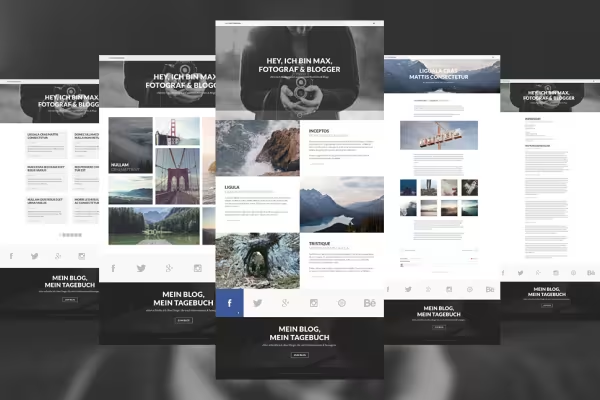
12 minI am assuming a typical column layout for our practical project. However, before I present this project live and in color, I would like to show you specifically how you can implement column layouts yourself. The focus here will be on two- and three-column layouts, as these still form the basis for the majority of websites.
HTML & CSS (41): Developing the layout
12 minIn the following video tutorials, I will show you how to implement a website layout step by step. There are very different approaches to this. The layouts are often created in Photoshop. The individual page elements are then cut out and reassembled as a website using CSS and HTML. This is exactly how it is done here. However, I use GIMP, which is available free of charge, instead of Photoshop. However, the steps described can also be followed in Photoshop.
HTML & CSS (42): Customize the layout further
10 minThe first steps towards your own layout were taken in the previous video training. Of course, numerous elements are still missing. These will be added in this video training. As soon as the layout is complete, the next step is to cut it out, known as slicing. This is ultimately the step that makes it possible to practically implement the created design using HTML and CSS.
HTML & CSS (43): Creating the basic framework
13 minYou have created the layout. Now it's time to put it into practice. In this video training, we will create the basic HTML structure of the website together.
HTML & CSS (44): Designing the content area
11 minThe basic structure of the site is in place, but is still quite spartan. In this video training, the content of the page will be expanded further. First of all, the focus is on the menu, which is located at the top of the page. This is followed by the right and bottom menus.
HTML & CSS (45): Schick fonts for the page
10 minA decisive aspect for a visually appealing website is, of course, its typeface. In the course of this series, you have already learned about the possibilities that HTML and CSS have to offer in terms of font design. In this video training, these will be used to spice up the page. Incidentally, we won't just be looking at the classic variants. The magic word for the use of "exotic" fonts is @font-face.
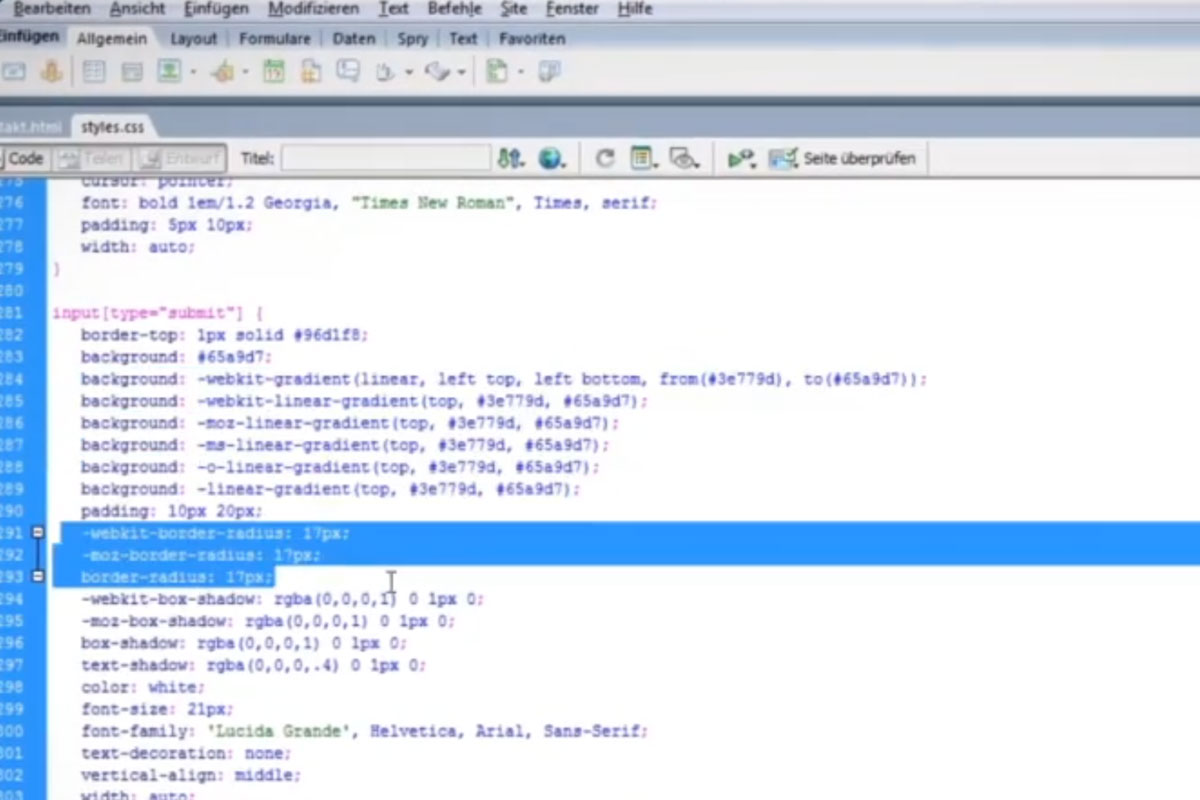
HTML & CSS (46): The contact form (1)
15 minNormally, you should offer your visitors the opportunity to contact you. The easiest way to do this is to write down a telephone number and/or your e-mail address. You can do this, but it's not particularly convenient for visitors. In this video training, we will therefore create a form that visitors can use to contact us very easily. And, of course, we will make use of the possibilities offered by HTML5 and CSS3.
HTML & CSS (47): The contact form (2)
11 minThe basic structure and the very basic design of the form have been defined and completed. And the form already looks quite appealing. Thanks to CSS3, however, there is still a lot more to do when it comes to spicing up the look of the form. In this video training, the form is therefore designed a little more.
HTML & CSS (48): The website goes online
10 minAt this point, you have certainly already put a lot of time and effort into the development of your website. Starting with the concept and the design of the layout through to its implementation in HTML and CSS. Reason enough to finally present your website to the world. That's exactly what this video training is all about. I will show you how to put your website online. First you will learn how to get the right provider and the right web space package. Then the data is uploaded to the server using the rightly popular FileZilla. And then, well, then the website is actually online.
Bonus
The right development environment for creating websites
10 minIn this video training, I would like to give you a little insight into the right development environment for creating websites. If you have already written complete websites or smaller individual pages, you usually already have these editors and can skip this video.
Shown are:
Dreamweaver
Panic Coda
Panic Transmit: http://panic.com/transmit/
Filezilla: http://filezilla.de/
HTML5 boilerplate - the best template for HTML and CSS3 websites
30 minThe HTML5 boilerplate is a powerful template for HTML5 and CSS3 websites; it makes HTML5 as cross-browser compatible as possible and contains some very good code templates in the areas of JavaScript, CSS3 and, of course, HTML.
In this video training, I would like to introduce you to these functions. There is currently no better template for getting started with HTML5 and CSS3.
The best tools for creating HTML5 and CSS3 websites
19 minIn this video training I would like to introduce you to some very helpful tools that you can use to develop HTML5 and CSS3.
These include:
html5css3box.com
kuler.adobe.com (now https://color.adobe.com/de/create/color-wheel)
css3generator.com
typetester.org
google.com/webfonts
cufon.shoqolate.com
videojs.com
Examples of use
-
 HTML & CSS for beginners
 -
 HTML & CSS for beginners - get started right away!
 -
 Work on your web project!
You might also like
For modern websites & apps

Step by step to your own functional forms
For error-free, fast websites with optimized layouts

How your websites & apps speak like ChatGPT
Comment now „HTML & CSS for beginners“