Photoshop action "Blazing fire": Create a glowing sea of flames

Photoshop action "Blazing fire": Create a glowing sea of flames

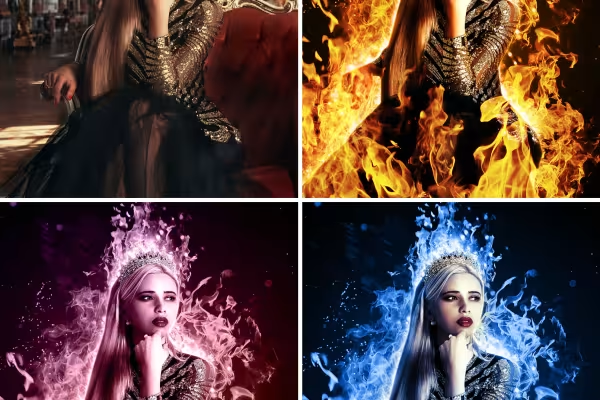
Do you like scorching hot photos? - So do we! That's why we've created a fiery action for you to create a glowing sea of flames in Photoshop. Dozens of image editing steps run automatically and make your work much easier. You retain full control over the final look by deciding for yourself which flames should flare up in which size and where.

  • Automated: Add blazing flames to your images using the Photoshop action.
  • Individual: Choose the flames that light up in front of and behind your motif yourself.
  • Customizable: Strengthen or weaken the fire effect of each individual flame.
  • Colorful: Keep the flaming orange-red or apply a different color.
  • Everything inside: Photoshop action for CC and CS6, sample file, 10 flame images, instructions

Automate your workflow with a brilliant Photoshop action that will fire up all your red-hot image ideas with ease.

content

Details of the content

Photoshop action "Loderndes Feuer": Create a glowing sea of flames

Photoshop action "Blazing fire"

Photoshop action "Blazing fire"

Examples of use

  • Open gallery
    Example: The Photoshop action makes it much easier to add flames.
  • Open gallery
    Example: You decide which flames flare up in front of and behind your motif.
  • Open gallery
    Example: You determine the intensity of each individual flame yourself.
  • Woman in flames, incorporated with Photoshop action Blazing fire
    Open gallery
    Example: You decide in which color the flames should flare up.
  • Open gallery
    Example: How about a fiery color gradient? Everything is ready for that too.
  • Open gallery
    Example: Facilitates your workflow and leads to spectacularly flaming results!

help video for application

Video instructions for the Photoshop action "Blazing fire"

Using the Photoshop action "Blazing fire" is very simple. You import both the action and the pattern file into Photoshop. Then select your motif and color its surface black on a new layer. After starting the Photoshop action, the software starts a whole series of image processing steps that run automatically. In between, you can choose which flames should flare up in front of and behind your image. Finally, you can adjust the color and intensity of the flames. In this fiery video tutorial, Matthias Petri explains exactly how to proceed and which tips and tricks will lead you to your desired fire effect.
11 minutes · free of charge
Comments (30)

Comment now „Photoshop action "Blazing fire": Create a glowing sea of flames“