
A tidy PC not only runs faster but also provides a better user experience. CCleaner is a proven tool that helps you effectively free your computer from unnecessary files and optimize system performance. In this guide, you will learn how to install and use CCleaner optimally. I will also show you the built-in Windows Disk Cleanup as a practical alternative.
The video is only loaded from YouTube when you play it – data (including your IP address) is then transmitted to YouTube/Google. More in the privacy policy
Key Insights
- CCleaner helps you delete unwanted files and improve PC performance.
- Installing the program is easy and quick.
- The Windows Disk Cleanup is also an effective tool for cleaning files.
- You don't have to delete all cookies or your history – you can choose what you want to clean.
Step-by-Step Guide
Installing CCleaner
Start by downloading the software from the official website ccleaner.com. Click the "Free Download" button to start the installation.

After downloading, open the file to start the installer. Just click "Yes" when prompted to begin the installation.
The installation takes only a few seconds. Once completed, CCleaner will start automatically. You can immediately begin cleaning your system.

First Scan of the System
After starting the program, you will see a sleek, improved design that enhances usability. You will have the option to start a scan. Click "Start Scan."

It is recommended to close all open browsers to ensure optimal scanning. If you prefer not to do so, you can choose to continue with the scan anyway.
The scan will now be performed, which may take some time depending on the size of your hard drives and the amount of data stored.

Scan Results
Once the scan is complete, you will see an overview of the found files that you can delete, including temporary files, cookies, and other space consumers.

Here you can decide which items can be safely deleted. For example, you may have several cookies or temporary internet files that take up a lot of space.
Performing Cleanup
Check the boxes for all the items you wish to clean. If you do not want to delete all cookies, you can selectively choose what to remove.

After making your selection, click on "Clean." The process is quick and efficient, so you can perform the desired cleanup in just a few seconds.
Troubleshooting
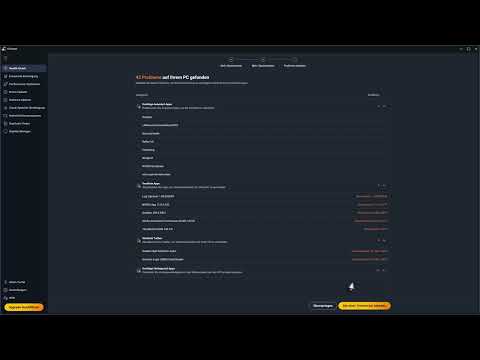
Another useful button in CCleaner is "Fix Problems." Here you will see any existing registry errors, unnecessary startup programs, and other issues.
You can decide which of the suggested problems to fix. However, note that some features are only available in the Pro version.
Using Windows Disk Cleanup
In addition to CCleaner, you can use Windows Disk Cleanup. Type "Disk Cleanup" into the Windows search bar. Then select the drive you want to clean, usually drive C.

Once the application is open, you will see various options that you can check, including temporary files, recycle bin, and more.
Finally, confirm your selection, and the cleanup will be performed.

To clean hidden files, click the "Clean up system files" button.

The Disk Cleanup scans the system for remaining files, including old Windows updates that can be deleted.
Select all items you wish to remove and confirm the process to free up space.
Conclusion on the Tools
Both CCleaner and Windows Disk Cleanup offer you effective ways to free your computer from clutter. While CCleaner offers some advanced features that Disk Cleanup does not have, the latter is still useful for basic maintenance of your PC.
Summary – Successfully Clean Up Windows with CCleaner
In this guide, you learned the basics of installing and using CCleaner. You now know how to properly work with CCleaner and Windows Disk Cleanup to refresh your PC and improve system performance.
FAQ
How do I download CCleaner?You can download CCleaner from the official website ccleaner.com.
Is CCleaner free?Yes, the basic version of CCleaner is free. There is also a Pro version with additional features.
Do I have to delete all cookies?Not necessarily. You can manually decide which cookies you want to keep.
How often should I use CCleaner?It is advisable to use CCleaner regularly to keep your PC clean – at least once a month.
What is the difference between CCleaner and Windows Disk Cleanup?CCleaner offers advanced troubleshooting features and has a user-friendly interface, while Windows Disk Cleanup provides basic deletion functions.

