
Have you reinstalled your Windows system and are faced with the challenge of downloading and installing all the necessary programs individually? That can be time-consuming and tedious. But don't worry, there are more efficient ways to get your computer up and running quickly. In this guide, I will show you how to use Ninite to download and install multiple programs at once. This way, you not only save time but also a lot of hassle.
The video is only loaded from YouTube when you play it – data (including your IP address) is then transmitted to YouTube/Google. More in the privacy policy
Key Insights
With Ninite, you can install multiple software applications simultaneously, significantly reducing your system setup time. The selected programs are automatically downloaded and installed without you having to manually go through each step. Additionally, you can choose programs from various categories.
Step-by-Step Guide
Step 1: Visit Ninite
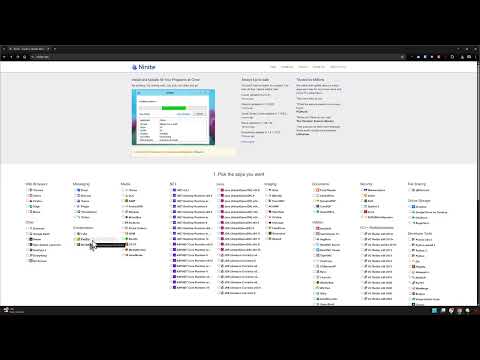
To start the process, first open your web browser and go to Ninite.com. Here, you can select from a variety of programs.

Step 2: Select Programs
On the Ninite website, you will find a list of software categories. Choose your preferred programs that you want to install. Please note that not all programs you might need are listed, but there is still a wide selection. For example, under the "Browsers" category, you can select different web browsers.
Step 3: Selection Criteria
Optimize your selection! For example, under "Utilities," you can choose tools like "Everything" for quick searches on your Windows system. Make sure to mark your preferred programs to create a personalized list.
Step 4: Generate Download Links
After selecting all the desired programs, click the "Get Your Ninite" button. Ninite will now create an installation package that includes all the software applications you selected.

Step 5: Start Program Installation
The installation package will be downloaded. Now open the file to start the download and installation of the programs. You will see that the programs are downloaded and installed quickly.

Step 6: Check Installation Status
Once the download is complete, you will find the freshly installed programs on your computer. You can start applications like “7-Zip” or “Winamp” directly. Keep in mind that depending on the program, the first launch may take a little longer, as they need to be initialized.

Step 7: Use Programs
Congratulations, you have successfully installed the programs! From now on, you can access the applications you need without much hassle. It is advisable to try out new programs to see if they meet your requirements.
Summary – Quick Program Installation on Windows with Ninite
Ninite makes installing multiple programs a breeze. By simply selecting the desired applications and downloading the installation package, you save time and effort. Trust Ninite to quickly get your Windows system into a productive state.
FAQ
What is Ninite?Ninite is an online service that allows you to download and install multiple software applications simultaneously.
How can I select the programs?You visit the Ninite website and simply check the desired programs in the various categories.
Can I save my selection?Yes, once you have selected the programs, an installation package is generated that you can download and run.
Are all programs free?Most programs on Ninite are free, but some do offer paid options.
Can I also use Ninite for installation on multiple computers?Yes, you can use the created Ninite installation package on multiple PCs.

