

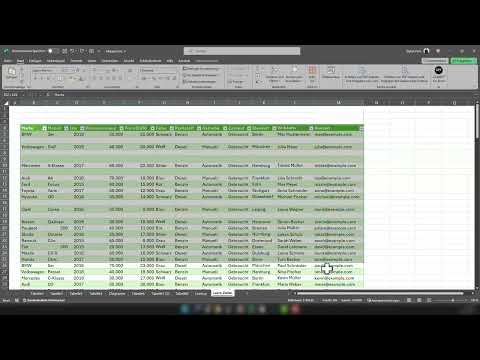
Have you ever edited an Excel table and wondered about the many empty rows that make the layout look untidy? Often, it can be very tedious to manually remove each empty row. In this tutorial, I will show you how you can quickly and effectively remove empty rows in Excel without investing a lot of time and effort.
The video is only loaded from YouTube when you play it – data (including your IP address) is then transmitted to YouTube/Google. More in the privacy policy
Key Takeaways
You will learn how to select all empty cells in a table with just a few clicks and delete them effortlessly. This will not only tidy up your table faster but also make it look more professional.
Step-by-Step Guide
To quickly remove empty rows in your Excel table, follow this simple step-by-step guide:

First, you need to select the entire table. This is very easy to do. You can either drag the entire table with the mouse or use the Ctrl + A key combination. This combination selects everything contained in your table.
Have you selected the entire table? Great! Now press the Ctrl + G combination to open the "Go To" window. Here you can search for content, and we want to select the empty cells.

In the "Go To" window, click on "Contents...". A new window will open where you can choose which content you want to search for. Check the box next to "Empty cells" and confirm with "OK". This way, you have selected all empty cells in the range.

Now you have selected all empty cells in your table.

To delete them, press the Ctrl + - (minus sign) combination. This will open a menu where you can choose what to do with the empty cells. In this case, the empty rows will be removed.

Done! You have now quickly and easily removed all empty rows in your Excel table. You will see that your table now looks much more organized and appealing.
Summary
In this guide, you have learned how to efficiently remove empty rows in Excel. The steps were simple and saved you a lot of time, allowing you to focus on the important data.
Frequently Asked Questions
How do you remove empty rows in Excel?Ctrl + Minus key
What happens if I select the wrong cells?Nothing happens, I can undo the selection with another click.
Can I use this method for other content as well?Yes, refer to the Select Content dialog.

