
Canva AI Masterclass: Practical Design with Magic Tools & AI

- From zero to a finished design: interface, brand kit, texts, images, elements, and download, step by step using a continuous Instagram example.
- Five hands-on projects to recreate: an Instagram post with a call-to-action, a YouTube thumbnail, an e-book cover, a business flyer, and an animated social media post with music.
- Canva's AI features in nine lessons: Magic Design, Magic Media, AI Photo Editor, Magic Resize and Morph, Magic Write, Magic Grab, AI Voice, and more.
- Everyday work aids: ChatGPT prompts, shortcut cheat sheets, a checklist, a branding canvas, a content planner, and a briefing template as PDFs, plus a course roadmap with checkboxes for ticking things off.
Open Canva, start the first lesson, and create your next design right along with it. The resources are already ready for you.
34 Videos, 227 minutes
Welcome & Course Overview
Welcome to the course: This is what you'll learn in the Canva AI Masterclass
4 minMarco Gundlach welcomes you to the Canva AI Masterclass and gives you an overview of what to expect: from the interface and first designs to practical projects and the AI features of Magic Studio. That way, you'll know from the start where to find which topic. Running time: 4:00 min.
What is Canva and why is it so powerful?
4 minA tour of Canva: templates for almost any purpose, an editor where you swap out text and images with a click, and the "Resize" function, which turns one design into variants for other formats. There's also a first look at the AI tools. Running time: 4:03 min.
Canva vs. Canva Pro: Is the Upgrade Worth It?
12 minFree or Pro? Marco compares the Canva Free, Pro, Teams, and Canva for Enterprise subscriptions and uses examples to show what Pro offers in addition, such as the Background Remover and the Brand Kit. Afterward, you'll be able to judge whether the upgrade is worth it for you. Running time: 12:23 min.
Understanding the Canva Interface
Canva Dashboard & Navigation: Getting Started
10 minYou'll get to know the Canva home page: the search "What will you design today?", the filters by category and style, the Canva AI area, the app overview, and the "Create a design" dialog with custom dimensions. After that, you'll be able to find your way around Canva with confidence. Running time: 10:14 min.
Templates, Elements, Uploads & Projects in Canva at a Glance
5 minWhere is everything? This lesson guides you through the templates by category, graphics and photos, the creators' pages, the Projects section with folders and designs, as well as your uploads. That way, you'll have all the building blocks for your designs at your fingertips. Duration: 5:00 min.
Brand Kit in Canva: Logos, Colors & Fonts for Your Business
6 minIn the brand kit, you store logos, color palettes, and fonts for titles, subtitles, and body text in one place, along with photos, graphics, and icons. Marco creates a sample brand kit and shows how you can set up separate palettes for web and print, for example. This way, your designs look consistent. Running time: 6:28 min.
Create Your First Design – Step by Step
Start Canva: Create a new design (Instagram example)
3 minYour first own design: You search for templates for an Instagram post, create a new design in the appropriate format, and adopt a template as a starting point. The next three lessons build on this post. Duration: 3:01 min.
Customize text, images, and colors in Canva
7 minNow the template becomes your design: You change texts and fonts, swap the photo for a different image from the Canva library, and adjust colors and transparency. Step by step, the template turns into your own Instagram post. Duration: 6:34 min.
Insert elements and shapes in Canva
6 minWith elements, you give your design the finishing touch: Marco inserts graphics such as waveforms, places a photo in a frame, crops it, and shows you where to find grids, mockups, and tables. Runtime: 5:39 min.
Save & download Canva design (PDF, PNG, video)
6 minDesign finished, now it's time to save: you'll get to know the download formats, from JPG and PNG to PDF Standard and PDF Print, as well as SVG, MP4 video, GIF, and PPTX, and learn which format is meant for what. You'll also see how to handle multi-page designs. Running time: 5:48 min.
Hands-on projects – designs you can use right away
Practical project: Create an Instagram post with a call-to-action
10 minIn the first practical project, an Instagram post is created for a spring sale with a discount notice, a "Jetzt kaufen" button, and a download offer as a call-to-action. Marco changes the background, uses fonts deliberately, and applies the brand kit. Running time: 9:34 min.
Practical Project: Designing a YouTube Thumbnail with a Face & Text Box
10 minA thumbnail that stands out: starting from a template, you swap the face for a cut-out photo with a strong facial expression, write a punchy headline in large lettering, and add arrows, flames, and a starburst as eye-catchers. Running time: 9:48 min.
Practical Project: Design an E-Book Cover or Workbook Page in Canva
10 minYou design an A4-format cover with your own photo and a multi-page e-book based on a template, including a text page for your workbook. In addition, Marco shows you where to find suitable e-book templates. Running time: 9:47 min.
Practical project: Business flyer or A4 ad in 10 minutes
8 minQuickly to the finished flyer: Using a special promotion for a hair salon as an example, Marco adapts an A4 template, changes the text and price, and adds contact icons as well as a round button for booking appointments. Running time: 8:02 min.
Practical Project: Animated Social Media Post with Music
7 minA post that moves: You create a vertical smartphone video, animate text, add royalty-free music from the Canva library underneath, and place transitions on the timeline. Running time: 6:48 min.
Advanced Canva tricks
Cutting out images & removing backgrounds in Canva
4 minBackground gone, subject free: With the Background Remover, Marco isolates an animal and a portrait from their backgrounds and combines both on a new background. With shadow and outline effects, the cutouts then look harmonious. Running time: 4:11 min.
Smart Mockups in Canva: Presenting Products Professionally
4 minMockups show your designs in use: Marco places a motif into a smartphone mockup, works with the mockup templates, and shows you the categories, from smartphones to print to apparel. Running time: 4:18 min.
Canva Docs & Presentations at a Glance
7 minCanva can do more than graphics: You write a document with headings and highlights in Canva Docs, use a Doc template, and build a multi-page presentation with animations from a presentation template. Runtime: 7:08 min.
Video & Reel Creation with Canva
7 minReels and short videos directly in Canva: Starting from a reel template, Marco adds text, selects music, animates individual elements, and works with the timeline until the video is finished in portrait format. Running time: 7:13 min.
The AI features in Canva
Magic Studio & Magic Design: AI Design via Prompt
6 minWith Magic Studio and Canva AI, designs are created from a text input: Marco describes, for example, an Instagram post for a gym or a flyer for a summer event, and shows which drafts and presentations the AI creates from it. Running time: 5:35 min.
Magic Media: Text-to-Image & Text-to-Video in Canva
9 minMagic Media turns descriptions into images and short videos. You see how Marco creates images in different styles, such as an astronaut or a futuristic city at sunset, and generates video clips of waves on a rocky coast and an autumn forest from a description. Running time: 8:54 min.
AI Photo Editor in Canva: Magic Edit, Magic Expand & Magic Eraser
8 minRetouching with a brush and text input: With Magic Eraser you remove distracting parts of an image, with Magic Edit you change selected areas via description, such as their color, and Magic Expand extends a photo beyond its edge. Running time: 7:58 min.
Magic Resize, Morph & Animate: Scaling & Animating Designs
7 minOne design, many formats: With Magic Resize, Marco transfers a post into another format, with Magic Morph he turns text into effects like balloon or wood looks, and with animations he brings movement into the layout. Running time: 6:46 min.
Magic Write: Create texts with AI directly in Canva
7 minMagic Write is the text assistant in Canva: You have a table created with ideas for winning back lost customers, have texts continued, and take a look at the questions and answers about Magic Write. Running time: 7:13 min.
Free AI Background Generator: AI backgrounds for product photos
3 minProduct photos without a photo studio: With the AI Background Generator, Marco places a bottle in a new scene, selects a suitable setting, and transfers the result into his design. Running time: 3:25 min.
Magic Grab: Extracting and rearranging objects from photos
7 minWith Magic Grab, you can separate objects from a photo and edit them like individual elements: Marco drags a burger out of the image onto a plate and continues working on a group photo with Magic Grab and Magic Eraser. Running time: 6:32 min.
AI Voice & Video Highlights: AI voices and automatic clips
8 minTwo AI helpers for videos: With AI Voice, you can voice texts with AI voices, including in German, and with Highlights, Canva identifies the most striking moments of a longer video and suggests them as individual clips. Running time: 7:48 min.
Canva Sheets, Charts & Code for Interactive Designs
7 minData and code in design: You create a table in Canva Sheets, learn about Magic Charts for diagrams, and use the Code feature to embed formatted code snippets in your designs. Running time: 7:09 min.
Using Canva efficiently in everyday business
Duplicate designs & create variants for social media
6 minDesign once, use often: Marco duplicates a post, creates variants from it, for example for summer and winter, and transfers the design to a Facebook post using "Resize." Running time: 5:48 min.
Team Function & Collaboration in Canva
8 minWhat does Canva Teams offer? Marco walks through the collaboration features: team management, shared brand kits, color control, workflows with comments, and a comparison of the Free, Pro, and Teams plans. Running time: 7:35 min.
Content planning & organization with folders & naming conventions
7 minOrganization saves time: you create folders, name designs according to a fixed scheme, and plan content with a content calendar template on the whiteboard. A matching worksheet on the organization and file naming system is also available. Running time: 7:26 min.
Exporting & Publishing Canva Designs
5 minMarco shows the download settings in detail: size, compression, and transparent background for PNG, PDF print with crop marks and bleed, as well as exporting as an MP4 video. Running time: 4:53 min.
Bonus & Conclusion
Canva tips for your workflow: Speed Hacks
6 minWorking faster with Canva: Marco shares his speed hacks, from the brand kit that applies colors and fonts to all pages, to downloading selected pages, to the most important keyboard shortcuts. Running time: 6:21 min.
Conclusion: How to Use Canva Cleverly in Your Everyday Life
4 minTo conclude, Marco summarizes how you can use Canva sensibly in everyday life, and shows with an example how you can create a document with ideas for Instagram hooks in just a few steps using Magic Write. Running time: 3:33 min.
Working materials (PDF)


You might also like
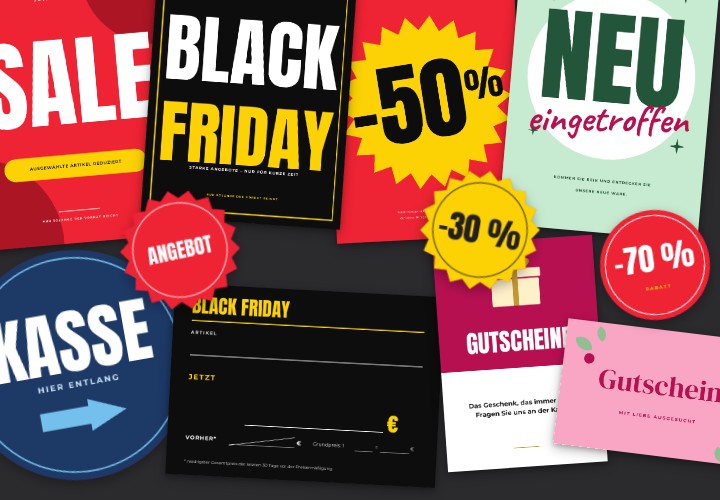
Posters A4–A1, percent stickers, price tags, wobblers, displays, door signs, floor stickers, gift voucher cards and plotter lettering – PDF, PPTX, DOCX, SVG, DXF
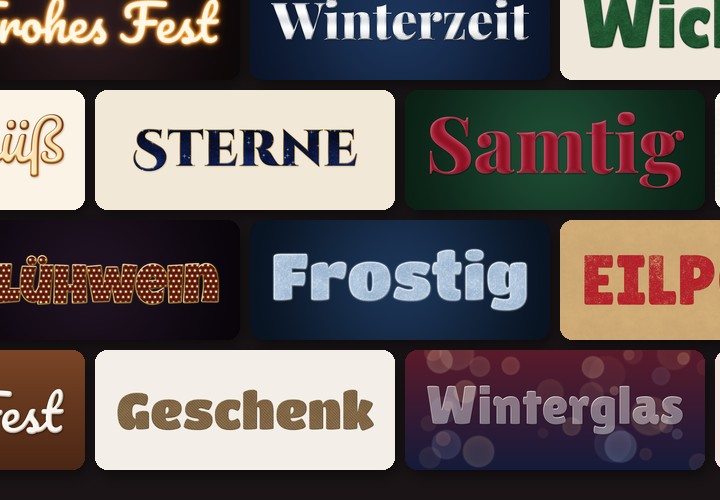
6 sets of 6 styles each as ASL for Adobe Photoshop, with embedded patterns, PAT file, previews, and German instructions
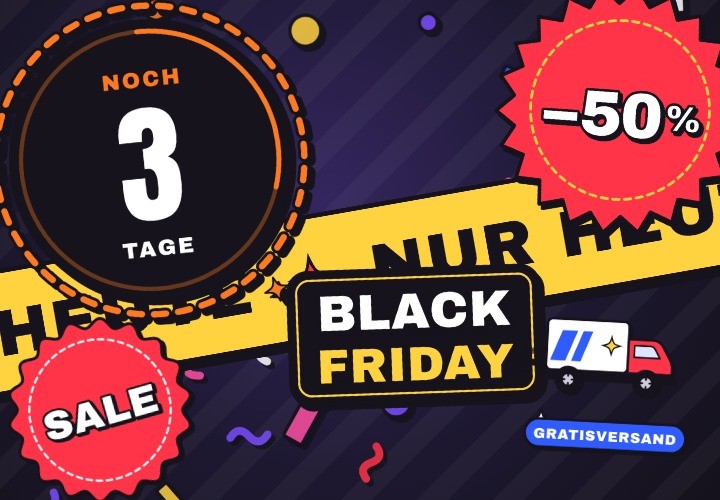
81 animations in 11 sets: countdowns, percent bursts, tickers, stickers, and newsletter GIFs – as MOV with alpha channel, WebM, MP4, and GIF
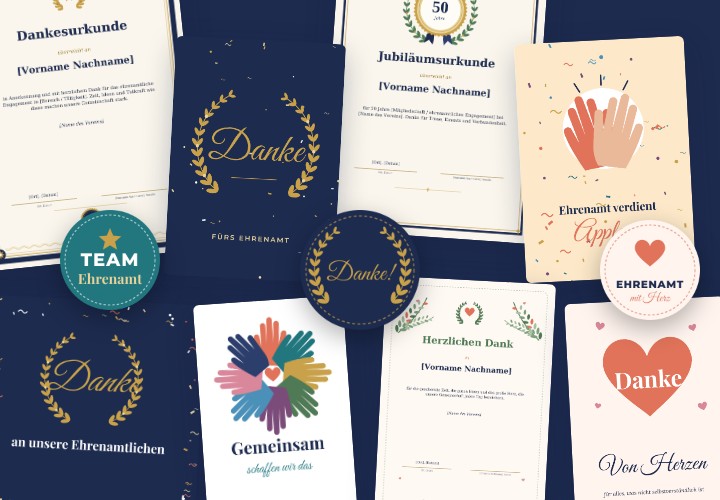
9 individual items with 32 certificates, 6 card designs, mail merge, presentation, text bank, buttons, and social media templates – DOCX, PPTX, XLSX, CSV, PDF, and PNG
Comment now „Canva AI Masterclass: Practical Design with Magic Tools & AI“