
Advertising on websites can often be annoying and significantly impair the user experience. If you're looking for a straightforward and effective solution to block ads on all your devices, including Windows, Android, and your router, then AdGuard DNS is just the right choice for you. This guide explains how to quickly set up AdGuard DNS while also benefiting from the fact that ads are not just hidden in browsers but also in apps.
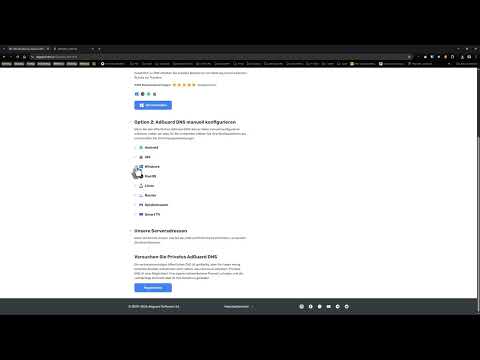
The video is only loaded from YouTube when you play it – data (including your IP address) is then transmitted to YouTube/Google. More in the privacy policy
Key takeaways
- AdGuard DNS blocks ads on various devices without the need to install additional software.
- The setup is simple and can be done directly in the router, allowing all connected devices to benefit.
- AdGuard also offers a variant for parental controls to filter inappropriate content.
Step-by-Step Guide
Step 1: Find AdGuard DNS
The first task is to find the AdGuard DNS servers. You can view the information on the AdGuard website. Go to the AdGuard page and navigate to the DNS product information. Here you have the option to choose from different DNS servers based on your requirements.

Step 2: Set up AdGuard DNS for Android
For Android devices, you can simply access the device settings. Look for "private DNS" and enter the DNS URLs provided by AdGuard. This will filter ads on your Android device, both in browsers and in apps.
Step 3: Configure AdGuard DNS for Windows
Next, switch to your Windows computer. Open the network connection settings by selecting the network adapter. In the properties of the network adapter, you can directly insert AdGuard's DNS server addresses. Make sure to set both the primary and the alternative DNS addresses.

Step 4: Configure Router
A particularly advantageous solution is to configure AdGuard DNS in your router. This will filter all network traffic from your devices through AdGuard. Log in to your router (e.g., Fritzbox) and go to the internet access credentials. Here you can enter the AdGuard DNS server addresses as described before.

Step 5: Test the Setup
After setting up the DNS servers, you should check whether ads are indeed being blocked. To do this, visit a website you usually see ads on. If everything is configured correctly, the intrusive ads should no longer be displayed.
Summary – Effectively Remove Ads on Windows with AdGuard DNS
You have now learned how to set up AdGuard DNS on both your Android device and your Windows computer and router to effectively block ads. This method not only enhances your browsing experience but also ensures that all internet usage in your network is ad-free.
FAQ
What is AdGuard DNS?AdGuard DNS is a service that blocks ads and tracking by filtering DNS queries.
How will I be notified that the setup was successful?Visit an ad-supported website after the setup to see if the ads have been blocked.
Can I use AdGuard DNS on multiple devices?Yes, you can use AdGuard DNS on all devices in your network, especially effectively via the router.
Are features missing when I use AdGuard DNS?Generally, you get a simpler and faster experience without ads, but some specific services may be blocked.

