
If your Windows 11 PC is no longer running smoothly and you are struggling with issues like blue screens or stuttering updates, there are ways to repair your system without having to set everything up anew. There are two main ways to reset or repair your computer. In this guide, you will learn how to reset your PC simply while keeping your important files and programs.
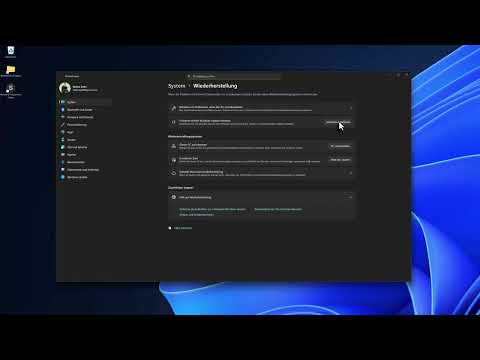
The video is only loaded from YouTube when you play it – data (including your IP address) is then transmitted to YouTube/Google. More in the privacy policy
Key insights
- There are two ways to reset Windows 11: "Reset this PC" and "Repair Update".
- With the "Reset this PC" option, you can choose whether to keep your personal data or reinstall everything.
- The "Repair Update" option attempts to repair the operating system without requiring you to reinstall your programs.
Step-by-step guide
1. Start resetting the PC
To begin the process, you need to enter “Reset this PC” in the Windows search. This will take you directly to the right menu.

In this menu, you will then have the choice between two different options that can help you reset your PC.
2. Understanding the options in the “Reset this PC” menu
Here, the first option is offered to you, which is “Reset this PC”. This is the standard method that you may be familiar with if you have previously worked with Windows 8 or 10. With this, you perform a kind of radical cure that removes almost all installed programs.

The only exception is that you have the option to keep your personal files. This means your documents and pictures will remain, but you will need to reinstall all installed applications.
3. Using the “Remove everything” option
If you are sure you no longer need any personal data, you can also choose the option that removes everything. This choice makes sense if you want to sell your PC or desire a truly fresh start.

This option will reset the system to nearly its factory state. All programs and personal files will be lost, so it is important to create a backup of your important data beforehand.
4. Performing a Repair Update
The second option available to you is the “Repair Update”. This method attempts to repair Windows without removing your installed programs.
A new version of Windows will be installed while keeping your programs and settings intact. This is especially useful if your system is no longer functioning properly, but you don't feel like or have the time to reinstall everything.
5. Choice of installation source
If you have decided on one of the two options, you will see whether you want to perform a local reinstall or download from the cloud. The cloud option is the better choice in most cases.
This installation uses the latest version of Windows directly from the cloud, ensuring that you receive the best and latest files.
6. Creating a backup of your data
No matter which method you choose, it is wise to perform a backup of your important files. Even though the Repair Update is very reliable, something can always go wrong.
A backup is not a weakness, but a sign of foresight and intelligence.
Summary – Resetting Windows 11 PC and keeping programs
In this guide, you have received sufficient information to effectively reset or repair your Windows 11 PC effectively without the hassle of having to reinstall all programs.
FAQ
How do I start resetting Windows 11?Type “Reset this PC” in the Windows search and select the appropriate option.
What happens when I reset my PC?Either all programs are removed while personal files remain, or the system is completely reinstalled.
How can I back up my data?Use external storage media or cloud services to create a copy of your important files.
Which option should I choose to keep my programs?Select the “Repair Update” option to repair Windows while keeping your programs and settings intact.
Why is backing up my data important?A backup protects against data loss in case of unexpected problems during the reset or repair.

