

Printing several worksheets on one page is an excellent way to save paper and present your data in a clear manner. Excel offers various options to customize the print output effectively. In this guide, I will explain how you can effectively use the print settings to create more space on each page.
The video is only loaded from YouTube when you play it – data (including your IP address) is then transmitted to YouTube/Google. More in the privacy policy
Main Takeaways
- You can adjust the page margins to gain more space.
- Excel allows you to adjust the print scaling for different layouts.
- Custom scaling options allow you to tailor the print output according to your specific requirements.
Step-by-Step Guide
1. Open the Print Setup
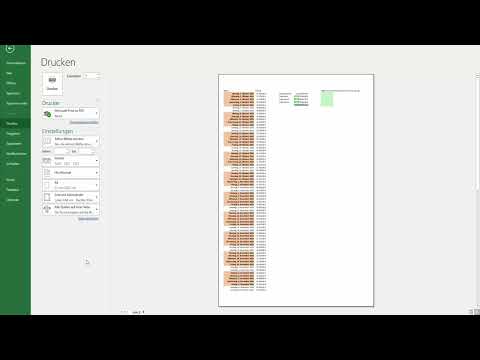
Start by opening your Excel file. Once you have everything prepared, go to "File" and then to "Print." Here you will see the print preview, which shows you how your document currently looks.

2. Adjust Page Margins
In the print preview, you have the option to change the margins. Click on the page margins setting and choose "narrow margins." This will give you more space on the page, which is particularly useful when printing multiple columns.

3. Select Print Scaling
Now let's look at scaling. By default, Excel will try to distribute the content to the print page without specifying a scaling. In the print preview, you can see that this already brings you a high number of pages. To change this, go to the scaling options and choose "Fit Sheet on One Page." This will shrink your entire content onto a single page, which is sufficient for many applications.

4. Display All Columns on One Page
If you only want to adjust the columns and not the rows, there is an option for that too. Choose the setting "Display All Columns on One Page." This can be useful when your data is more column-based and the rows are not as important.

5. Display All Rows on One Page
A similar setting exists for rows. By choosing "Display All Rows on One Page," Excel will try to make all rows as small as possible to fit on one page.

6. Customize Scaling Options
For more specific requirements, you can also customize scaling options. Here, you can specify the width and height dimensions, such as "four pages wide and one page tall" or vice versa.

7. Finalize the Print Settings
After making all desired adjustments, review the print preview again to ensure everything meets your expectations. If everything looks good, you can click "Print," and your document will be output according to the settings on the selected printer.

Summary
Printing multiple worksheets on one page in Excel is a simple process that can help you save resources and make your data more organized. By adjusting the margins, selecting the right scaling options, and using the print preview, you can optimize your print outputs.
Frequently Asked Questions
Can I define the page margins myself?Yes, you can customize the page margins according to your needs to create more space on the page.
How can I find out if my printer supports duplex printing?Check the printer settings or your printer's manual to see if it supports duplex printing.
Why is my document still printing on multiple pages?Make sure you have selected the correct scaling options to fit the contents on one page.

