
AI in Photoshop: Next-level image editing with artificial intelligence

- AI in Photoshop: How the new tools speed up your image editing
- Generative and content-based filling, expand images, replace sky
- Neural filters, font recognition, cropping motifs, scaling images and more
- Bonus: Photoshop action to sharpen images with one click
- AI explained in practice using examples - a two-hour video tutorial by Stefan Petri
Start the tutorial and set your own Photoshop skills to AI. Good for your workflow - and important for staying on the ball in image editing!
10 Videos, 162 minutes
Apply AI in Photoshop
AI in Photoshop: 1.1 | Intro
Welcome to this Photoshop training course, in which I will introduce you to all the AI tools in the image editing program. I'll explain exactly what it's all about in the intro to the course.
AI in Photoshop: 1.2 | Generative fill and expansion
Explore a limitless range of creative options with groundbreaking features like Generative Fill and Generative Expand, powered by Adobe Firefly's advanced AI technology. Here I introduce both features (which create entirely new images with one click or insert certain new objects perfectly into the image) including the new Remove tool, which removes distracting elements from the image with one click.
AI in Photoshop: 1.3 | Neural Filters
With the Neural Filters you can, for example, make a person smile with just a few clicks, upscale images without losing quality and much more. Watch this video to find out how best to use the filters.
AI in Photoshop: 1.4 | Content-based fill vs. generative fill
For many years, the content-based fill was the best way to quickly remove objects from the image. It still works well today, but it works better with the generative fill or with the brand new remove tool, which uses the AI even more intensively. In this video, I also show you a few important tips on how to use the new help toolbar, which is always displayed at the bottom. Last but not least, I want to show you how much fun it is to work with the generative fill, because it is even more powerful than it looks at first. I will also give you tips on how to remove the background or select motifs with just one click.
AI in Photoshop: 1.5 | Swap sky, scaling, font recognition, rounding pencil
In this really crisp video, I show you four functions that are only as good with AI support: Swap Sky, Round Drawing Pen Tool, Recognize Font, Get Details 2.0 (better scaling).
AI for background removal
AI in Photoshop: 2.1 | Easy to crop hair - but sometimes needs help
Cutting out hair in Photoshop is the supreme discipline. And Photoshop has now mastered this really well. Unfortunately, there are still problems today, but these can be solved very quickly with a few tricks. This video is a must for anyone who wants to crop image elements in Photoshop.
AI in Photoshop: 2.2 | Cropping a tree with and without the help of AI
It's actually quite easy to crop trees in Photoshop, but the leaves and spaces between them are a bit of a challenge. But with my tips you can do it in seconds! And if you just want to replace the sky, you can even do it with two clicks.
Remove disturbing objects using artificial intelligence
AI in Photoshop: 3 | Removing distracting objects - Photoshop shows what is currently possible with new AI tools
Thanks to the brand new AI functions within Photoshop (some of which are only included in the beta version), removing objects or adding new objects has become child's play. Even creating a landscape image from a portrait image now only requires a few mouse clicks. Here I'll show you everything you need to know.
AI in Photoshop: 3 | Removing distracting objects - Photoshop shows what is currently possible with new AI tools
18 min OpenRemove noise with AI in Photoshop
AI in Photoshop: 4 | Reduce noise in photos
Removing noise is actually quite simple if you know how. In this video, I'll show you two approaches on how it works in Photoshop and how you can then remove noise in all your photos with just a few clicks. You'll really learn something here!
Sharpen images with AI
AI in Photoshop: 5 | Sharpening images without AI - 4 tools for sharper photos
Sharpening photos in Adobe Photoshop is pretty simple. However, there are a few things you should bear in mind to ensure that your photos are not totally noisy as a result of the sharpening process. I'll show you 4 approaches for sharper photos here. The project file also includes an action that will give you sharp photos with just one click.
Examples of use
-
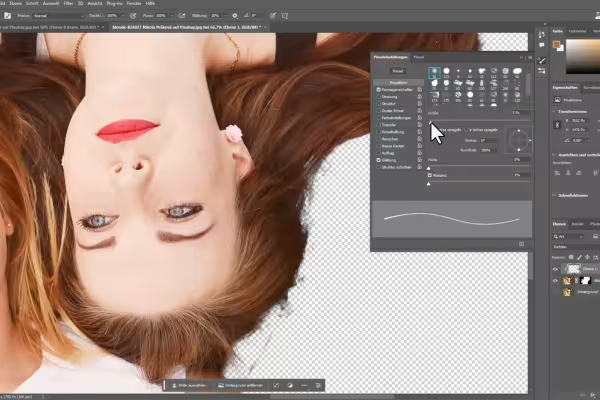 Get to know all the AI functions in Photoshop and save an enormous amount of time when editing images.
 -
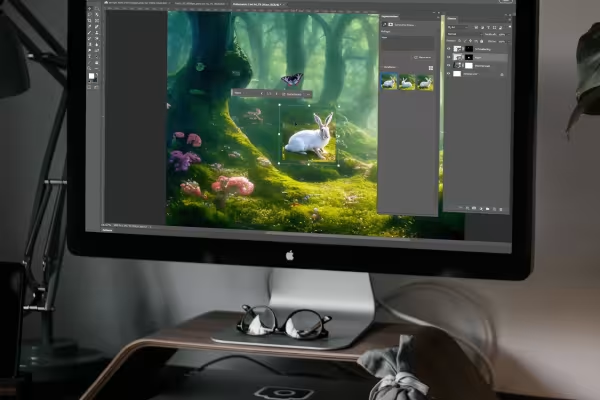 Create new image elements with AI in Photoshop in just a few clicks.
 -
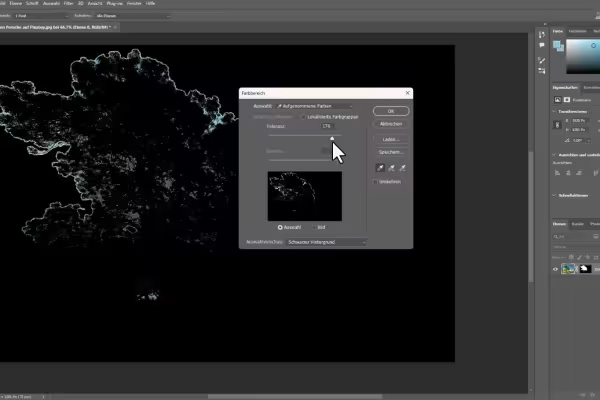 Get tips for perfectly cropping even difficult objects like this heavily branched tree.
 -
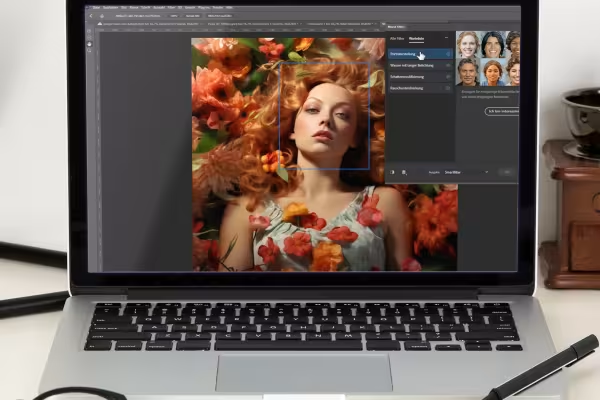 Make people smile in photos with the help of AI.
 -
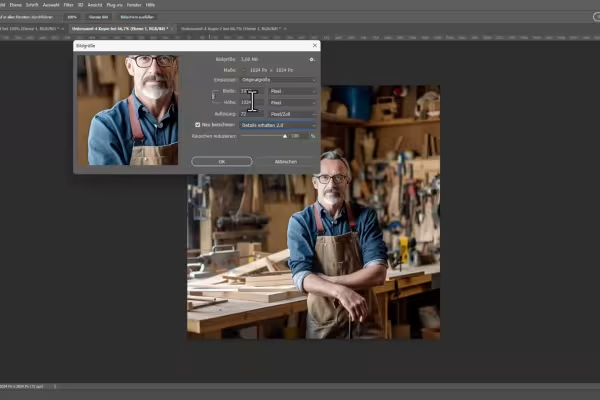 Sharpen and scale images - recognize fonts and draw perfect shapes - all easily possible with the AI in Photoshop!
You might also like

Not just for nerds: Your relaxed introduction to the world of Gemini!
AI builds bots, you are slacking off.

The Sora & ChatGPT Master Course: Your Guide to AI Content Creation

Answers instead of searching. That's how research works today.
Comment now „AI in Photoshop: Next-level image editing with artificial intelligence“