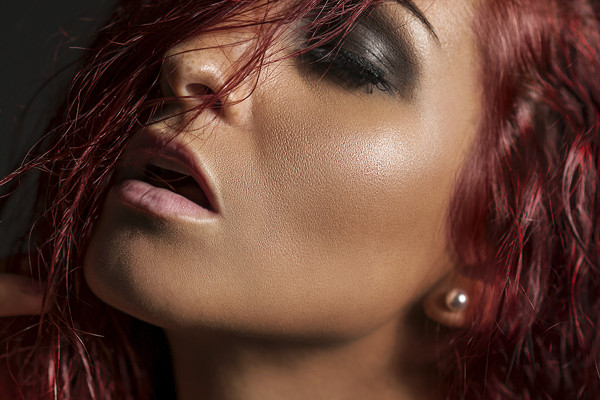
When retouching portraits for beauty, you use the same techniques over and over again. Therefore, use these 22 macros for frequency separation, dodge and burn or applying blush in the future, which partially automate your processes. All the layers you need to edit skin, eyes, mouth and hair are prepared - and you'll save a huge amount of time!
Open your digital beauty case and concentrate only on the portrait areas you want to retouch.
Prepare layers, retouch skin - prepare layers, add gloss to lips - prepare layers, edit the iris ... You can already see what you can easily do without when it comes to beauty retouching: preparing the necessary layers. This task is now taken over by the 22 retouching macros for Affinity Photo!
Of course, every portrait is different - a skin blemish here, too little plasticity there and an extremely blotchy, reddened skin there. You use your tools accordingly, sometimes the paintbrush, sometimes the dodge brush, sometimes the clone brush. But no matter which retouching technique you choose, you always have to create special layers. This can take seconds or even minutes - but can quickly add up to hours if you have several photos.
This is exactly where our retouching macros come in: Do you want to perform a frequency separation? Then load the corresponding macro and get started straight away. Or would you like to recolor the lips? Start the macro and apply pink, brown, purple, red or pink. With the help of the opacity of the tools you use and the layers, you can of course decide for yourself how strong the retouching effect will be.
Beauty retouching in Affinity Photo - your faster way from the original image to the retouched portrait with a total of 22 macros from skin and hair to mouth and eyes:
After importing, click on the desired macro. Affinity Photo creates the layers and masks automatically. For all macros that affect the skin, eyes, mouth and hair, paint with a soft, white paintbrush on the black-filled mask. This is how you define the areas in which the beauty retouching should take effect . Tip: Pay attention to the settings of the paintbrush and select, for example, a low opacity and hardness, a low flow and distance for a rather soft retouch.
The macro for frequency separation creates two layers. You edit the structures on the high frequency layer and the colors of your image on the low frequency layer. Ideal for retouching the skin of people, for example. With the help of two macros for Dodge and Burn , you can give your subjects a more three-dimensional appearance. The manual macro prepares layers on which you can brighten and darken the desired image areas yourself using the dodge and burn function. The automatic macro immediately provides you with a ready-made dodge-and-burn layer. Finally, you can bring out the details and emphasize the structures of your image. Start the download now!
Two-tone and luminous effects
Simply Blender beautiful!
Real mood makers
What kind of face are you making?
For lettering and graphic shapes
From black and white to intense color
Pixel look meets knitwear style
You'll make big eyes!