
You have already made your first MIDIrecordings in LogicPro X and now want to adjust the volume as well as the dynamics of these recordings? In this tutorial, I will show you how to effectively change the MIDI Velocity, that is, the velocity of your notes. This is a crucial step in giving your compositions more expression and emotional depth. Let’s dive directly into the individual steps.
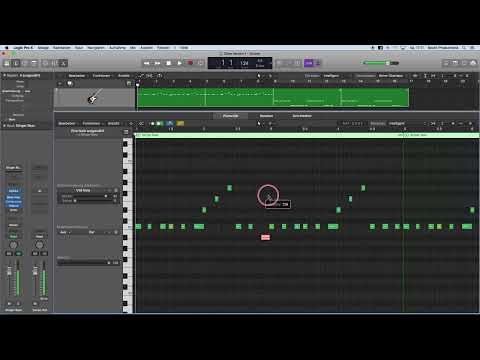
The video is only loaded from YouTube when you play it – data (including your IP address) is then transmitted to YouTube/Google. More in the privacy policy
Main Insights
- The velocity of MIDI notes can easily be adjusted using a tool in Logic Pro X.
- Different colors indicate differences in the volume of the notes.
- With a simple command, you can change the velocity of several notes at once.
Step-by-Step Guide
Open the Piano Roll
To start adjusting the velocity, first open the Piano Roll. This provides you with a visual representation of your MIDI notes and allows for easier editing.

Trust the Color Differentiation
Note that the volumes are color-coded. Blue notes represent quiet sounds, while red notes stand for very loud sounds. Between these two extremes, you will find yellow and green notes that manifest intermediate volumes. This gives you a quick overview of the dynamics of your MIDI track.

Use the Velocity Tool
To adjust the velocity of a note, select the Velocity Tool from the toolbox. You can either do this directly from the toolbox or add it as a secondary tool to your tools, making its use even more convenient. Hold down the Command key to display the tool.

Select the Note to Adjust
Click on the specific MIDI note whose velocity you want to adjust. You have the option to increase the velocity up to a maximum of 127 or decrease it, allowing you to shape the dynamics within your MIDI track as you see fit.

Adjust the Velocity
If you have a series of notes with an average velocity of, for example, 102 that you want to make quieter, hold down the Shift key and click on the notes you want to adjust. Once you have selected the notes, release the Shift key and reduce the volume using the Velocity Tool. This allows for precise adjustment to the other notes.

Synchronize Settings
When you reduce the velocity of one note, this will also apply to all selected notes. This makes group editing extremely efficient and practical. Make sure that all changes are harmonious and balanced.

Summary – Getting Started with Music Production in Logic Pro X: Efficiently Adjusting MIDI Velocity
With the steps described above, you will have the basic tools and techniques to shape the velocity of your MIDI notes in Logic Pro X according to your desires. Through targeted adjustments, you can significantly enhance the dynamics of your music and add more expression.
FAQ
How do I adjust the velocity of multiple notes at once?You just need to select the desired notes and then reduce the velocity for one note; the other notes will automatically adjust.
Is there a maximum velocity for MIDI notes in Logic Pro X?Yes, the maximum velocity is 127.
Can I change the colors of the notes in the Piano Roll?In Logic Pro X, there are standardized colors for the notes that cannot be changed.
Can I also set MIDI velocity using a MIDI controller?Yes, you can configure your MIDI controller to adjust the velocity directly while playing.


