
Music production can be a complex world, but with the right tools, it's possible to turn your ideas into high-quality tracks. LogicPro X offers a variety of editing featuresthat can make editing easier for you. In this guide, I will show you how to effectively edit the vocal tracksof your recordings and remove unwanted noises. Let's dive straight into the material!
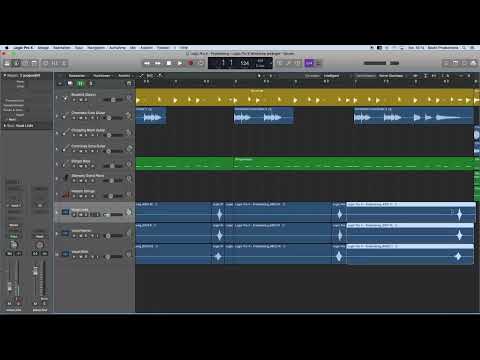
The video is only loaded from YouTube when you play it – data (including your IP address) is then transmitted to YouTube/Google. More in the privacy policy
Key Insights
- With precise editing, you can remove unwanted noises from your recordings.
- Activating the click zone for the fade tool speeds up the editing process.
- Color-coding your tracks provides a better overview.
Step-by-Step Guide
1. Recording and Initial Review of Tracks
Start by recording your vocal tracks. After you have recorded your tracks, listen to them and identify areas that were not used during the recording. These unused parts should be removed to avoid unnecessary noise. In this step, keep an eye out for areas that have only breathing sounds or disturbances.

2. Activating the Click Zone for the Fade Tool
Essential for your editing is activating the click zone for the fade tool. You can do this through the “Settings” menu in Logic Pro X. Go to “General” and then “Editing.” Here you will find the option “Click Zones for Fade Tool.” Activating this feature will help you create volume fades efficiently, which will be important in the following steps.

3. Zooming for Accurate Editing
To get a better picture when cutting your audio regions, it is helpful to zoom in. Hold down the ALT key and use the mouse scroll wheel for vertical zooming. For horizontal zooming, press ALT and Command while using the scroll wheel. This allows for more precise cuts in your audio tracks.

4. Cutting the Region
Select the regions you want to cut out. Hold down the Command key to activate the cutting tool. Drag with the left mouse button over the three regions you want to edit. It is important not to cut too close to the audio track to avoid pops. Make sure to thoroughly remove the unwanted areas.

5. Deleting Unwanted Parts
Mark the cut sections and delete them using the Backspace key. You should only keep the regions that actually contain useful signals. It is beneficial to tidy up the tracks now by ensuring that only the necessary parts of the vocal track remain.

6. Solo and Checking the Tracks
To hear the edited tracks in isolation, you can use the solo function. Drag the solo icon to put multiple tracks in solo mode at the same time. Listen to the tracks to ensure that everything sounds clean. Make sure that there are no more breathing noises. If there are, you should adjust the volume using a fade tool.

7. Applying the Fade Tool
Go to the upper corner of a region and drag the fade tool to gently raise and lower the volume. This prevents an abrupt end to the tracks and helps create a seamless listening experience. Make sure to use fades at both ends of the regions to eliminate unwanted noises.

8. Copying and Adjusting the Regions
If you want to use the edited parts in other sections of the tracks, you can copy the region. Highlight it and use Command+C to copy it. Move the cursor to the desired location and press Command+V to paste the region. Make sure to align the position accurately.

9. Creating Order in the Project
To make your tracks even clearer, you should assign colors to them. Use the color selection to mark instrument groups. For example, drums could be yellow, bass brown, guitars red, and vocals pink. This greatly helps you in mixing later on.

10. Final Review and Export
Before you export the project, listen to it one more time. Make sure that all unwanted noises have been removed and that the overall sound is harmonious. If everything seems fine, prepare the project for export.
Summary – Introduction to Music Production with Logic Pro X: 4 Editing
You have now learned how to effectively edit your vocal tracks with Logic Pro X. With precise cuts, clever use of the fade tool, and color-coding your tracks, you will achieve clean and appealing results.
FAQ
How do I activate the click zone for the fade tool?Go to “Settings”, then to “General”, then to “Editing”, and activate “Click Zones for Fade Tool”.
How can I zoom faster in Logic Pro X?Hold ALT and use the mouse scroll wheel for vertical zooming, or ALT and Command for horizontal zooming.
How do I delete unwanted parts from my track?Select the unwanted parts and press the Backspace key to delete them.
How do I insert fades into my tracks?Drag the fade tool into the upper corner of a region and adjust the volume to create fades.
How do I color-code my tracks?Use the color selection in Logic Pro X to assign different colors to the regions to make them clearer.


