
The sonic design of music is a complex art where effectsplay a central role. You can not only improve the sound of your tracks with effects, but also set creative accents that give your productions the necessary polish. In this tutorial, I will show you how to work effectively with insert and send effects in LogicPro X.
The video is only loaded from YouTube when you play it – data (including your IP address) is then transmitted to YouTube/Google. More in the privacy policy
Key Findings
- Distinction between insert and send effects
- Application of the equalizer for sound processing
- Creation and control of reverb effects via send effects
- Efficient use of effects for multiple tracks
Step-by-Step Guide
1. Introduction to Effects
When working with Logic Pro X, it is important to understand the different types of effects. Insert effects are applied directly to the signal, while send effects allow you to share a single effect across multiple tracks. This forms the basis for your sound processing.

2. Loading Insert Effects
To add an insert effect, open the mixer view by pressing the “X” key. Here, you will already see some effects that you can apply to your tracks. Through the Audio FX section, you can select and apply different effects, such as equalizers and compressors.

3. Using the Equalizer
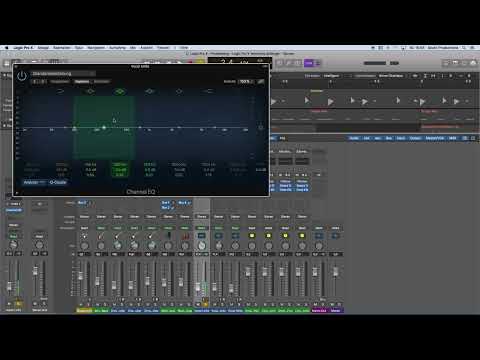
Load the equalizer onto a track by clicking on the Audio FX section in the inspector. Then select the equalizer from the list of effects. Once the effect window opens, you can filter out low-frequency components from your vocal tracks while simultaneously adding more brightness.

4. Copying Effects
Once you have set an effect on one track, you can easily copy it to other tracks. Hold down the “Alt” key and drag the effect in the mixer to the desired track. Alternatively, you can also copy the effect directly from the inspector and paste it onto another track.

5. Setting Up Send Effects
Send effects are ideal when you do not want to apply an effect 100% to a track. Instead, you mix the effect in subtly. To create a send effect, click on a free bus in the mixer and load the desired effect via the Audio FX section, for example, a reverb effect.

6. Adjusting the Reverb Effect
Open the Space Designer as a reverb effect and select a preset. Make sure to adjust the effect amount in the new track with the bus according to your needs. Experiment with different settings to find the perfect sound for your tracks.

7. Fine-Tuning the Effect
Now it should be possible to apply the reverb effect. You can use the fader in the mixer to control how much of the effect is sent to the individual tracks. This technique allows you to shape sounds dynamically and in balance.

8. Adding Additional Effects
After successfully implementing the reverb effect, you can also add other effects, such as delays or modulation effects, via additional send buses. Make sure to make the rightsettings for each effect so that they are harmoniously integrated into your overall sound.

Summary – Introduction to Music Production with Logic Pro X: Using Effects Correctly
In this tutorial, you learned how to effectively apply both insert and send effects in Logic Pro X. The right combination of these effects can give your music project the necessary depth and liveliness. Experiment with the various options and find your own sound!
FAQ
Why should I use send effects?Send effects allow you to use the same effect on multiple tracks without having to process each track individually.
How do I use an equalizer effectively?Use the equalizer to remove frequencies that disrupt the sound and to simultaneously add clarity and brightness.
What is the difference between insert and send effects?Insert effects are applied directly to the signal, while send effects allow you to add the effect subtly to multiple tracks.
Can I use presets for effects?Yes, it is possible to use presets, but it is recommended to adjust the settings individually to achieve the best sound.
How do I copy effects between tracks?Hold down the "Alt" key and drag the effect in the mixer to the desired track, or use the copy function in the inspector.


