
If your Windows system feels sluggish, it’s time to take action. Wintoys offers a simple way to tidy up your system and unlock the hidden performance settings that are concealed in Windows. This application, available in the Microsoft Store, provides you with a sleek and user-friendly interface to optimize your PC experience. In the following article, I will guide you step by step on how to install and effectively use Wintoys to boost the performance of your Windows system.
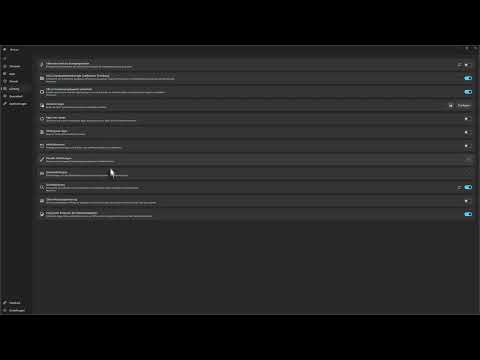
The video is only loaded from YouTube when you play it – data (including your IP address) is then transmitted to YouTube/Google. More in the privacy policy
Main Takeaways Wintoys is a modern app that allows you to optimize your Windows system, activate hidden settings, and manage apps efficiently. The application is available for free in the Microsoft Store and provides a user-friendly interface to make various adjustments.
Step-by-Step Guide
To use Wintoys, follow these steps:
Step 1: Open Microsoft Store
First, you need to open the Microsoft Store. To do this, type "Microsoft Store" into the Windows search and click on the displayed icon to launch the application.

Step 2: Search for and Install Wintoys
In the Microsoft Store, search for "Wintoys". You will find the app in the search results. Click on the program to get more information, and then click "Install" to download and install the app.
Step 3: Launch Wintoys
Once the installation is complete, click "Open" to start Wintoys. Here you will get an overview of the key information about your system and its status.

Step 4: Review System Overview
In the overview, you can see all the important components of your system, such as the motherboard, graphics card, and storage capacity. It will also show you when the BIOS and drivers were last updated. This information is crucial for better assessing the current state of your PC.

Step 5: Manage and Acquire Apps
One particularly useful feature is the ability to view your installed apps. You can quickly uninstall programs you no longer need here. This will help your system operate faster and more efficiently.

Step 6: Manage Services
Wintoys allows you to start services or change their startup mechanism. This way, you can control which services automatically start with Windows and thus optimize your PC's performance.

Step 7: Customize Performance Options
In the "Performance" section, you can choose from various power plans and make configurations for startup programs. Consider which programs should be loaded automatically when starting Windows, and disable those you don't need.

Step 8: Explore Optimization Options
Wintoys also provides options for system optimization. Here, you can adjust settings for the desktop, sleep mode, and other system functions. Consider which elements you actually want to use to enhance performance.

Step 9: Adjust Window and Wallpaper Properties
Decide whether you want to use transparency effects or swipe gestures. These settings are not only a matter of aesthetics but also affect system resources – something you should consider.

Step 10: Draw a Conclusion
Wintoys is a comprehensive solution for Windows users who want to efficiently optimize their system without having to navigate through countless menus and settings. The app consolidates all necessary functions in one place, making it easy to boost your PC’s performance.
Summary – Optimize Windows System with Wintoys: How to Activate Hidden Settings
Wintoys is a powerful, free tool that helps you deeply optimize your Windows system. With an intuitive user interface, you can easily manage programs, adjust services, and activate hidden settings. With Wintoys, you can get the best out of your PC and improve its overall performance.
FAQ
What is Wintoys?Wintoys is a free app available in the Microsoft Store that helps you optimize your Windows system.
How do I install Wintoys?Open the Microsoft Store, search for Wintoys, and click "Install".
What features does Wintoys offer?Wintoys provides an overview of system information, app and service management, and optimization options for performance settings.
Is Wintoys free?Yes, Wintoys is available for free in the Microsoft Store.
Can I change hidden settings with Wintoys?Yes, Wintoys allows you to easily and quickly adjust various hidden Windows settings.

