
Sometimes your Windows PC does not run as smoothly as you would like. There are many ways to increase the performance of your system, and it doesn't always require extensive changes. Below, I will explain how you can achieve immediate and noticeable improvements in just a few seconds by adjusting visual effects and performance settings.
The video is only loaded from YouTube when you play it – data (including your IP address) is then transmitted to YouTube/Google. More in the privacy policy
Key Insights
- Adjusting graphic effects can enhance your PC's performance.
- Using standardized Windows settings can save you time.
- Disabling certain visual effects is often the quickest way to increase system speed.
Step-by-Step Guide
To quickly boost the performance of your Windows PC, please follow this detailed guide.
First, go to the Windows search and type “Performance”. This will directly show you the corresponding option “Adjust the appearance and performance of Windows”. In some Windows versions, it may also be referred to as “Performance”.
Click on the appropriate item in the displayed menu. This will open a new window with the available options for adjusting Windows performance.
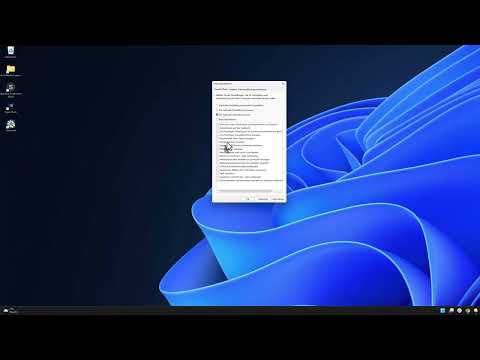
You will now see various options that you can enable or disable. If you want to achieve the maximum performance of your system, you can disable all visual effects. While you will lose some appealing graphics, such as transparency and window shadows, your system will become significantly faster.

If you still value some aesthetics, you can also choose the option “Let Windows choose what is best for my computer”. This gives you a balanced setting between performance and appealing design.

Advanced options are also available so you can adjust processor scheduling and the allocation of virtual memory. This is especially useful if you are multitasking.
However, the most important settings for performance relate to the visual effects. These can have a significant impact on the speed of the system especially with less powerful hardware. Just give it a try – the adjustments often make a remarkable difference.
Summary – Make Your Windows PC Faster in Seconds
By making targeted adjustments to Windows performance, you can boost your PC's performance in a matter of seconds. Disabling visual effects and using optimal settings gives your system the necessary boost it needs.
FAQ
What are visual effects?Visual effects are graphical elements that enhance the appearance and user experience of Windows but also consume system resources.
How can I restore the performance settings?You can reset the settings at any time by selecting the corresponding options in the same menu or by choosing “Let Windows choose what is best for my computer”.
Will my PC look worse after the adjustment?Yes, some aesthetic elements like transparency and shadows will be lost when disabling visual effects, but performance will improve.
How often should I check the settings?It is advisable to check the settings regularly, especially after major Windows updates or changes to your hardware.

