Imagine that by tomorrow you need a LinkedIn carousel, an Instagram story, and a banner for display advertising, and your designer is not available right now. That is exactly what Claude Design is made for. You describe what you need, and you get finished drafts for social media and ad creatives. In this guide, I walk you through the entire process: from setting your goal through design and format switching to further processing in Canva. A dog product brand serves as the example.
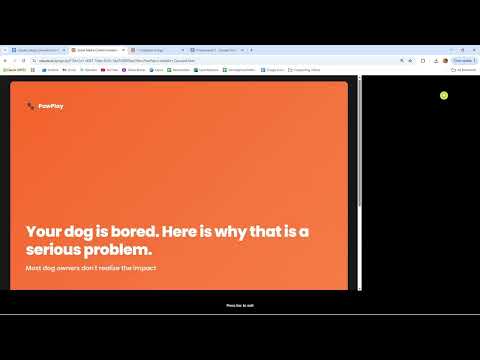
The video is only loaded from YouTube when you play it – data (including your IP address) is then transmitted to YouTube/Google. More in the privacy policy
Do not expect a perfect final version. The result is a very usable first draft, in other words a prototype, which you then refine in a targeted way.
Key Takeaways
- Claude Design creates graphics for LinkedIn, Instagram, Facebook, and display advertising from text descriptions.
- You specify the format directly in the prompt: 1080 × 1080 pixels for carousels, 9:16 for stories, 4:5 for the Facebook feed.
- A carousel can be structured using clear sections such as hook, problem, solution, social proof, and call to action.
- You should upload your logo, typography, and icons beforehand so that the brand style stays consistent.
- You can reuse the results as a screenshot, as a PDF, or via a connection to Canva.
- Many changes quickly use up your usage quota. Therefore, plan your revision rounds deliberately.
Step 1: Define the Goal and Channel
Before you enter the first command, clarify what the visual is intended for. In the video, a LinkedIn post is supposed to get an image. Since LinkedIn thrives mainly on text, the graphic is a supporting addition here. A carousel is particularly well suited for this, because each slide takes on its own task and the reader clicks through. Open Claude Design and select the social media content area. The choice of channel later determines the format, length of the texts, and design.

Step 2: Describe the Carousel with Structure
The more clearly your prompt is structured, the more targeted the draft turns out. In the example, the instruction is: a LinkedIn carousel with five slides in 1080 × 1080 pixel format. The first slide is the hook that grabs attention, for example "Your dog is bored." Then follow the problem with short subtitles, the solution, the social proof, and finally the call to action. For the social proof, you provide concrete statements, for example three customers who gave five stars in the last two days. You can specify emojis directly in the text.

Step 3: Define the Brand Style
A draft only looks professional when it fits your brand. Therefore, describe the style guide in the prompt. In the example, orange dominates as the main color, and deep navy sets accents, similar to the presentation. You also specify where the logo, icon, and font go, which emojis are desired, and that the slides should be designed compactly with little spacing. For the typography, you choose something like "bold and modern." For elements where you have no specification, the AI may decide for itself. In the example, this applies to the testimonials and the transitions between the slides.

Step 4: Create an Instagram Story in Parallel
While the carousel is being created, you can already kick off the next asset. To do this, open a new tab and select the template for Instagram Design. In the example, a portrait format with a 9:16 ratio is chosen, which is ideal for stories. The structure includes the logo at the top, an eye-catching headline, product highlights, offer sections, and a call to action. Since both drafts run at the same time, you save waiting time and keep an overview by labeling each draft in its own tab.
Step 5: Upload Brand Assets
If Claude Design knows neither your font nor your logo, generic results are produced. Therefore, upload all brand elements beforehand: logo, icons, and the fonts used. Only then can the AI cleanly incorporate these elements into your drafts. This step is especially worthwhile if you produce content regularly, because the assets are then available for all further projects.

Step 6: Check the Result and Use the Preview
Open the LinkedIn draft in the preview. You see the logo, the slides with reviews, and the call to action with the "Shop now" button. The buttons can be clicked in the preview, but on LinkedIn itself they are not interactive. For real-world use, you should therefore rely on a link in the post text or in the comments for the call to action. Also check whether the texts are fully legible and whether images and testimonials look realistic. Replace placeholder content with real examples from your customer reviews.

Step 7: Adjusting the Format for the Facebook Feed
A design can be transferred to other channels without rebuilding it. In the example, the graphic is meant for the Facebook feed. To do this, you change the format to 4:5, which is the portrait format that takes up more space in the feed than a square image. Specify the new size directly in the prompt or via the format setting. Make sure that text at the edges is not cut off, because the crops in the feed can vary depending on the device.

Step 8: Deriving a Display Banner from the Story
The animated Instagram Story can be converted into a horizontal version that is suitable as a banner for Google Display Ads. To do this, specify in the prompt that the design should appear in a horizontal banner format and which elements should be retained. Make sure that the headline remains legible even when displayed small. In display advertising, every line counts, so you reduce the text to the essentials.

Step 9: Keeping an Eye on Usage Consumption
Every change, every new version, and every format uses up quota. In the example, about 77 percent of the weekly limit had already been reached when the banner was created. Therefore, plan your iterations deliberately: combine several change requests in one prompt instead of sending ten small corrections. If consumption gets tight, the final fine-tuning should preferably be done outside the tool in Canva.

Step 10: Exporting Drafts
Finished graphics can be shared in different ways. You can take a screenshot, share the draft with your team, or export it as a PDF. The PDF is particularly suitable for approval loops because all participants see the same version. For coordination within the team, a link is often enough, provided it allows access for all participants.

Step 11: Continuing to Work with Canva
The most sensible next step is often the connection with Canva. There you can insert your own background images, swap fonts, or incorporate the logo in a different version. A draft from Claude Design is a solid foundation for this, because the structure, texts, and layout are already in place. The fine-tuning goes much faster in Canva because you only need to adjust individual elements in a targeted way instead of describing the entire design anew.

Summary – Creating Social Media Graphics with Claude Design: Step by Step
You have seen how a clear description can produce a LinkedIn carousel, an Instagram Story, a Facebook graphic, and a display banner. Preparation and the precise wording of your prompt are crucial: goal, format, structure, and brand style should be determined in advance. Upload your brand elements, keep an eye on your quota consumption, and use Canva for the final fine-tuning. This quickly produces a solid draft that can be expanded into a finished campaign with manageable effort.
FAQ
Which formats are suitable for LinkedIn carousels?For LinkedIn carousels, the square format of 1080 × 1080 pixels is recommended.
Can I also use Claude Design without Canva?Yes, Claude Design already produces drafts that you can use directly, export, or share with your team. Canva is useful for later fine-tuning, but not strictly required.
Why should I upload my logo and fonts in advance?Without these brand elements, the AI cannot create a suitable design. With uploaded assets, the style remains consistent across all drafts.
Are the buttons in the LinkedIn preview clickable?In the preview, the buttons can be clicked, but on LinkedIn itself they are not interactive. Therefore, place the link in the post text or in the comments.
How can I transfer a design to another format?Specify the desired format in the prompt, such as 4:5 for the Facebook feed or a horizontal banner format for display advertising.
What does usage consumption mean in Claude Design?Every change and every new version uses up part of your quota. Therefore, bundle change requests in one prompt to save resources.


