
Anyone who juggles many tasks at the same time quickly loses track of what really needs to be done first. Microsoft To Do offers simple tools for this: stars for important tasks, sorting functions, lists, and the "My Day" view. In this guide, you will learn how to mark, sort, copy, and move your tasks, and how to rebuild your daily plan every morning. The individual functions are quickly explained, but the guide also shows you how they work together in everyday use.
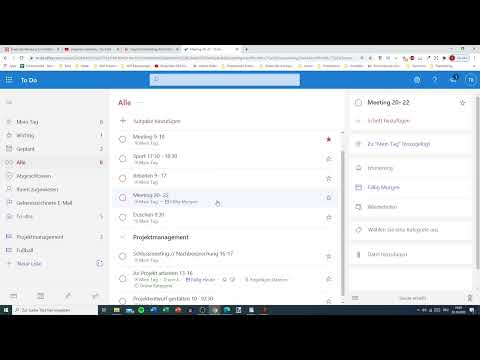
The video is only loaded from YouTube when you play it – data (including your IP address) is then transmitted to YouTube/Google. More in the privacy policy
Key Takeaways
- With a star, you mark tasks as important, and you can remove this marking at any time.
- Sorting by importance moves the most important tasks to the top or bottom, depending on the setting.
- The "All" view shows you all tasks from all lists in one place.
- Tasks can be copied or moved via right-click. Copying creates a duplicate, which you should delete afterwards.
- Using the due date and the "My Day" view, you plan your day in a targeted way. The view is updated automatically, so you can start fresh every morning.
Step-by-Step Guide
Prioritizing Tasks with a Star
The simplest way to highlight a task is the star. In the example, the appointment "Meeting" is marked this way. To do so, click the star next to the task, and it is flagged as important. This way, you can see at a glance which items take priority, without changing the task itself.

Removing Importance
If priorities change, the marking can be withdrawn just as quickly. To do so, click the star again, and the task loses its highlighting. This keeps your list up to date and shows only what is actually relevant at the moment.
Sorting Tasks by Importance
With the marked tasks, you can organize your list in a targeted way. Using the arrow icon, you determine whether the important tasks should appear at the top or at the bottom. Choose the option that suits your way of working. If you want to start with the most urgent items, sort them to the top. If you first want to get an overview of the routine tasks, place them at the beginning.

Displaying All Tasks at a Glance
If you want to know what is coming up overall, open the "All" view. Here you see all tasks from all lists, for example from "Tasks," "Project Management," or "Soccer." This view is particularly well suited for spotting duplicates or assessing the overall situation before you make decisions.

Copying Tasks
Sometimes a task belongs in more than one list. For that, you copy it: Right-click the task and select "Copy to." Then you choose the target list, for example "Soccer." The task remains in the original list and additionally appears in the new location.

Moving Tasks to Another List
If a task clearly belongs in a different list, you move it instead. Right-click the task, then choose "Move to" and select the appropriate list, such as "Project Management" or "Todos." Unlike with copying, the task then exists in only one place. This way you keep track, because each task is assigned to exactly one list.

Deleting Duplicate Entries
If you have copied a task and do not want to keep the duplicate entry, simply remove it. Make sure to delete the right copy so that the task stays where it is actually needed. A look at the "All" view helps you quickly spot duplicates.

Setting a Due Date
For a task to appear in your daily plan, you need a due date. To do this, open the quick selection and choose a date, for example "Today" or "Tomorrow". For the evening meeting in the example, it is enough to set it for the next day. The date determines when the task appears in your daily plan.

Mark tasks as completed or important
You check off completed tasks by clicking the box or mark them as completed with a right-click. With the same menu, you can also mark a task as important if you don't want to set the marking via the star. Both ways lead to the same result, so you can choose the option that feels quickest to you.


Remove tasks from "My Day"
The "My Day" view shows you all the tasks you have planned for today. If you want to take something out again, right-click the task and select "Remove from My Day". The task remains in its original list; it only disappears from the daily view. This way you can adjust your plan flexibly when appointments shift.

Re-plan the day
If you want to completely redesign your daily plan, you can remove all entries from "My Day" one by one. Once the list is empty, the day is fully available to you again. The view also updates automatically: the next day you start with a fresh overview, and you plan the new day from scratch.

Summary – Microsoft To Do: Prioritizing and organizing tasks
With stars, sorting, lists, and the "My Day" view, you keep an overview at all times in Microsoft To Do. The stars show you what has priority. Sorting puts these tasks in the desired order. With copying and moving, you assign tasks to the right lists, and with due dates and "My Day" you plan your daily life. If you use these functions regularly, the to-do list becomes a reliable tool for your planning.
FAQ
How do I mark a task as important?Click the star next to the task, and it will be highlighted and easier to spot in the list.
Can I remove the importance of a task again?Yes, clicking the star again removes the marking without changing the task.
How do I sort tasks by importance?Using the arrow icon, you choose whether the important tasks should appear at the top or bottom of the list.
What is the difference between copying and moving?When copying, the task remains in the old list and additionally appears in the new one; when moving, it moves entirely to the target list.
How do I remove a duplicate task?Delete the redundant copy in the relevant list; it's best to first check in the "All" view where the duplicate is located.
How do I set a due date?In the quick selection, choose the desired date such as "Today" or "Tomorrow" so that the task appears in your daily plan.
How do I remove a task from "My Day"?With a right-click on the task and the option "Remove from My Day", it disappears from the daily view but remains in its list.
Is the "My Day" view reset automatically?Yes, the view updates daily so that you can plan your day anew each time.


