

If you have already written texts in Word or another program, you don't have to retype them by hand. InCopy offers you two ways to bring them into your document: copying and pasting or placing a file. Both ways have their pitfalls, especially with formats. In this tutorial, you will learn where to find the key settings, how to control the import, and how to bring the text into the desired format afterwards.
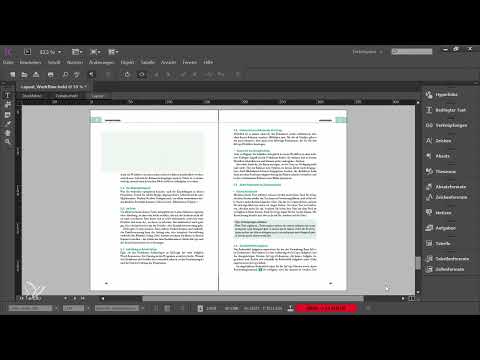
The video is only loaded from YouTube when you play it – data (including your IP address) is then transmitted to YouTube/Google. More in the privacy policy
Key Takeaways
- The clipboard options in the preferences determine how much information comes along when pasting from other programs.
- By default, only the plain text is taken over when copying. Formatting, tables, and footnotes are lost in the process.
- Via File > Place you can import entire documents and define exactly what comes along in the import options.
- The imported format doesn't have to be correct. With "Paste without formatting" you adopt the formatting of the current selection.
- After pasting, you should remove superfluous characters, such as spaces.
Step 1: Check the clipboard options
Before you copy text from another program, it's worth taking a look at the preferences. To do so, open the preferences in the Edit menu. This is where the clipboard options are controlled, meaning the behavior when pasting content from other applications.
Here you define how much information is taken over from a foreign document. This is especially important when you copy from Word or Outlook. The default setting usually only takes the plain text along, and all other information is lost. This usually makes sense, because you don't want to drag unnecessary formats into your document. However, if you want to deliberately take over formatting, you have to change this setting.

Step 2: Import a text file with Place File
The second way is the import via the command File > Place. You may already know it from placing images. With this command you can load not only images but also entire documents into your text frame.
In the example, the Word document is on the desktop. You select it and open it. What's important now is that you activate the option for the import. Only then can you see which information actually ends up in your document. The import options window is similar to the clipboard options, so here too you define how much should be taken over.


Step 3: Define the scope of the import options
Now you decide what should go into the document. If you want to remove all formatting, leave the first option active. The text then arrives without any styling, which is suitable as a clean foundation.
If, on the other hand, you want to take over formats, tables, and similar elements, you activate the other option further down. The same applies to footnotes and other additional elements: if the option remains active, these components are retained in the document.

Step 4: Complete the import and check the result
If you click Import, you don't automatically get the desired result. In the example, InCopy doesn't take over the right format but the default format. Presumably the paragraph style Headline 3 was used. You should therefore always check the result before you continue working.
Don't let that unsettle you. The import first delivers the text; you correct the formatting in the next step.
Step 5: Cut the text and paste it without formatting
To get the right format, you cut the imported text and paste it back in at the desired spot above the wrong text. Use the command Paste without formatting for this. This command adopts the formatting of the current selection, meaning the style at the insertion point.
When pasting, make sure the formatting isn't changed any further. With this method, your text frame stays consistent, and you don't have to rework every paragraph individually.


Step 6: Remove Unnecessary Characters
After pasting, an annoying character often remains. In the example, it is a space at the beginning or end that has to go. Remove it before you pass the text on or place it in the layout. A quick look at the insertion point is enough to check the result.
If you follow all the steps, your text frame will look the way you imagined it.
Summary – Importing Texts into InCopy: Cleanly Transferring Word Documents
You can bring text from other programs into InCopy in two ways: by copying and pasting or via File > Place. The clipboard options and the import options are decisive, because they determine which formats and elements come along. Check the result after the import and adjust the formatting to the desired template with "Paste without Formatting". Finally, you remove unnecessary characters. This keeps your document clean and consistent.
FAQ
Why are all formats often lost when pasting from Word?The default setting in the clipboard options usually only takes over the plain text. If you want to keep formats, you have to adjust this setting in the preferences.
How do I carry over tables and footnotes during import?When placing, activate the import option that includes formatting, tables and footnotes. You will find the option further down in the import options window.
What does the option Paste without Formatting do?It adopts the formatting of the current selection at the insertion point. As a result, the text adapts to the template of your text frame.
Why should I always check the import?During import, InCopy may apply a default format such as Headline 3 that does not fit your layout. A check shows you immediately whether you need to readjust.


