
WordPress for Beginners: Creating Websites Made Easy

- Learn all the basic steps to create your own professional WordPress website from scratch.
- Understand the differences between domains, hosting, and website structures – this is how you lay the perfect foundation.
- Create your first pages and blog posts with the Gutenberg editor.
- Make your website visually appealing with themes and customize it individually using the Customizer.
- Discover the most important WordPress plugins and enhance your website with valuable features.
- Work with page builders like Elementor to design your pages intuitively, flexibly, and professionally.
- Learn how to analyze target groups, identify pain points, and optimize your content purposefully.
- Manage user roles, comments, updates, backups, and security like a true professional.
From zero to website legend: WordPress and design without a headache.
32 Videos, 206 minutes
Let's go
01 - Welcome
1 minHere you can learn more about the course "WordPress for Beginners: Creating Websites Made Easy" and get to know your instructor Jakob, who will provide you with the necessary knowledge to independently set up a professional WordPress website.
02 - What is WordPress
5 minThis lesson explains what WordPress is, why it is so popular as a CMS, and how versatile it can be used – from simple blogs to complex sites of large corporations like Ubisoft and Rolling Stone magazine.
03 - What you need for the start
3 minLearn about the three pillars you need to get your website online: domain, web hosting, and the website itself. The analogy of a house, address, and plot of land is used, and reputable hosting providers are presented to you.
04 - Install WordPress
6 minThis lesson explains how to install WordPress, either through the 1-click installation of your hosting provider (Strato, Ionos) or through the manual installation via FTP upload of the files and setting up the MySQL database.
05 - First Login
2 minYou have successfully installed WordPress and are now logging into the dashboard for the first time. Here you will find out how to access the admin area and where to find the basic settings that you already set during installation.
06 - Make Basic Settings
6 minLearn how to make the basic settings in your WordPress dashboard. This includes the title and slogan of your website, the language, creating a static homepage, and important configurations for comments and permalinks (such as "Post Name").
07 - Difference between posts and pages
3 minLearn the fundamental difference between a WordPress post (blog article) and a page (static content). You will learn how to organize posts with categories in order to display them purposefully on your website.
08 - The Gutenberg Editor
11 minAn overview of the Gutenberg editor and its most common blocks: heading, paragraph, image, gallery, button, and columns. You will learn how to insert, arrange, and customize these blocks with design settings like colors and margins.
09 - Create reusable blocks
4 minLearn how to create reusable blocks to save design elements like a "team members card" and use them consistently across different pages. This saves time and ensures a uniform appearance.
10 - Create your first page
10 minWe create your first About Us page and structure it with columns and headings (H2, H3) for a clear and professional presentation of your services and your team, based on the Gutenberg editor.
11 - Write your first blog post
5 minLearn how to create a new blog post, add a featured image to it, and assign it to a category. We will show you how the blog post automatically displays on your blog page and how to edit it.
12 - Media Library (Manage Images and Files)
5 minThis lesson introduces you to the WordPress media library. You will learn how to upload, organize images and files, and add alt text and titles for search engine optimization (SEO). There are also tips for image optimization.
17 - Important plugins that every site needs
8 minHere we present the three most important plugins that every WordPress website needs: a cache plugin for better performance, a security plugin, and an SEO plugin (e.g. Yoast) for better visibility in search engines.
13 - What are themes
9 minLearn what WordPress themes are and what function they serve on your website. We explain the difference between free and paid (premium) themes and why they are important for design and structure.
15 - Create and manage menus
6 minLearn how to create a main menu and a footer menu, add pages and posts, and arrange the menu items in the desired order. We explain how to create sub-items and assign the menu to the menu location.
14 - Find and install themes
4 minWe show you how to search for a suitable design in the WordPress theme directory, install it, and activate it. You will learn what criteria a good theme should meet and which ones you can use without hesitation.
16 - What are plugins
10 minIn this lesson, we explain what plugins are and how they expand the functionality of your WordPress website. You will learn how to install, activate, and delete plugins and understand the importance of security and updates.
18 - Create contact form
5 minHere I will show you how to install the popular plugin Contact Form 7 and create a functional contact form. You will learn how to customize the form and then embed it on your contact page using a shortcode.
19 - Configure Complianz (e.g. cookie banner)
11 minIn this lesson, I will show you how to configure the cookie banner via Complianz, customize its colors, and ensure that external content (such as Google Maps) is only loaded after consent is given.
20 - Configure Yoast SEO
10 minI will show you how to install the Yoast SEO plugin and perform the initial configuration. Additionally, we will go through individual points on how you can optimize your content for search engines to be found better.
21 - What is a page builder (Gutenberg)
7 minI will explain to you the basics of page builders and what they can take off your hands when creating websites. I will also cover the standard Gutenberg editor from WordPress.
22 - Introduction to Elementor
19 minI will show you how to intuitively and quickly create a modern homepage with the Page Builder Elementor. You will also learn the most important functions and settings to customize your design.
23 - WPBakery and Others
6 minI will introduce you to alternatives to the Elementor Page Builder, such as WPBakery, Divi, and Beaver Builder. We will look at the differences and the licensing models to find the right page builder for you.
24 - User Roles and Permissions
3 minI will explain the different user roles in WordPress and what rights are associated with them. Additionally, I will show you how to create new users and assign them the appropriate role.
25 - Manage comments
5 minI will show you how to manage comments on your website, moderate them, and install spam protection. I will also explain how to enable or disable the comment function in WordPress.
26 - Keeping Themes and Plugins Up to Date
3 minI will explain to you the importance of regular updates for themes and plugins to close security gaps. I will show you how to enable automatic updates to keep your website safe.
27 - Security and Backups
7 minI will show you how to secure your WordPress site through non-update-specific measures, such as changing the login URL. I will also address the importance of backups to protect your data.
28 - Create and Restore Backup with Duplicator
11 minI will show you how to create a backup of your entire website with the Duplicator plugin and restore it via FTP if your design or configuration is faulty.
29 - Your website goes live
12 minI will show you all the necessary steps so that your completed website can go online. We will check the final settings and I will explain to you how to activate visibility for search engines.
30 - Additional Tips and Tricks
6 minI will give you some additional tips and tricks for your WordPress site that I have collected over the years. This includes topics such as caching and image optimization for better performance.
31 - Other useful resources
2 minI will show you where you can find further information and helpful resources for WordPress to deepen your knowledge. I recommend blogs, forums, and tools that I personally use.
32 - How does it proceed now
2 minIn this final video, I summarize the most important steps of the course and give you an outlook on how you can independently continue and maintain your WordPress project.
You might also like

From log analysis to incident report: ChatGPT, Claude, Gemini & local models in everyday security
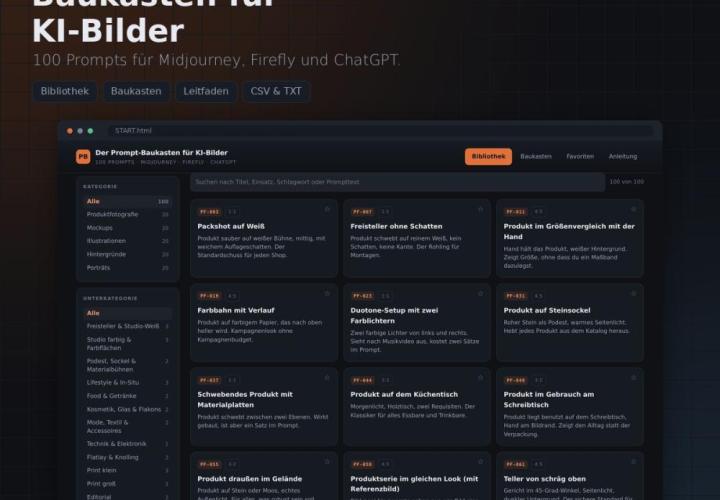
For Midjourney, Adobe Firefly and ChatGPT

Have websites, automations, and image editing done by AI – completely without code
From Context Hints to Conversion: Campaigns in ChatGPT
Comment now „WordPress for Beginners: Creating Websites Made Easy“