
Word course for beginners: Learn the basics from A to Z

- 60 lessons in five hours of video training on how to use Microsoft Word
- Basics and details: Use Word efficiently and time-saving in daily practice
- Get to know all the important functions: from A for list of figures to Z for line numbering
- Create form letters, invoices, large documents, PDFs or even designs for private use
- From IT professional René Fürst, who guides you through the software menu by menu and point by point
Sit down at your virtual desk and master the small and large document challenges with flying colors. Take the course and become a document hero!
60 Videos, 299 minutes
Course introduction
Better in Word - 01 Promotion video
1 minWhy you should attend this course: Here you can see the promotional video for this course again to give you a brief overview.
Fundamentals
Better in Word - 02 Create and save your first Word document
5 minIn this basic section, learn how to create a Word document and what options you have for saving this document.
Better in Word - 03 Print Word document
4 minIn this lesson, I will show you the setting options that you can use to print Word documents in an appealing and suitable way. The multitude of setting options can quickly make you lose track.
Better in Word - 04 Share Word document
2 minSince Office 365, Microsoft has been working constantly to make sharing documents effective and easy. In this lesson, you will learn how easy it is to put a document online or share it with your colleagues and friends.
Better in Word - 05 Export Word document to PDF/XPS
2 minThere is an export function in Word to convert a Word document into a PDF. In this lesson, you will find out why you should convert a Word document into a PDF and what advantages this has.
Better in Word - 06 Clipboard: Copy and paste
3 minUse the clipboard and copy and paste text, images and web pages. However, the clipboard has even more functions than you might think at first glance.
Better in Word - 07 Fonts: Formatting, fonts, style sheets
9 minEvery Word document can be designed and formatted using numerous functions. In this lesson, you will learn how to change fonts and edit the size and appearance of the font. With a brief insight into the style sheets, you will be able to improve the readability of your documents with just a few clicks.
Better in Word - 08 Paragraph formatting
4 minIn this lesson, you will learn all about paragraph formatting, how to center, align and adjust paragraphs correctly. You will also learn how to show paragraph marks and how to increase and decrease indents. Later in the lesson, you will also learn how to select and define design colors and borders for your paragraphs.
Better in Word - 09 Numbering and bullets
6 minHere I'll show you how to format paragraphs with numbering and list style. Write to-do, shopping and chore lists in your Word documents using the appropriate list format. Whether dotted or numbered doesn't matter here, there is a suitable format for everything.
Better in Word - 10 Search and replace
6 minSearch your Word document and get to know the replace function. This can save a lot of time if you have large documents where specific words need to be found or replaced.
Menu: Insert in detail
Better in Word - 11 cover pages, blank pages and page breaks
3 minCover pages are the first thing your counterpart sees when they open the document or receive it in their hand. The first impression is just as important as the content of a document. Here I'll show you how to insert and use cover pages, blank pages and page breaks.
Better in Word - Use and work with 12 tables
7 minYou can insert simple tables and even complex Excel tables into a Word document. In this lesson, I will show you how you can use tables for your document.
Better in Word - 13 images and online graphics
11 minLearn how to work with images in Word. Many people often report problems when they want to insert images into their documents. However, these problems are all unfounded if you know what is important. An image does not necessarily have to have display problems. With very simple tips and tricks, I will show you everything you need to know and how you can embellish your documents with images. It is now also possible to integrate online graphics with just a few clicks.
Better in Word - 14 shapes: Rectangles, lines, stars, legends, arrows
5 minDesign your documents with lines, stars, legends, arrows or rectangles. Word offers a wealth of shapes that you can easily use. Learn here how adaptable the shapes are.
Better in Word - 15 SmartArt: Displaying information graphically
9 minA SmartArt graphic is a visual representation of your information that you can create quickly and easily. You can choose between many different layouts to effectively convey your message or ideas.
Better in Word - 16 Add and edit diagrams
8 minYou can also use and insert charts in Word to display information graphically. Word and Excel offer an extensive selection of charts. In this lesson, I will show you how to use the charts and insert them into your document.
Better in Word - 17 screen captures, use the screenshot function
3 minCreate and insert screenshots easily with Word - this function saves you an incredible amount of time and allows you to easily insert and edit screenshots within Word. Word offers a great way to create a wide variety of screenshots.
Better in Word - 18 add-ins: percentage calculator, Wikipedia, translations
5 minYou can get even more out of Word with add-ins. I'll show you here how you can quickly and easily cite Wikipedia articles, use translations into 100 other languages within Word and how you can use a percentage calculator. Add-ins give you access to even more functions.
Better in Word - 19 Online video: Embed and play videos directly in Word documents
3 minIt has recently become possible to embed entire videos in Word. In this lesson, I will show you how to find and embed suitable videos from YouTube or Bing, for example. Please note, however, that you cannot print videos!
Better in Word - 20 bookmarks, links & cross-references
6 minA bookmark identifies a specific word, section or position in your document. You use it to name and mark the word, section or position for later reference. With a cross-reference, you can create a link to other parts of the same document.
Word automatically creates a link when you press Enter or the space bar after typing a URL (e.g. http://www.thinksecret.at).
Sometimes you may also want to create a link to text, an image or a specific location in a document. The steps required for this are listed below.
Better in Word - 21 Comment: additional notes for your document
4 minYou can insert a comment with speech bubbles that are displayed in the margins of the document. Comments are useful for adding notes at certain points in the text. But the comment function can do much more - I'll show you here.
Better in Word - 22 headers and footers
8 minHeaders and footers are the areas in the top, bottom and side margins that are included on every page in the document. You can insert and change text or graphics in headers and footers. For example, you can add page numbers, the date and time, a company logo, the title of the document, the file name or the author's name.
Better in Word - 23 text fields, quick blocks, WordArt and initials
10 minLearn what text boxes, quick blocks and WordArt are. Create beautiful text headings, text boxes and use the quick blocks to give your Word documents a beautiful design.
Better in Word - 24 symbols and mathematical formulas
6 minLearn how to insert mathematical symbols and formulas. Using the Symbol dialog box, you can insert symbols such as ¼ and © or special characters such as the em dash (-) or ellipsis (...) that are not available on the keyboard, as well as Unicode characters.
Menu: Design
Better in Word - 25 Design and document formatting
4 minYou can use style sheets to format your document so that you can apply a range of formatting options quickly, easily and consistently across the entire document.
Better in Word - 26 Watermarks
2 minUse watermarks in your Word documents, for example, to make a copy of an invoice recognizable or to mark a document as trustworthy.
Better in Word - 27 page colors
4 minYou can apply a page color to the pages. Instead of color, you can apply a texture or image and adjust the settings for patterns and gradients.
Better in Word - 28 margins
5 minPage margins are the empty spaces at the edges of a page. Generally, text and graphics are inserted in the printable area between the margins. However, you can also place certain elements in the margins, such as headers and footers or page numbers.
Menu: Layout
Better in Word - 29 Page setup: Margins, alignment, format, columns
5 minLearn how to format your documents in landscape or portrait format, how to insert columns, design them in multiple lines and adapt them to the respective format with predefined margins.
Better in Word - 30 page and section breaks
4 minThere are several types of breaks in Word. Set line, page or column breaks to format your Word document.
Better in Word - 31 Line numbering on the pages and in the document
2 minLine numbering can also be displayed in Word. There are several ways to include this numbering at document level or at page level. You can find out how this works here.
Better in Word - 32 Hyphenation
2 minHyphenation in Word has three states. I will show you all the hyphenation methods in this lesson and how you can use them.
Better in Word - 33 Paragraph: Indentation and spacing
1 minLearn about paragraph formatting in Word 2016, how to make indents and how to influence the spacing between paragraphs.
Better in Word - 34 Layout arrangement
6 minWord also works with layers, as you may already know from various graphics programs. In order to use layers correctly, however, there are a few things to bear in mind, as layers behave differently in Word than you may be used to. Show and hide layers or make them appear in the foreground and background. Label the layers to maintain an overview.
Menu: References
Better in Word - 35 Create a sample file with margin and lorem
3 minIn this video, I'll show you how you can easily insert a sample text with paragraphs into a blank Word document without much effort.
Better in Word - 36 Manual table of contents
4 minCreating a manual table of contents with Word is very easy! However, this means a lot of extra work and is prone to errors. In this lesson, I will show you how to create a manual table of contents.
Better in Word - 37 Automatic table of contents
9 minEvery magazine has one and every Word document could have one too - the table of contents. In this video, I show you how to design your Word document so that you can insert a table of contents automatically, without much extra effort, with automatic number updating.
Better in Word - 38 Footnotes and endnotes in documents
6 minFurther information on specific words or paragraphs can be explained using footnotes. This promotes the flow of reading and you can store all the information in a document in a more targeted way.
Better in Word - 39 Citations and bibliography
7 minWith your own citation and bibliography, you can save yourself a lot of work with extensive papers. Citations can be easily inserted and listed together at the end with a bibliography. Word helps you with the correct formatting and appearance, based on various standards.
Better in Word - 40 Captions and List of Figures
10 minUse captions to display your images, videos, tables and formulas in a uniform caption format and then summarize them nicely in a list of figures.
Better in Word - 41 Index
9 minIndexes or keywords can be summarized in a separate A-Z index. Here you will learn how to create an index and then update it without having to manually edit the page numbers. An index is an important factor, especially for books or reference works.
Menu: Shows
Better in Word - 42 Envelopes and mail merge
9 minLearn how to print envelopes and prepare them for dispatch. Using your own tables, you can create several hundred envelopes with different recipients with just a few clicks.
Better in Word - 43 Create labels and mail merge
4 minLearn how to create labels and how to find the right templates. You can customize the labels and give each label a different name. It only takes a few clicks to create several hundred labels.
Better in Word - 44 Create a letter with mail merge
6 minLearn how to create a mail merge, how to add greeting fields and how to differentiate between "Mr." and "Mrs.". Using a small Excel spreadsheet, you can define recipients without having to write everything yourself.
Menu: Check
Better in Word - 45 Spell check, dictionary
5 minUse the spell checker in your Word to catch mistakes. You can add words to your dictionary and the spell checker can learn many new words from you that are just right for you.
Better in Word - 46 Thesaurus: show meaningful alternative suggestions
1 minAre you looking for a suitable alternative word for your text? With Thesaurus, Word gives you the option of searching for alternative words if you can't think of anything suitable.
Better in Word - 47 words: word count, character count, paragraph count
2 minIn this lesson, you will learn how to perform a word count in an entire document and how to perform a count in individual, selected areas.
Better in Word - 48 Intelligent search: search directly with Bing
2 minCheck facts or phrases in your documents with Bing-powered intelligent lookup. Simply highlight phrases in your documents and use this feature to pull search results from the web directly into your reading or authoring environment.
Better in Word - 49 language translations and foreign language correction aids
4 minUse the Word function to translate your text directly within Word. Word offers extensive translation options for this.
Better in Word - Create, show, hide & delete 50 comments
3 minComments on a Word document can be very helpful. If you are not sure about some text passages, simply create a few comments for the texts concerned and have another person check them. The checker can then concentrate specifically on the text passages with comments and reply to them.
Better in Word - 51 Tracking
5 minTracking can be started if several or other people are also working on this document. This allows you to quickly see what has been changed.
Better in Word - 52 Compare original and correction documents
5 minYou can use the compare function in Word to compare two Word documents for differences. For example, if you have received a corrected version, you can simply use it to compare and check it.
Better in Word - 53 Protect document
3 minLearn how to protect documents from changes. There are several options for protecting a document. For example, you can assign a password to a document to protect it from unauthorized access.
Better in Word - encrypt 54 documents with a password
2 minDo you want to protect your documents from unauthorized access? Then use the option of document encryption with a password.
Menu: View
Better in Word - 55 views: Reading mode, page layout, web layout, outline and draft
10 minWhat are the differences in the views? Why do you need the reading mode, the page layout, the web layout, the outline and draft mode? Many views also have many functions and often show what is hidden in a document.
Better in Word - 56 Create branch and central document with the outline view
5 minCentral documents make it possible to divide a large document into individual, separate branch documents (such as a book into chapters) and to organize and manage them.
Better in Word - 57 Displays: Ruler, gridlines, navigation pane, indent marks
8 minYou can also display tools in Word documents. Blender rulers and grids or navigation areas. Learn how to use them, draw indents over the rulers and edit the margins with one click!
Better in Word - 58 Zoom: Set page sizes, zoom, display
4 minChange the zoom level to adapt the Word document to your screen. Display several pages side by side or set the page widths.
Better in Word - 59 Arrange, split, switch windows & synchronized image flow
6 minLearn to multitask with your Word: open several windows, split windows and merge them again. Apply the synchronous screen flow and make practical use of it.
Better in Word - 60 macros
3 minA little insight into Word macros! Learn how to create and use macros. In this video, I'll show you a small example of a macro that you can do a lot with.
Examples of use
-
 Get to know Microsoft Word in detail
You might also like
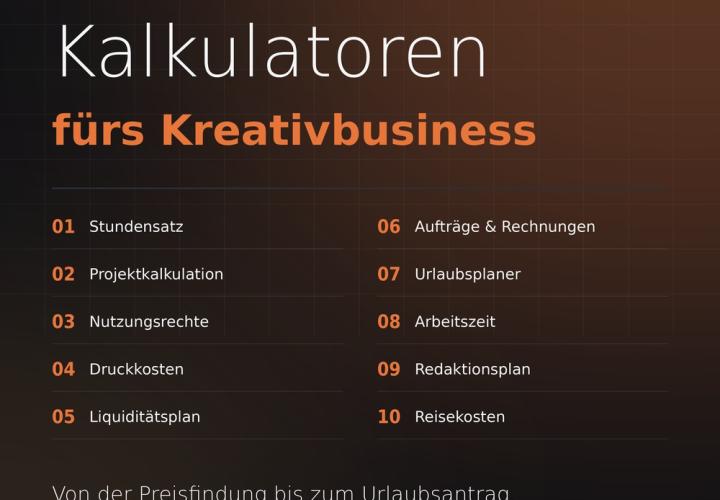
Prices, projects, vacation, working hours, and travel expenses

This saves you time and effort!
Effectively create modern slides
Faster results in your tables
Comment now „Word course for beginners: Learn the basics from A to Z“