
What a transition! With these 100 Photoshop gradients, you can create shiny metallic effects in your pictures and photos. Apply a color gradient, adjust it as required and your work will shine in gold, silver, bronze, mercury or the finest rose gold.
Why tweak the metal effect yourself and turn all the sliders when you can simply drag it gradient by gradient into Photoshop?
A color gradient can be created quickly. But it takes a while to achieve the desired effect. Not with these 100 gradients! Download the gradients to Photoshop, select the right gradient and add shiny metallic effects to your images, photos and designs.
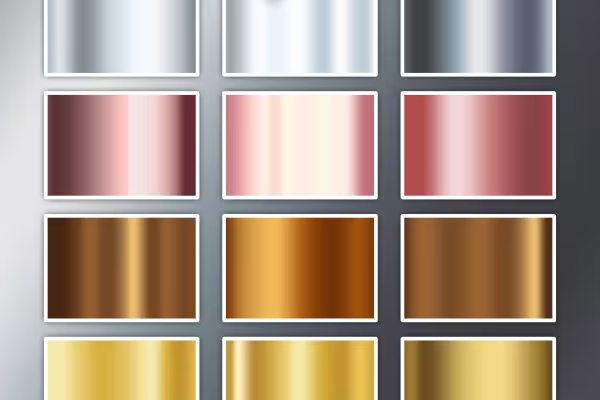
The package includes 100 gradients for creating metallic effects in Photoshop. Included are 20 gradients each for gold, silver, mercury, bronze and rose gold . The variants use different transitions so that you can create the right effect for your particular image. Golden yellow, for example, glides gently into a radiant white before gradually returning. Dark silver-grey also breaks at hard edges and then develops a gentle transition from the light back to the dark silver effect. 100 variations - 100 possibilities!
There are 20 gradients each in a GRD file named after the theme (gold, silver, mercury, rose gold, bronze). Import the gradients into Photoshop by double-clicking on the files or dragging and dropping them onto the Photoshop workspace.
There are several ways to apply a gradient in Photoshop. Here are three examples: To use a color gradient for a background , select the gradient tool. In the associated toolbar, you will find a selection with stored gradient presets and also your newly loaded metal effect gradients. Select the appropriate gradient for your image and drag it onto a new layer while holding down the mouse button.
A gradient overlay is recommended for objects, layers and texts , which you can find in the layer control panelbehind the fx button. Here you can select the gradient, set the opacity, gradient type and angle and scale the gradient. Tip: Work with fill methods such as color, multiply or negative multiply.
Finally, you can use the gradient conversion, which is suitable for images and photos. Click on Layer>New adjustment layer to create a new layer for gradient conversion. You can also work with blending modes here using the layer control panel.
The effect is there, but not quite right yet? - You can adjust the default settings of a gradient at any time. To do this, open the Edit grad ients window. You can do this, for example, by right-clicking on the preview of a gradient in the toolbar of the gradient tool. In the window, you can now change the individual break sliders of a grad ient. Move them to other positions, change their color, remove them or add new sliders.
You can use a gradient to display the transition from one color to the next. Gradients into transparency are also possible. Photoshop offers the option of creating several transitions in one gradient. For example, you can easily fade from a blue to a green to a yellow. The hardness of a transition can also be set, and various gradient types such as linear, radial or with an angle are also available. Color gradients can be saved as presets and stored in GRD files (GRD for gradient).
Simply Blender beautiful!
For lettering and graphic shapes
Two-tone and luminous effects
Real mood makers
Pixel look meets knitwear style
What kind of face are you making?
From black and white to intense color
You'll make big eyes!