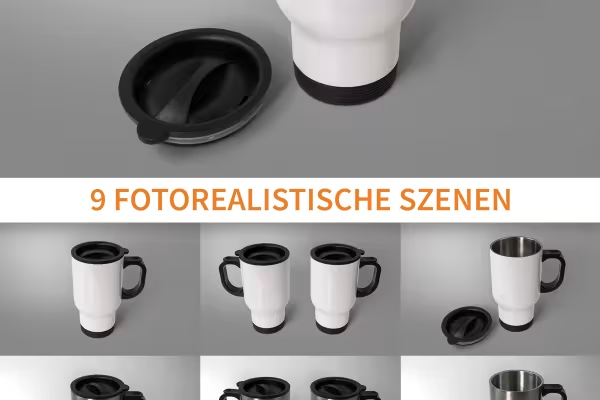
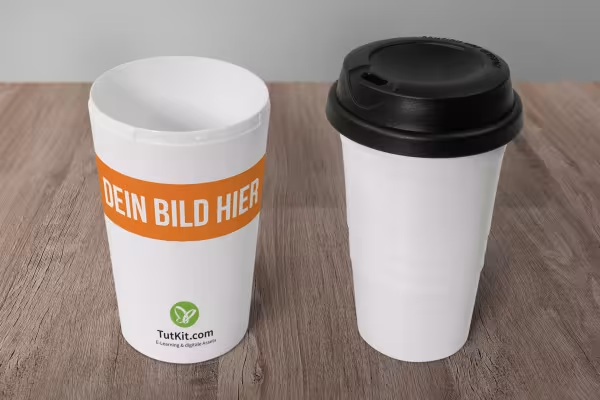
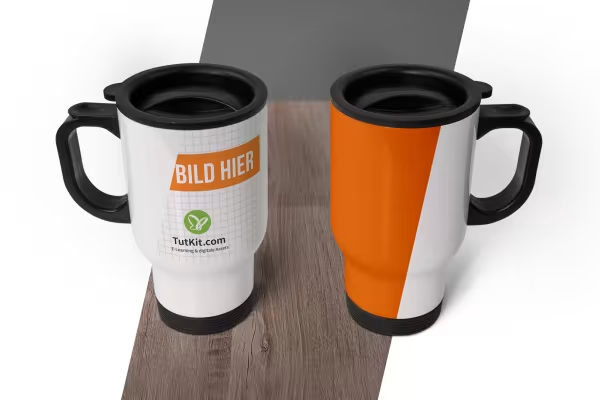
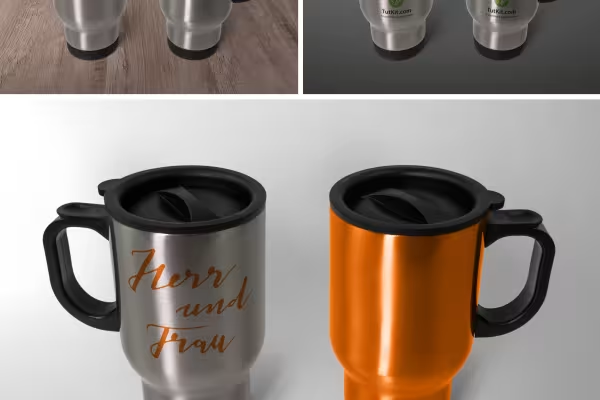
Create beautiful scenes with the help of these 9 mockups. The illustrations look as if you have already applied your designs to the thermo mugs or thermo cups and photographed them. What do your creative works actually look like after printing? - Show it off with these mockups.
Looks great and realistic too: Apply your designs to thermo mugs before printing. Simply download the mockups and get started.
Mockups are an enormous visualization aid in the design phase and also during the presentation, especially for objects to be printed such as thermo mugs or thermo cups. They are also very easy to use.
Why actually use mockups? The best example: You would like to give out a thermo mug as a promotional gift or have been commissioned by a company to create a beautifully designed give-away in the form of a thermo mug. You can use mockups to show yourself and everyone involved how the company's logo or a design you have prepared will look in the final application, i.e. on the thermo mug or thermo cup: photo-realistically - even before a single mug has been produced .
So use the mockups in your design process to compare different concepts. Equip your portfolio with the images. Show clients an almost three-dimensional rendition of your design instead of a two-dimensional one. The package includes 9 different scenes including various backgrounds.
For the mock-ups, we have taken high-quality photos of three different thermo mug and thermo cup variants in different arrangements. You can adjust the colors of the surfaces as you wish. It is also possible to insert prepared backgrounds and a table. Of course, you can also easily add your own backgrounds. In this way, you can create the perfect visualization for your purposes. You can also take a look at our mockups category, where you can find mockups for other objects such as thermos flasks, cups and fabric bags.
To insert your designs into the scenes and apply them to the thermo mugs or thermo cups, open a mockup in Photoshop. Then double-click on the smart object layer and insert your design in the open workspace via File>Place and Embed.... Set the selection for Crop to media frame. Blend out the example image and save your cover file - your design is now on the cup with the appropriate curvature.
Create, set up & optimize online advertising
Fully equipped from flyer to roll-up
With flyer, business card & Co.
From the business card to the roll-up
Quickly create high-quality business equipment
Effectively create modern slides
For complete business equipment
How to build trust with customers