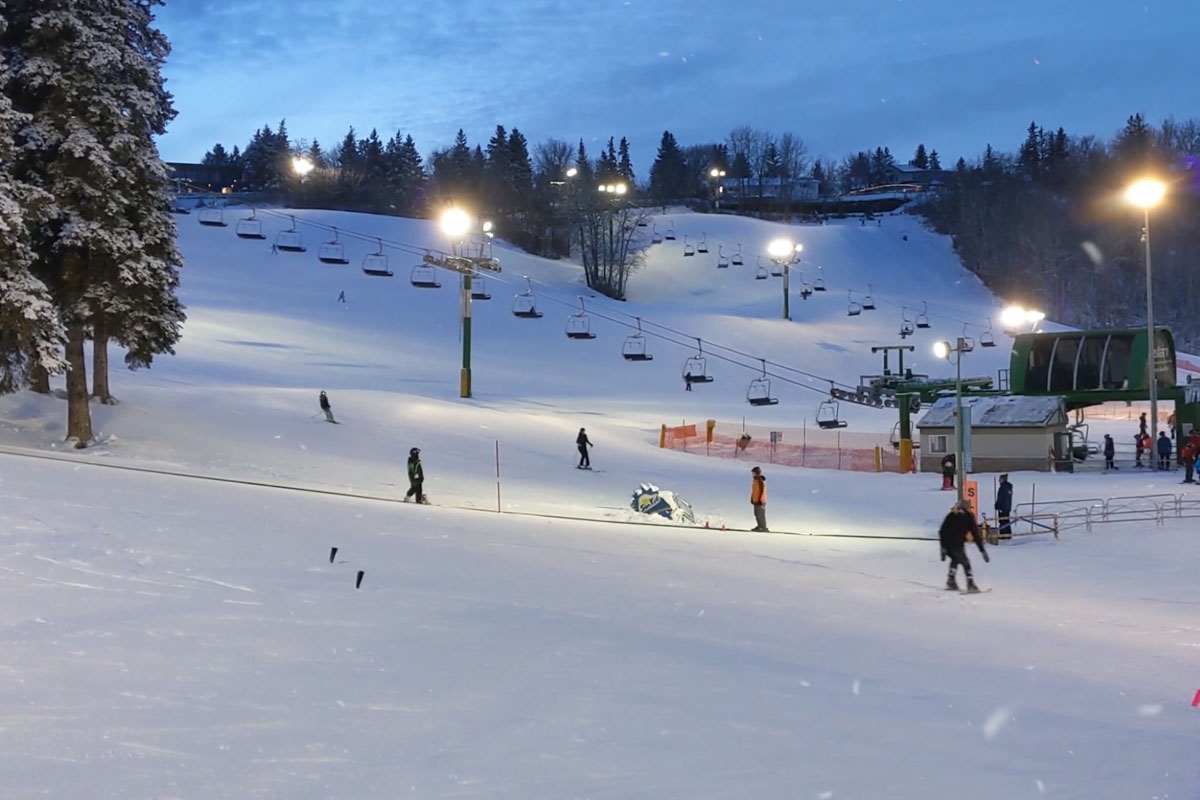
Let it snow! Video overlays for magical snow effects in 4K quality

Let it snow! Video overlays for magical snow effects in 4K quality

A moment ago the snowflakes were falling gently to the ground, suddenly the wind blows them towards you and creates fluffy swirls: Choose the right snow effect for your scene from 10 video overlays and simply apply it. Whether on a still night or during a chilly winter storm: Let it snow!

  • 10 video overlays for different snow effects in your scenes
  • 10 loopable seconds each in 4K quality (4,096 px × 2,304 px) at 60 frames per second
  • From gently trickling to windy swirls: choose the right snowfall variant
  • Combine several overlays if required to intensify the snowfall
  • Easy-to-use, software-compatible MP4 files for video programs with fade modes
  • Included: Video tutorials for After Effects CC, Premiere Pro CC and VEGAS Pro
  • Flaky bonus: Use the working file for After Effects CC to customize snowflakes and snowfall

Into the snow flurries! Download the snow overlays and play Mrs. Holle yourself in your videos.

content

Details of the content

Video overlays for magical snow effects in 4K quality

Video overlays for magical snow effects

Video overlays for magical snow effects

Examples of use

  • Let it snow! Video overlays for magical snow effects in 4K quality
    Go to content 
    Let it snow! Video overlays for magical snow effects in 4K quality

help videos for application

Adding snow overlays to videos - instructions for Magix VEGAS Pro

In our snow overlays, the flakes fall down in front of a black background. To incorporate them, first place the desired overlay in the timeline over your video. Then change the compositing mode so that the black background disappears. By creating loops from the overlay, you can adjust its length to that of your video. You can find out exactly how to do this in Magix VEGAS Pro from Peter Leopold in this how-to video.


9 minutes · free of charge

Adding snow overlays to videos - Premiere Pro CC guide

In our snow overlays, the flakes fall down in front of a black background. To incorporate them, first place the desired overlay in the timeline over your video. Then change the fade mode so that the black background disappears. By creating loops from the overlay, you can adjust its length to that of your video. You can find out exactly how to do this in Premiere Pro CC from Peter Leopold in this instructional video.

8 minutes · free of charge

Inserting and customizing snow overlays in videos - tutorial for After Effects CC

As in other programs, you can also easily apply snow overlays in After Effects CC: Place the desired overlay over your video and just change the blending mode. The AEP project file allows you to do even more! You can influence the direction and speed of the snowfall and even change the appearance of the snowflakes themselves. Peter Leopold shows you how to do this in this instruction video.

14 minutes · free of charge
Comments (1)

Comment now „Let it snow! Video overlays for magical snow effects in 4K quality“