
MIDIprogramming can be one of the most effective methods to bring musical ideas to life. Playing melodies and chords directly with a MIDI keyboard opens up new creative possibilities and promotes a playful approach to music production. In this tutorial, I will show you stepby step how to record a bass line with LogicPro X and expand your musical skills through the use of a MIDI keyboard.
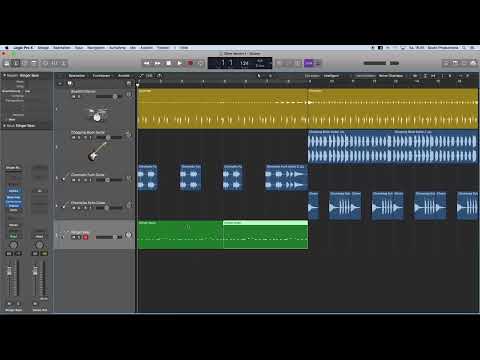
The video is only loaded from YouTube when you play it – data (including your IP address) is then transmitted to YouTube/Google. More in the privacy policy
Key insights
- The use of a MIDI keyboard makes playing notes more intuitive and creative.
- With Logic Pro X, you can easily control and edit software instruments.
- Recording MIDI data is straightforward by pressing the record button.
- You can copy and adjust played regions to make your composition more effective.
Step 1: MIDI setup and create a track
Before you start the recording, connect your MIDI keyboard to your computer via USB. Modern devices should work smoothly via plug-and-play. Once your keyboard is connected, check if it is recognized in Logic Pro X.
Now create a new track by clicking on the plus sign in the main window. Select "Software Instrument Track" and leave the default settings unchanged so you can get started quickly.

Step 2: Select the instrument
To choose the desired sound, open the library in Logic Pro X. Look for a suitable bass instrument, for example, the "Stinger Bass." This will load with the default sound settings, which provide a good foundation for your recording. When you play your keyboard now, you will hear the sound changes in real-time.

Step 3: Play the bass line
Start playing the bass line. You can do this step by step and don’t have to record the entire track at once. Close the library to optimize the workspace. Experiment with different rhythmic and melodic ideas until you've found a satisfying phrase.
When you're ready, press the record button (R) on the keyboard or the corresponding button in the program. Before recording, check if you have set a count-in; it is helpful to hear a measure as guidance.

Step 4: Copy and adjust regions
After recording your first bass phrase, you can easily copy it and drag it to the desired location. Hold down the Alt key and drag the region with the left mouse button to do this. This allows you to quickly create variations in your arrangement without having to repeat the entire recording.
Test the new region by listening to it in loop mode. This will give you immediate feedback on the entire bass line, and you can decide if adjustments are necessary.

Step 5: Insert a second bass voice
To insert the second bass voice for another section of your song, loop the desired area again. Here, too, you can get creative and try to integrate different bass rhythms or melodies. If you don’t like a phrase, you can easily delete it and record another one.
Make sure to deactivate the loop when playing in a new area, and proceed your recording accordingly.

Step 6: Editing the recordings
If your recording is not perfect, you have the option to edit it. You can delete or copy parts of the recording. Clip the areas you don't like or copy the best sections to insert them later into your track.

Summary - Getting Started with Music Production using Logic Pro X: Easy MIDI Recording
MIDI recordings with Logic Pro X are a powerful way to create expressive music. With the right approach and a MIDI keyboard, you can work creatively and efficiently. In this tutorial, you learned how to play a bass line, copy various sections, and adjust your compositions.
FAQ
What is a MIDI keyboard?A MIDI keyboard is an electronic musical instrument that allows you to control digital sounds through MIDI notes.
How do you connect a MIDI keyboard to Logic Pro X?Simply connect the MIDI keyboard to your computer via USB; Logic Pro X will recognize it automatically.
How can I edit a recording in Logic Pro X?You can delete parts of the recording by selecting and removing them or by using the copy function to drag them to other locations.
What is the count-in?The count-in gives you a brief time frame to prepare for the recording before the actual recording begins.
How can I adjust the volume of a recording?You can adjust the volume of a track in the mixer or track settings to achieve different volumes.


