
The development of your own song can be an exciting challenge, especially when working with digital audioworkstations like LogicPro X. One of the most useful features available to you are the audio loopsfrom the sound library. They allow you to find a quick and creative entry into your music project with high-quality sounds. In this guide, you will learn how to use audio loops effectivelyin your productions and what steps you should follow.
The video is only loaded from YouTube when you play it – data (including your IP address) is then transmitted to YouTube/Google. More in the privacy policy
Key Insights
- Audio loops can be easily found and inserted into your project via the library.
- Logic Pro X automatically adjusts the tempo settings of the loops to match your project.
- Editing and organizing loops is as important as selecting them.
Step-by-Step Guide
1. Open the Library and Select Loops
To work with audio loops, you start by opening the Logic Pro X library. Click on the window icon in the upper right corner. In the library, you can specifically search for instruments, genres, or moods. For example, if you are looking for electric guitar loops, select that category.

2. Insert Loops into Your Project
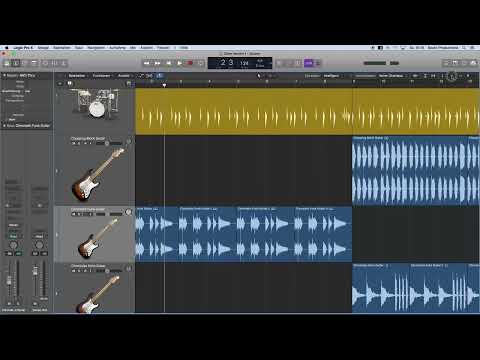
Once you have found suitable loops, you can simply drag and drop them into your project. Click on the desired loop and drag it to the desired position in the arrangement window. Logic Pro X allows you to preview the loop by clicking on it before inserting it.

3. Check Tempo Adjustments
It is important to check the tempo of your project. By default, your project tempo may be set to 124 BPM, while the loop itself was recorded at 115 BPM. However, Logic Pro X will try to automatically adjust the tempo of the loops to match that of your project. Be sure that this adjustment does not lead to unwanted sound effects.

4. Add and Adjust Additional Loops
You can insert multiple loops into your project. Simply repeat the previous step for any other loops you want to use. You can then arrange and adjust these in the desired order.

5. Copy and Adjust Region
To copy an audio track, hold down the ALT key while selecting and dragging the region with the mouse. Alternatively, you can also use the commands CMD+C and CMD+V to copy and paste regions. Work with different versions of a loop to create creative variations.

6. Adjust Volume
It is often the case that the volumes of individual loops vary greatly. To achieve a balanced sound, use the volume control within the respective track. It is advisable to handle volumes carefully to obtain a harmonious overall picture.

7. Use Zoom Functions
When navigating in your arrangement or wanting to edit specific areas, you can use the zoom function. Hold down the ALT key and scroll with the mouse wheel to zoom in both vertically and horizontally. This function allows for detailed editing of your loops.

8. Cut Clips
If you want to remove specific parts of your loops, you can use the scissors tool. To cut a clip, select the scissors icon in the toolbox and click on the point where you want to cut. You can also undo changes with CMD+Z if you want to reverse a cut.

9. Adjust Stereo Panorama
To create a more spacious sound, I recommend distributing the various loops across the stereo panorama. You can do this by adjusting the volume controls on the respective tracks to shift the sounds left or right. This contributes to a more balanced mix.

10. Review and Finalize Project
At the end of your work, you should listen to your project again. Pay attention to whether the volumes and positions of the loops work harmoniously together. Finalize your session once you are satisfied with the result.

Summary – Getting Started with Music Production in Logic Pro X: Using Audio Loops
Using audio loops in Logic Pro X allows you to produce diverse and varied music. By searching through various loop categories and inserting them effectively into your project, you create the foundation for your song. Always pay attention to tempo, volume, and the overall sound.
FAQ
How do I insert loops into my Logic Pro X project?You can drag and drop loops from the library into your project.
Can I adjust the volume of individual tracks?Yes, you can adjust the volume of each track in the inspector or directly in the arrangement.
How can I copy loops?Hold down the ALT key and drag the region, or use CMD+C and CMD+V.
Is there a way to adjust the tempo of the loops?Yes, Logic Pro X automatically adjusts the tempo of the loops to match your project, as long as the difference is not too large.
How can I make the arrangement more visible?Use the zoom functions by holding down ALT and using the mouse wheel.


