A landing page is rarely finished after the first draft. Often the color doesn't fit, the call to action seems too pale, or the page feels cramped. This is exactly where this guide comes in. You will learn how to improve your page in Claude Design step by step, without starting from scratch each time. All changes happen directly in the ongoing conversation, and after each round you can see what has changed.
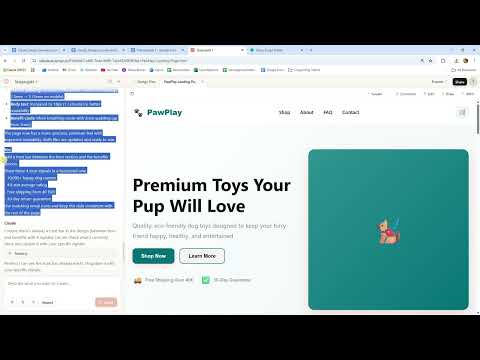
The video is only loaded from YouTube when you play it – data (including your IP address) is then transmitted to YouTube/Google. More in the privacy policy
Key Takeaways
- You don't have to adopt all the improvement suggestions. Choose selectively what really suits your page.
- A single, clearly worded change request per round delivers traceable results.
- Changes in the chat can be quickly undone if you don't like them.
- The HTML file on your computer does not change automatically. After making changes, you have to download it again and re-upload it.
- A share link saves you from repeated uploading and is well suited for feedback.
Step-by-Step Guide
Step 1: Review the suggestions and choose the right change
After the first draft, Claude often places a list of possible improvements in the document. These include, for example, a stronger call to action, more white space, a social proof element, a new color scheme, or an optimized mobile view. Read through the suggestions carefully and decide which point bothers you the most. In this example, everything except the color scheme is satisfactory, so you focus only on that at first. This selection is the most important step, because if you change everything at once, you can hardly tell afterwards which adjustment had which effect.

Step 2: Change the color scheme in the same chat
Formulate your request as a clear prompt and send it in the existing conversation. You don't need to start a new conversation, because Claude knows the current state of your landing page. A sentence like "Please change the color scheme to a calmer palette with shades of blue" is often enough. Make sure you only mention what you want, so that the rest of the page remains unchanged.

Step 3: Use Tweaks as an alternative to the chat
Besides the chat, Claude Design offers the option of making changes via Tweaks. This is especially handy if you want to switch back and forth between different variants, such as between two color schemes. If you don't like a change made in the chat, you can simply revert it with a new prompt. Both ways are equivalent; you decide which is faster in your workflow.

Step 4: Adjust white space and font size
If the page feels cramped, more white space helps. Word the request as concretely as possible, for example: "Increase the padding of all sections by 50 percent and make the font slightly larger." In this example, the base font is increased from 16 to 18 pixels, and more space appears between the sections. With small adjustments, the difference is not always visible at first glance, but in the dashboard you can see exactly which values Claude has changed. Use this overview to check the change.

Step 5: Add social proof and keep details consistent
A social proof element such as "Over 10,000 satisfied customers," a rating of 4.8 stars, a note about free shipping from €40, or a return guarantee increases visitors' trust. Provide all details in full in the prompt. Pay attention to consistency here: if an amount or a currency appears in one place on the page, the same value must be the same everywhere. Otherwise, the page seems untrustworthy. Therefore, after each addition, check whether all text passages match one another, and correct them if necessary in another prompt.


Step 6: Check the results and refresh the display
Sometimes a change is not immediately visible. In this example, the Trust Bar initially did not appear because the message "Reload for new version" was displayed and the page was currently in edit mode. Reload the view and check whether the change has arrived. If that doesn't help, exit edit mode and try again. Often the problem is not the change itself, but the display.

Step 7: Remove Unwanted Elements in a Targeted Way
Not every addition stays. If, for example, the Trust Bar at the top of the hero section is distracting because the same information already appears further down, you can remove it with a short prompt. A sentence like "Please remove the Trust Bar from the hero section" is enough. This makes the main section feel calmer, and the visitor is not confronted with the same arguments twice.

Step 8: Download and Re-upload the HTML File
Your project initially continues to display the version you originally uploaded. After each change in the chat, only the source in the conversation changes, not the file on your computer. Therefore, download the updated HTML file and upload it again via drag and drop. Only then will you see the current state. This step is especially important if you want to continue using a page outside of Claude Design.

Step 9: Share the Page via Link
Anyone who constantly has to re-upload quickly loses track. A more convenient alternative is to share the page via link. The test page then opens in its own view, which can be protected with a password. This way, you can show colleagues or clients the current state without constantly sending new files. For quick feedback, this approach is sufficient in many cases.

After logging in, you will see the test page clearly improved compared to the beginning: more white space, larger font, a new color scheme, and a subtle social proof section. This step-by-step approach is exactly what makes the difference, because each round builds on the previous one.

Summary – Refining a Landing Page in Rounds: How to Iterate with Claude Design
You have seen that a landing page in Claude Design can be improved well in several small rounds. Choose one specific change per pass, phrase it precisely, and check the result in the dashboard or in the preview. Pay attention to consistent information, remove superfluous elements, and don't forget to re-download the HTML file after changes or to share the page via link. This way, step by step, you end up with a page that convinces you in the end.
FAQ
Do I have to adopt all of Claude's improvement suggestions?No, you choose specifically what makes sense for your page. A single suggestion per round is often enough.
Can I undo a change?Yes, simply write a new prompt that restores the old version, or use Tweaks to switch between variants.
Why don't I see my change in the preview?The page may still be showing the old version, or you may be in edit mode. Reload the view or exit edit mode.
Why do I have to re-upload the HTML file after a change?The file on your computer remains unchanged. Only the state in the conversation is updated, so you download the new version again and upload it.
How can I show the page to others without constantly uploading?You can share the page via link. Optionally, you can protect access with a password.


