
Before you set up your own TikTok profile, it is worth taking a look at the interface. Once you have sorted out the menus, icons, and pages, you will find your way around much faster later on. This guide takes you step by step through the most important areas of the app: from your own profile through settings and inbox to the Discover page and the home page with the videos for you.
The video is only loaded from YouTube when you play it – data (including your IP address) is then transmitted to YouTube/Google. More in the privacy policy
All you need for this is the TikTok app on your smartphone or an account that has already been created. A profile picture or followers are not necessary yet. At this stage, your profile is probably still empty, and that is exactly what makes getting started easy to follow.
Key Takeaways
- Your profile has the option at the top left to invite friends via email or contacts, and at the top right you will find the settings behind the three dots.
- In the settings you manage your account, change the language, and access privacy options. At the bottom, you can also switch between multiple profiles.
- The bar at the bottom offers Home, Discover, the plus icon for new videos, Inbox, and Profile.
- On the Discover page you will find trending hashtags, challenges, music, and a search function with filters.
- The home page is divided into "For You" and "Following". There you can like, comment on, and share videos.
Step 1: Getting to know your own profile and the header
Open the app and tap your profile at the bottom right. You will then see your username, which for new accounts often consists of a combination of numbers, as well as the number of your followers, the people you follow, and your likes. At the very top left is the icon for adding friends. Here you can invite people via email, match your contacts from your phone book, or search for friends via Facebook.

This area is useful if you want to start right away with people you know. Especially at the beginning, it is worth finding friends and colleagues so that your home page does not stay empty later.
Step 2: Opening settings, privacy, and language
At the very top right you will find the three dots. Tapping them opens the settings menu. There you will find the privacy policy, account management, and language selection. There are also further options that you will need step by step later on. Feel free to take a moment to look through the items, because this is where you determine how your data is processed and how you want to use the app.

Another important item is located at the bottom of the profile area. There you can use the account switcher to switch back and forth between multiple profiles or create an additional profile. This is handy if, for example, you want to use a private and a professional account.

Step 3: Understanding the sections in the profile
In the profile, below the Edit button, you will find a banner icon that gives you access to your saved content. There you collect hashtags, sounds, and effects that you like. You do not have to use this function right away, but it will help you later with inspiration for your own videos.

Below that you see the selection of your videos. Your own posts appear in the feed, the videos you have liked are in the middle, and the private videos can also be found there. If you scroll the view down, you can tell which tab you are currently on. The selected tab is highlighted in black.

Step 4: Using the inbox, plus icon, and messages
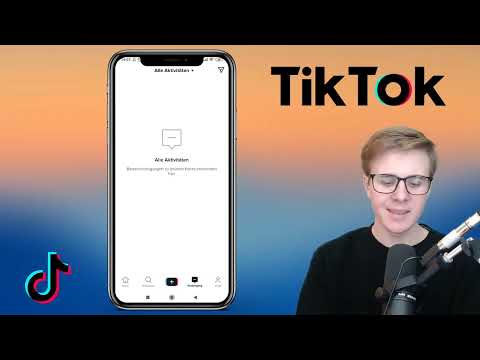
Next to the profile is the inbox. Here notifications appear, for example when someone follows you, your video has been liked, or someone has written a comment. Keep an eye on this area if you want to actively interact with other users.
The plus icon in the middle of the bar is used to record your own video. We will go into this in more detail in a later tutorial. At the top right of the inbox you will also find the icon for direct messages. With the plus there, you can write directly to a person.


Step 5: Exploring the Discover Page and Search
You can reach the Discover page via the magnifying glass icon to the left of the plus. There you will see trending hashtags, current challenges, and popular music tracks. For hashtags, it is often shown directly what they are about, so you can quickly tell whether a trend is interesting to you.

At the top is the search bar. There you can search for people, videos, sounds, or hashtags. If you know a person's name, simply enter it. The results are divided into tabs, for example Top, Users, Videos, Sounds, and Hashtags. This allows you to click through the categories in a targeted way.


At the top right for videos, you will also find filters. With these, you can specify when a video was uploaded and sort the results by relevance, comments, upload date, or likes. Especially when you are looking for specific content, this saves you a lot of time.

Step 6: Using the Home Page with "For You" and "Following"
At the very bottom left is the Home page, represented as a house icon. At the top you can see two tabs. Under "For You," videos appear that TikTok suggests to you based on your interests. Under "Following," you only see videos from people you already follow. As long as you do not follow anyone yet, this tab remains empty. The app will then suggest trending creators so that you can quickly build an initial following list.


To the right of each video are icons for liking, commenting, and sharing. Using the share icon, you can send videos via WhatsApp, by message, by SMS, or via Facebook and Instagram. If you tap the creator's name or profile picture, you will go to their profile. There you can follow them.


As soon as you follow a person, they appear in the "Following" tab. This is the fastest way to specifically see content that truly interests you.

Step 7: Preparing the Way to Your Own Profile
After the tour, you are ready to set up your profile. Currently, you still have an automatically assigned user ID, have no profile picture, and follow no one. In the next step, you will take care of exactly that: you will adjust your username, upload a profile picture, and write a short bio. Afterwards, you will build up your following list.

Summary ??? TikTok Tour: Profile, Navigation, and Home Page Explained
You have now gotten to know the most important areas of TikTok. In the profile, you will find friend invitations, settings, saved content, and your own videos. The bottom bar gives you access to the Home page, Discover, creating new videos, the Inbox, and your profile. On the Discover page, you search and filter specifically for hashtags, sounds, and people. On the Home page, you decide whether you want to see suggestions from the app or only content from your following list. With this overview, you can set up your profile sensibly in the next step.
FAQ
Do I already need to have followers to use the interface?No, the interface is fully available to you even without followers and without likes.
How do I find friends on TikTok?Tap the add icon at the top left in the profile. There you can match contacts from your phone book, invite friends via email, or search via Facebook.
Where do I change the language of the app?The language selection is located in the settings menu, which you open via the three dots at the top right in the profile.
Can I use multiple profiles at the same time?Yes, via the account switcher at the bottom of the profile, you can switch between multiple accounts or create another one.
Where do I see notifications, for example about new followers?You can find these in the Inbox, which is located in the bottom bar next to the plus icon.
What is the difference between "For You" and "Following"?Under "For You," TikTok shows videos based on your interests. Under "Following," you see exclusively videos from people you follow.


