
Imagine you post a new product, the story is going well, and in the comments everyone asks for the link. You swap the address in your bio, and after the next offer the same thing happens again. This is exactly where this guide comes in. With Planoly and the Stylink.it service, you set up a permanent link once, through which your followers can reach all your current products and posts. In this guide, I'll show you step by step how to set it up, add your products, and include the link in your Instagram profile.
The video is only loaded from YouTube when you play it – data (including your IP address) is then transmitted to YouTube/Google. More in the privacy policy
Key Takeaways
Key Takeaways
- Classic link-in-bio tools lead to an overview page with multiple links that you have to update every time something changes.
- Stylink.it in Planoly offers its own landing page with a permanent link that you can leave in your bio indefinitely.
- You link existing posts directly to your products or to external links, including affiliate links.
- A real Instagram shop with a Facebook connection is a separate topic and does not replace this solution.
Step-by-Step Guide
Step 1: Understand the Problem with the Link in Your Bio
Instagram allows only a single clickable link in your profile. If you want to offer multiple destinations, many creators turn to landing page tools like Linktree. There you place several links on one page, and visitors choose for themselves. The principle works, but it quickly looks cluttered, and as soon as a product changes, you have to make adjustments in several places. The solution in this tutorial is more elegant because you manage the content directly in your Planoly account.

Step 2: Find Stylink.it in Planoly
Log in to your Planoly account. Stylink.it is integrated into Planoly and you can find it via the corresponding function in the menu. Open the Stylink.it interface to start the setup. At first you will see the normal mode, in which the function is not yet activated. This is the starting point for everything else.

Step 3: Activate Stylink.it and Choose Your Account Type
Click the option to activate Stylink.it. Then you choose whether you appear as a brand or as an influencer. For your own products, select the shop area accordingly and fill in the requested information once. Make sure your profile is named correctly, because this data will later appear on your landing page.

Step 4: Create Products in the Stylink Dashboard
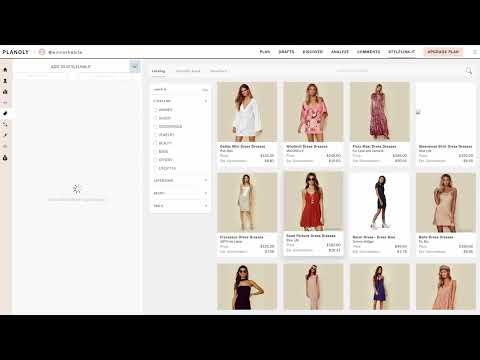
After the basic setup, you land in the Stylink dashboard. There you will find the "Products" section. Here you create your own products by adding them. The products form the basis of your digital storefront. You can add to, remove, or edit them at any time later without your Instagram link changing.

Step 5: Link Existing Posts to Destination Pages
The special advantage shows up with your already published posts. You can add all existing posts to Stylink.it. Then you define for each post where it links to, such as your own product, your website, or an affiliate link. This is especially handy with affiliate products, because you don't have to spread the links across multiple tools. For your own shop, you simply enter your own products.

Step 6: Check the Finished Landing Page
Once products and posts are linked, you get your own landing page with a permanent Stylink.it link. Open this link yourself once before you share it. Click on a post and check whether the destination page is correct. This test takes you two minutes and prevents visitors from being sent to wrong or dead pages.


Step 7: Add the link to your Instagram profile
Open your profile in the Instagram app and tap "Edit profile". There, under Website, add your new Stylink.it link. In addition, you can write a short text in your bio that sparks curiosity and encourages visitors to click. A concise sentence like "My favorite book and products for further reading" is enough to let visitors know what to expect.

Step 8: Customize the display and profile picture of the landing page
An image appears on the landing page by default. You can swap it out in Planoly and replace it with your own image that suits your brand. Make sure the image is clearly recognizable and fits your profile. Visitors should immediately understand that they have landed on the right page.


Step 9: Understand the order of the posts
The landing page displays your posts chronologically, just like in your Instagram feed. The newest post is therefore at the top and immediately visible to visitors. A visitor clicks on an image and goes directly to the linked page. However, they can also click on the other images and discover more products. This way, you offer a selection with a single link, without having to re-link every time.

Step 10: Use your shop without your own shop software
With Planoly and Stylink.it, you have a shop that can be reached via your Instagram link, without having to build your own online shop. You link your products directly, and visitors get there via your profile. However, if you want to set up a real Instagram shop with product tags in posts, you need a connection to Facebook and a suitable variant. The next video in the series covers this path.

Summary – Instagram Link in Bio: Using Planoly and Stylink.it correctly
With Planoly and Stylink.it, you replace the constant rewriting of your link with a permanent solution. You activate the feature, create your products, link your posts, and enter the permanent link in your Instagram profile. Complemented by a suitable bio and your own image, the result is a clear landing page that bundles your offers. Test the process completely once before you publish it in your profile.
FAQ
Do I need a paid subscription for Stylink.it in Planoly?To my knowledge, the feature can also be used in the free version of Planoly. Check the current terms directly in the app, as plans can change.
Do I have to change my Instagram link after every new product?No. The Stylink.it link stays the same. You manage new products and posts in the dashboard, and the landing page updates automatically.
Can I also link affiliate products?Yes. You can add affiliate links to posts, just as you link your own products or external sites.
Does this solution replace a real Instagram shop?No. This variant directs visitors to your products via a link. You set up a full-fledged Instagram shop with a Facebook connection separately.
Can I change the image on my landing page?Yes. In Planoly, you can upload your own image that is displayed on the landing page.


