

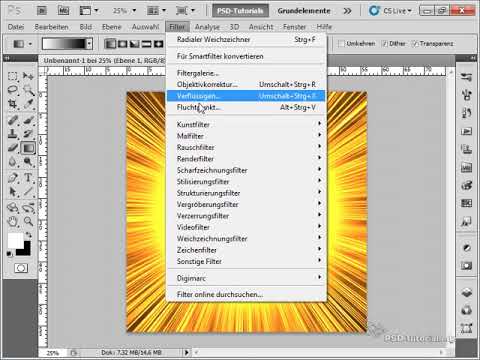
The video is only loaded from YouTube when you play it – data (including your IP address) is then transmitted to YouTube/Google. More in the privacy policy
An explosion with fire and rays is an impressive effect that gives energy and drama to any design. Perfect for posters, action designs, or digital art - with Photoshop, you can create this explosive look step by step. In this tutorial, I will show you how to design a realistic and powerful explosion by combining colors, light effects, and textures. Let's get started and make your designs explode!
Step 1:
In order to be able to create the action later with the push of a button, I record an action. To do this, I open my actions panel, click on the New symbol, and name it "Explosion".
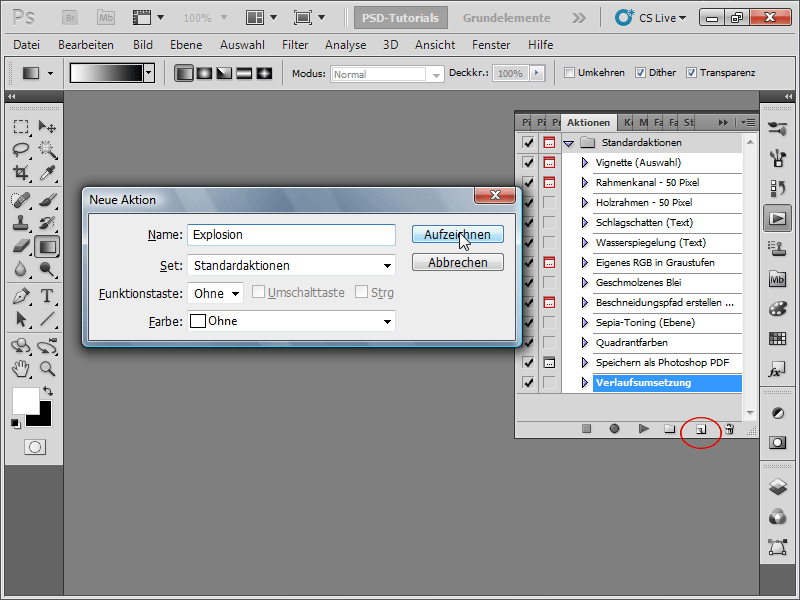
Step 2:
I create a new image with a white background. The size doesn't matter. I choose 1600 x 1600 pixels.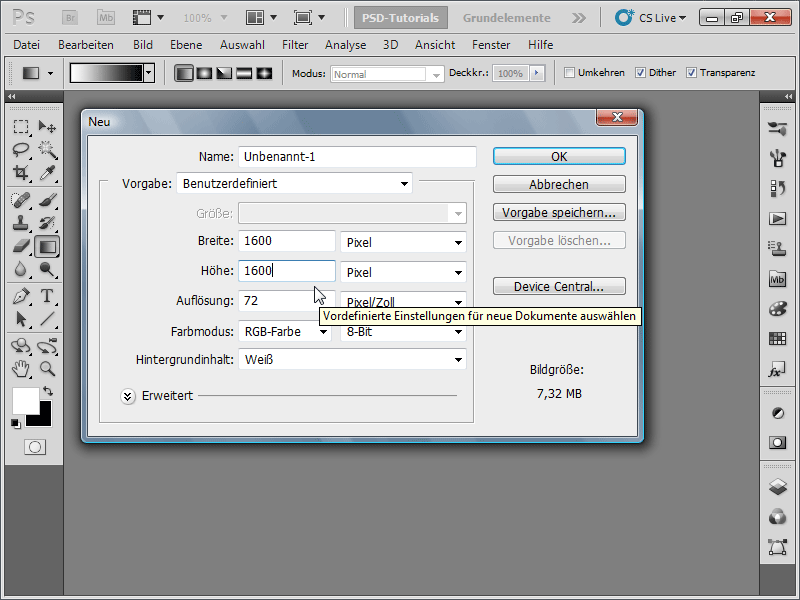
To make sure I'm working with the default colors, I press D (foreground color black and background color white).
Step 3:
Next, I click on Filter>Noise>Add Noise in the menu with the following settings: Amount about 11%; Distribution: Uniform; Monochromatic.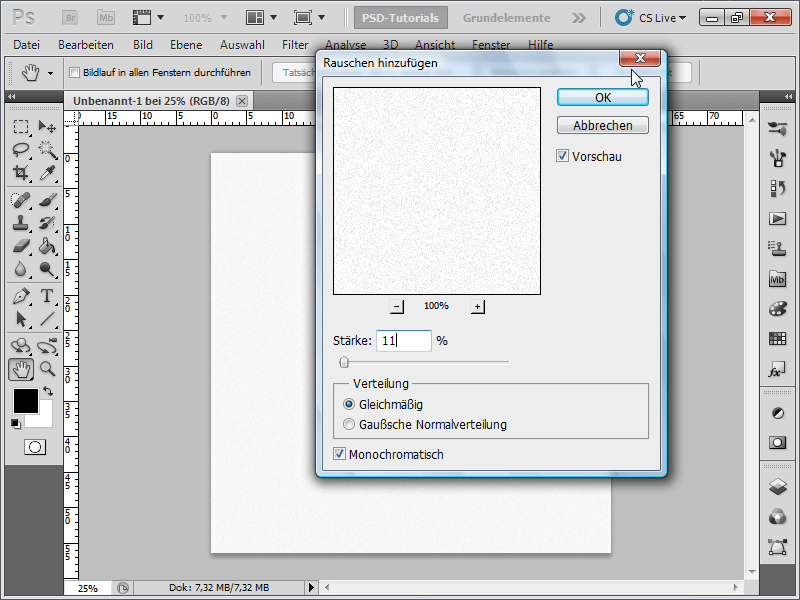
Step 4:
Now, head to the menu under Image>Adjustments>Threshold: Choose a threshold around 241 - 246 to make the noise more visible.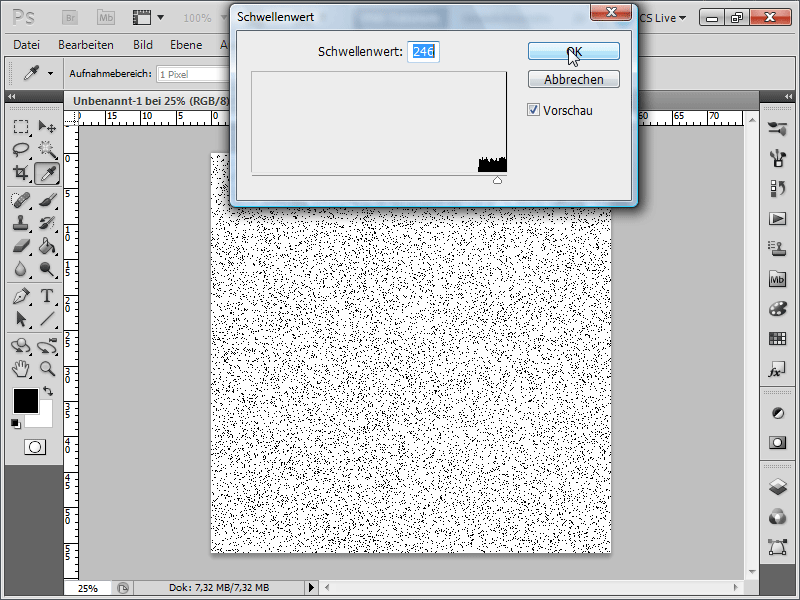
Step 5:
Next, go to the menu under Filter>Blur>Motion Blur with Angle 90° and Distance 400. Then invert the image: Image>Adjustments>Invert, or a quicker way is with Ctrl+I.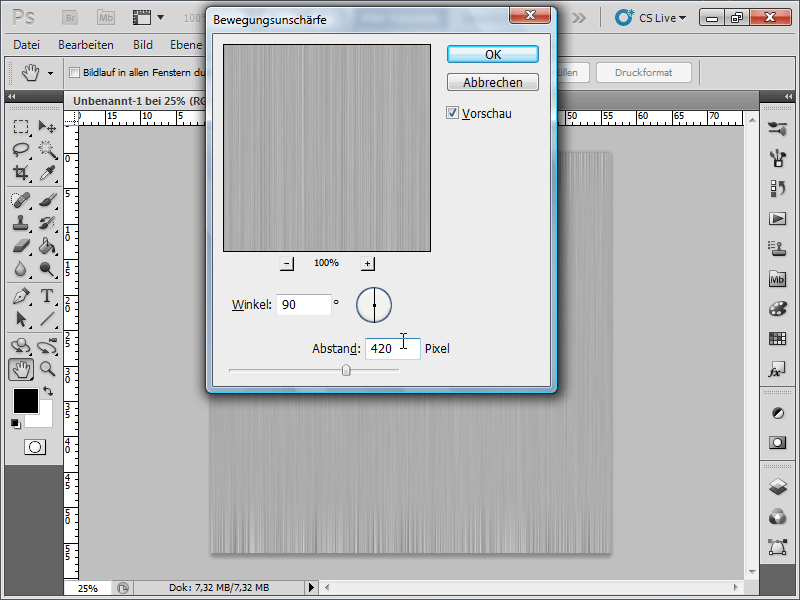
Step 6:
Now, create a new layer in the Layers panel.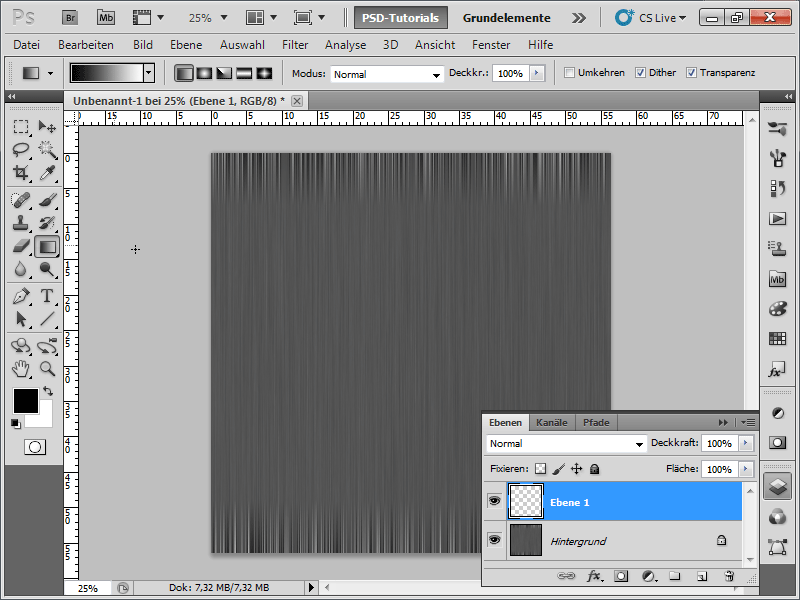
Step 7:
On the new layer, create a black and white gradient.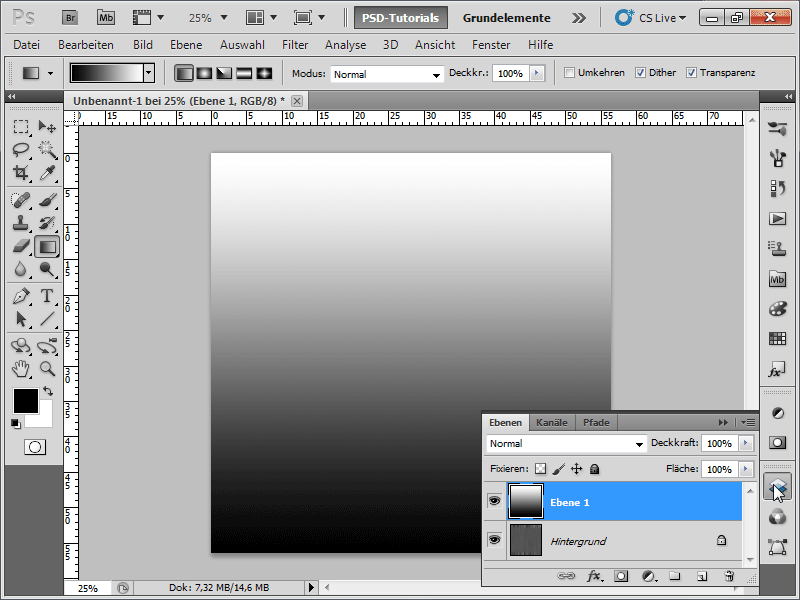
Step 8:
Change the layer mode from Normal to Negation Multiply.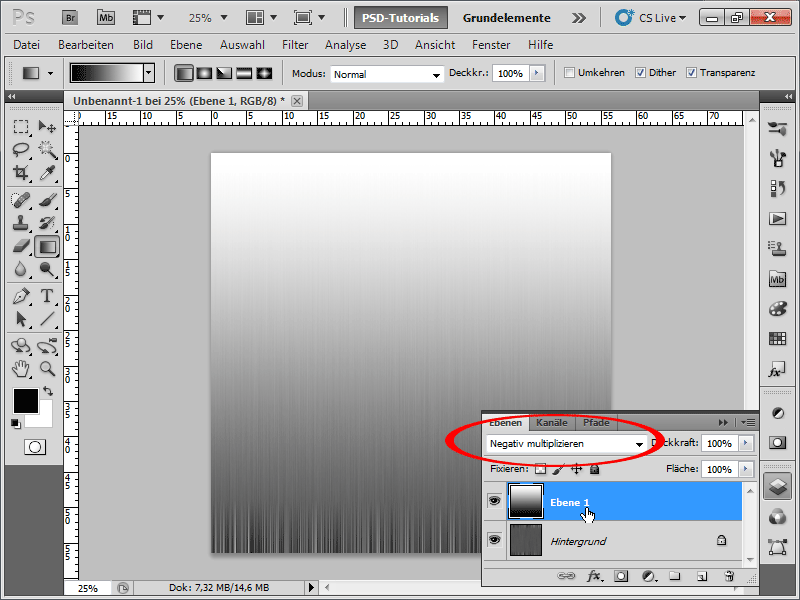
Step 9:
Now, reduce the layer to the background layer. The easiest way to do this is by pressing Ctrl+E or by clicking on Reduce to Background Layer in the Layers panel options menu. Then go to Filter>Distort>Polar Coordinates (Rectangular to Polar).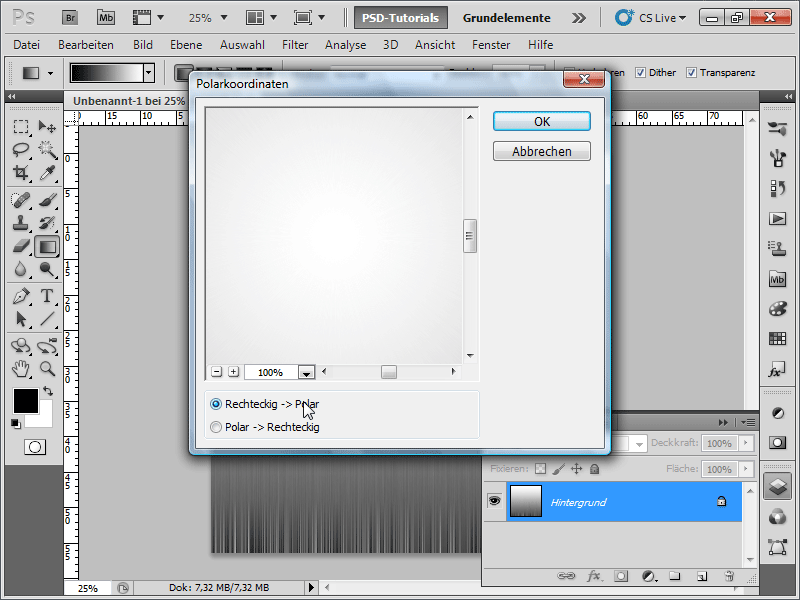
Step 10:
Now press the X key to swap the color fields. Then go to Filter>Blur>Radial Blur: Amount: 90-100; Method: Spin; Quality: Good.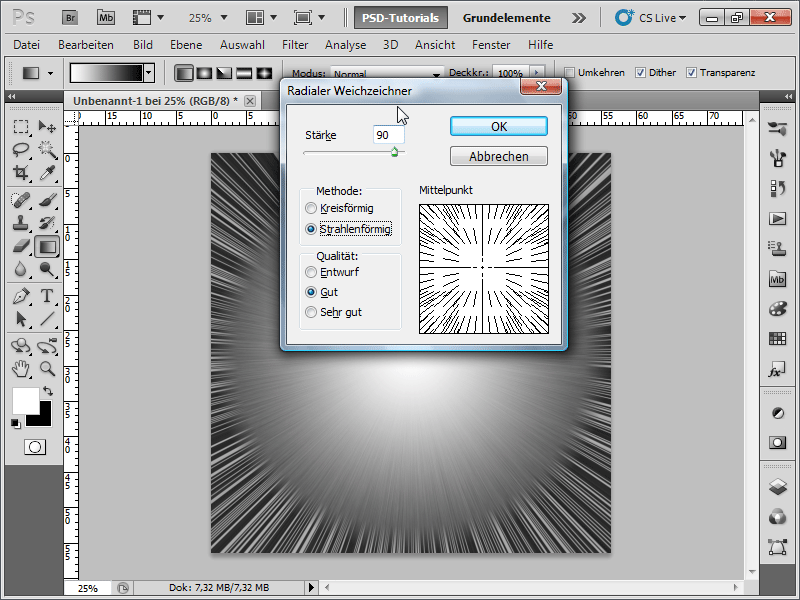
Step 11:
To add color to the whole thing, go to Image>Adjustments>Hue/Saturation (Ctrl-U), check Colorize and adjust the colors as follows: I have set Hue to 36 and Saturation to 63.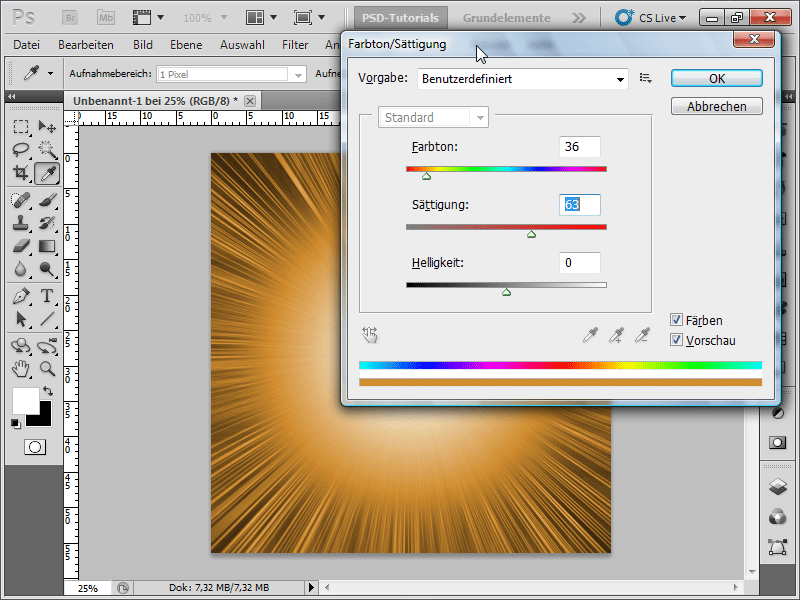
Step 12:
Now duplicate the background layer (easiest with Ctrl+J) and change the fill method to Color Dodge.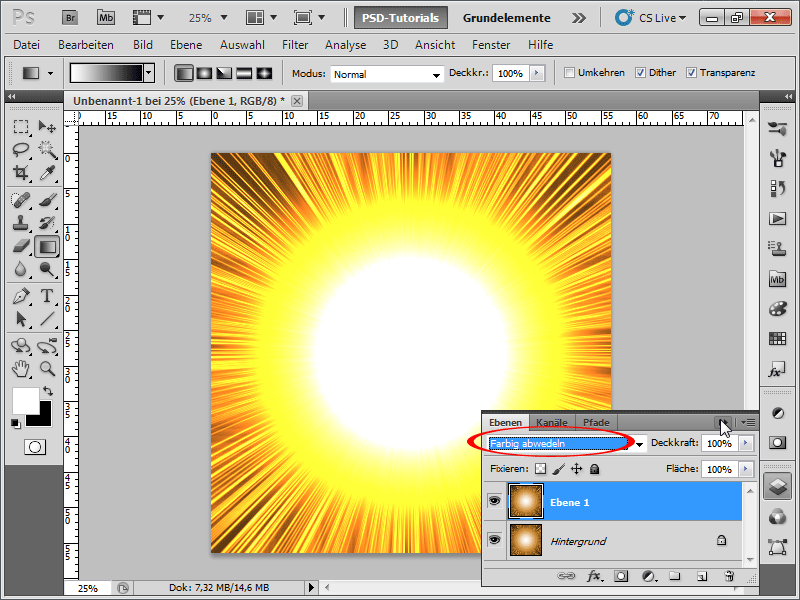
Step 13:
At the moment, it doesn't really look like an explosion. So, click on Menu>Filter>Render>Clouds.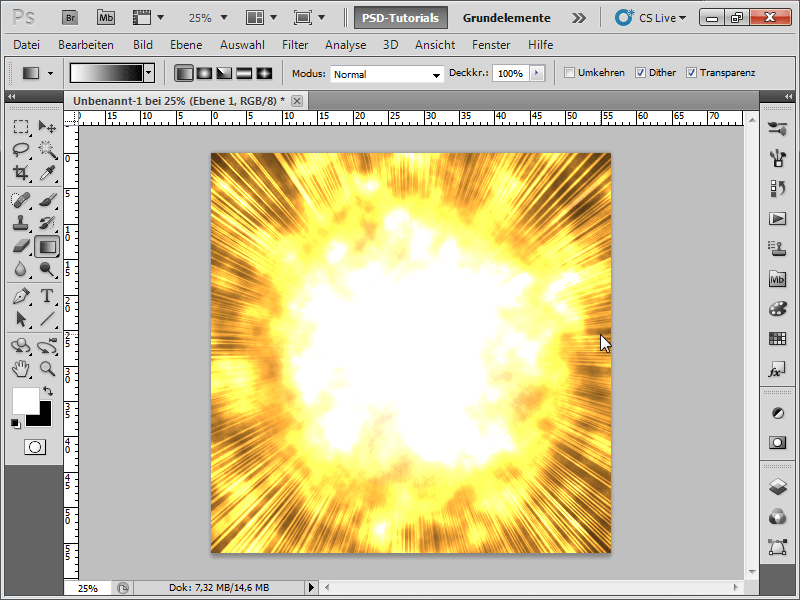
Step 14:
Next, select Menu>Filter>Render>Difference Clouds.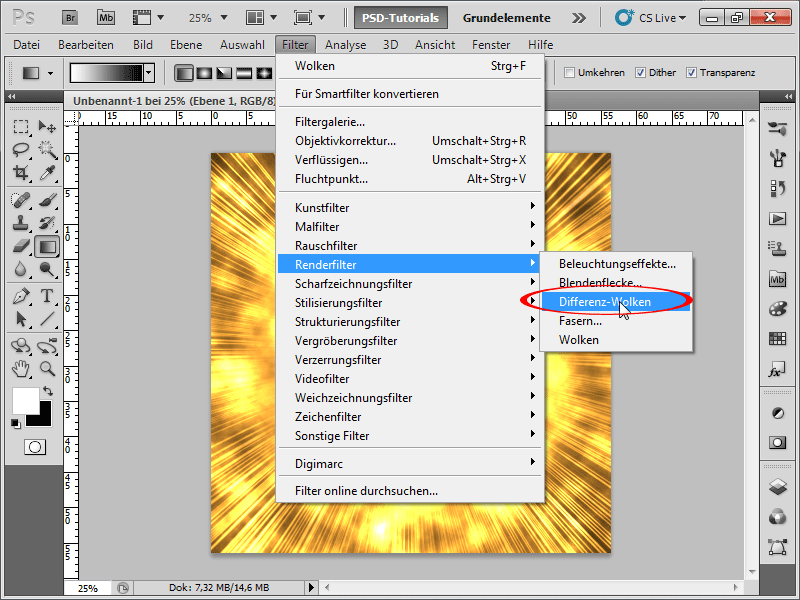
Step 15:
If you're not happy with the explosion, press Ctrl+F as many times as you want to reapply the last selected filter. Now do the following: Menu>Filter>Noise>Add Noise with an Amount of about 5% and Distribution: Uniform and again Monochromatic.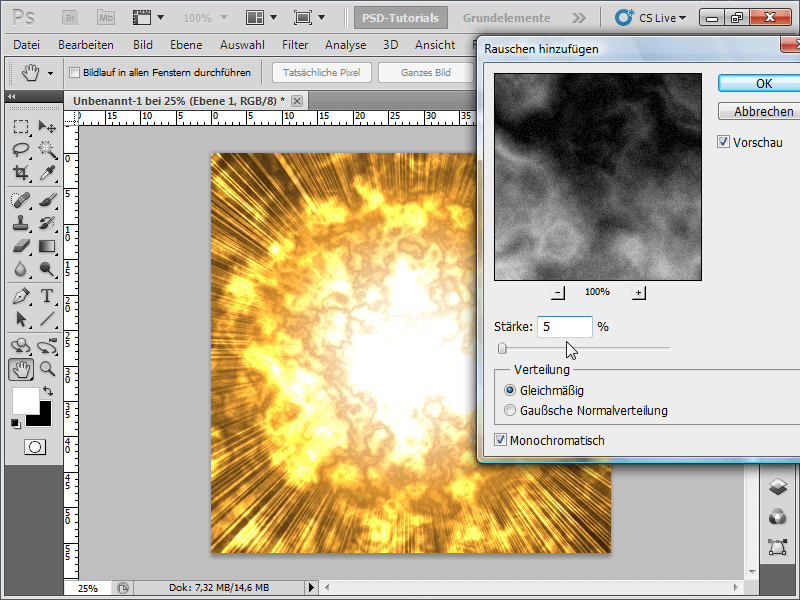
Step 16:
And this is what my result looks like now: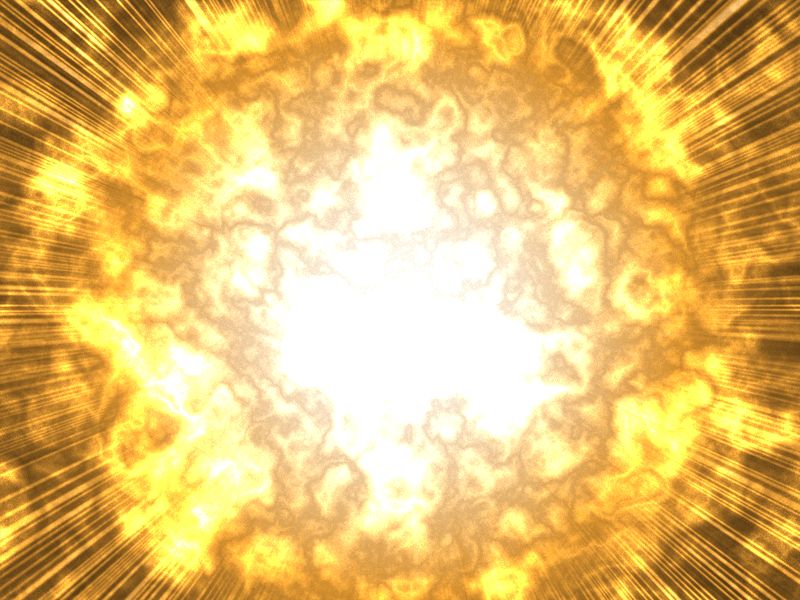
Step 17:
Now I can stop the recording of my new action by using the Stop button and play it back at any time. If, for example, I want to be able to define the document size myself each time, I recommend clicking on Enable/Disable Dialog. Then, when playing the action, a dialog will appear each time where I can enter the document size myself, and then the action will continue running smoothly.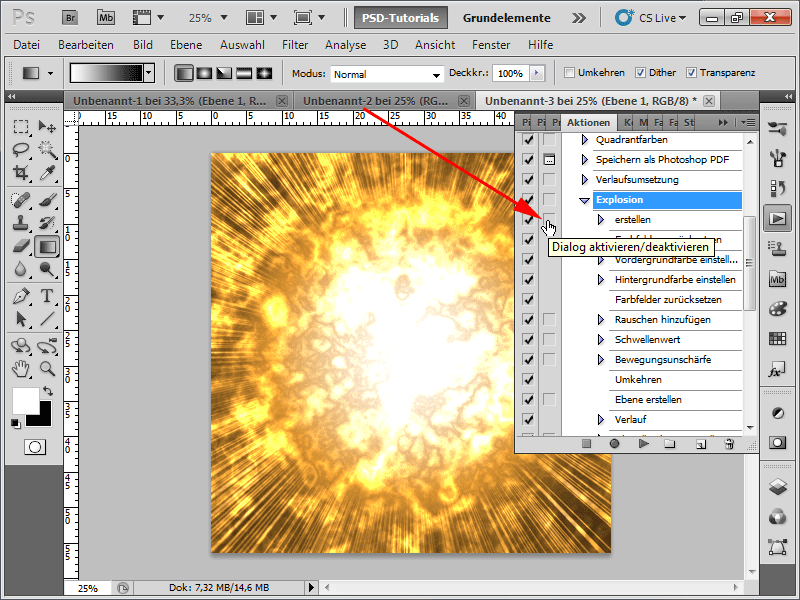
Step 18:
Finally, an optimization tip: It is best to work non-destructively. This means that the image pixels are not altered in cases like color changes, and I always have the option to adjust values. That's why I completely changed the lower layer to black and white with Ctrl+U (Saturation: -100) and then created a Hue/Saturation Adjustment Layer. This way, I can adjust the color at any time.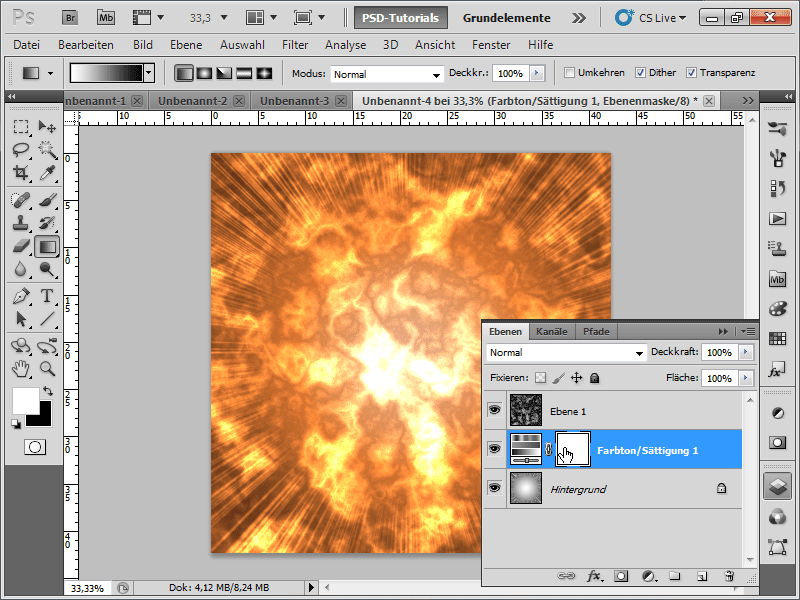
I hope this workshop demonstrates how quickly such a spectacular explosion effect can be created and especially that such effects are also wonderfully suited for action recording. The Photoshop action is included in the working file!

