

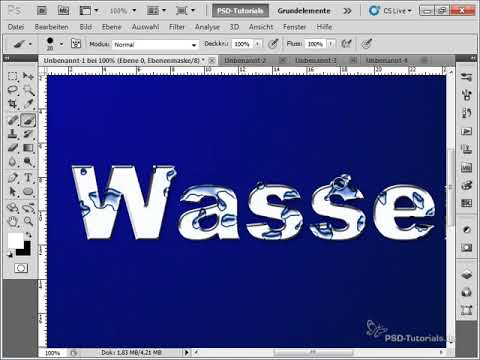
The video is only loaded from YouTube when you play it – data (including your IP address) is then transmitted to YouTube/Google. More in the privacy policy
Splashes of water and water drops are perfect design elements to bring freshness and dynamics to your projects. Whether it's for posters, advertising banners, or digital art - with Photoshop, you can easily create this effect in no time. In this tutorial, I will show you how to quickly and easily create realistic water splashes and drops by combining brushes, layer effects, and textures. Let's get started and give your designs a refreshing look!
Step 1:
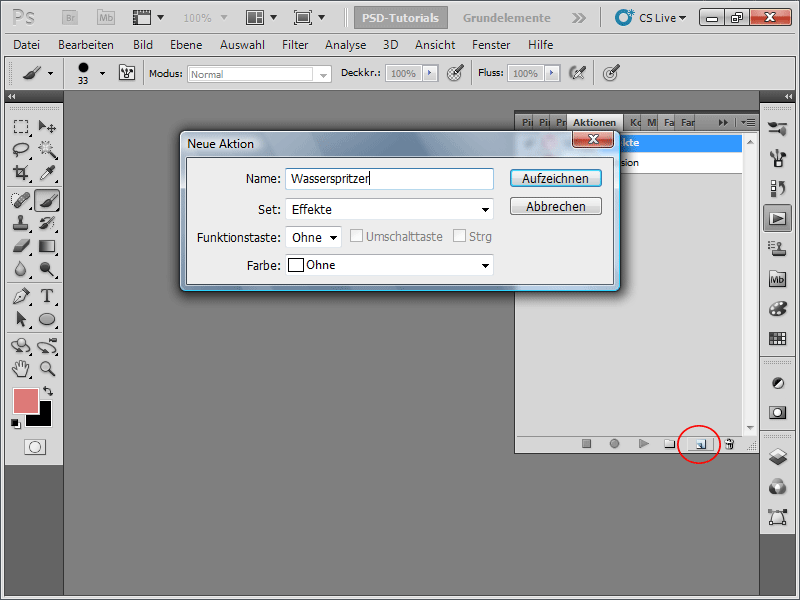
In order to be able to create the effect at any time with a simple button click, I record an Action. To do this, I open my Actions panel, click on the New icon, and name it "Water Drops".
Step 2:
I create a new image with a white background. The size doesn't matter. I'll use 800 x 800 pixels.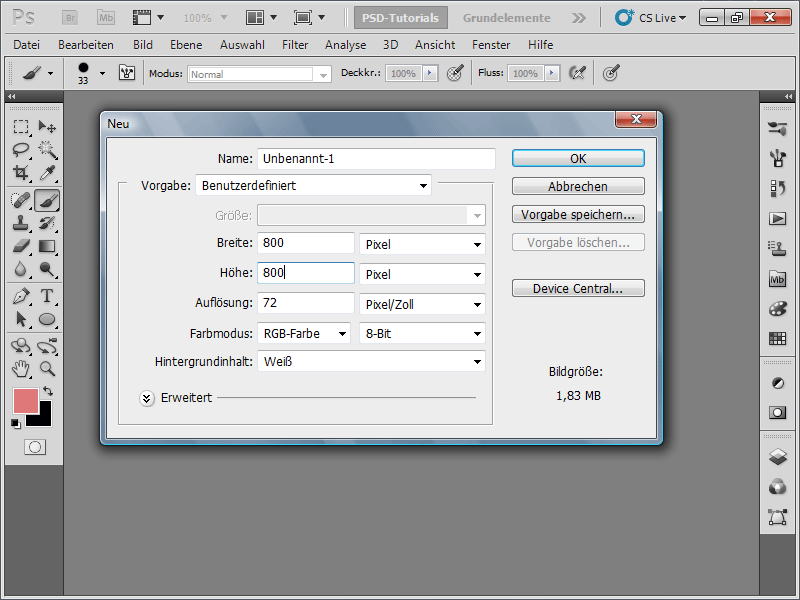
Step 3:
It's important that the foreground color is black and the background color is white. Now, I go to the menu and select Filter>Render>Clouds.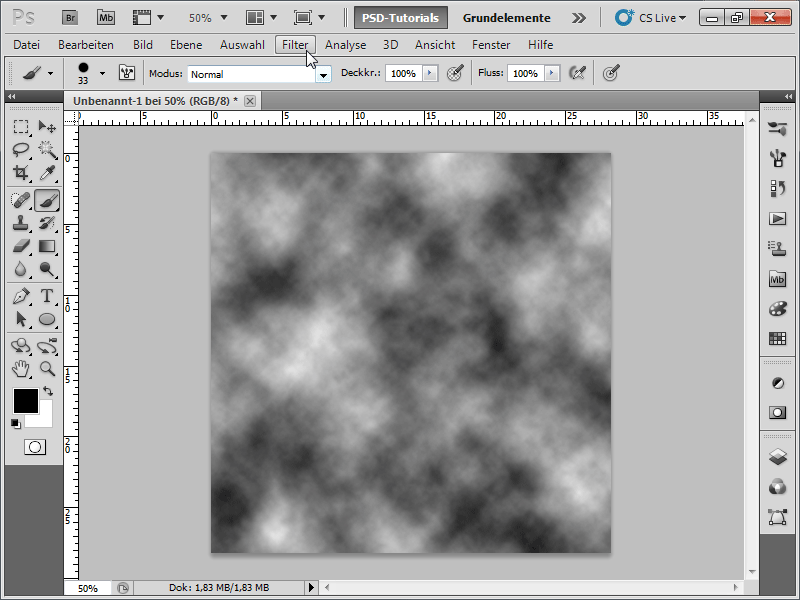
Step 4:
Next, I click on Filter>Stylize>Find Edges.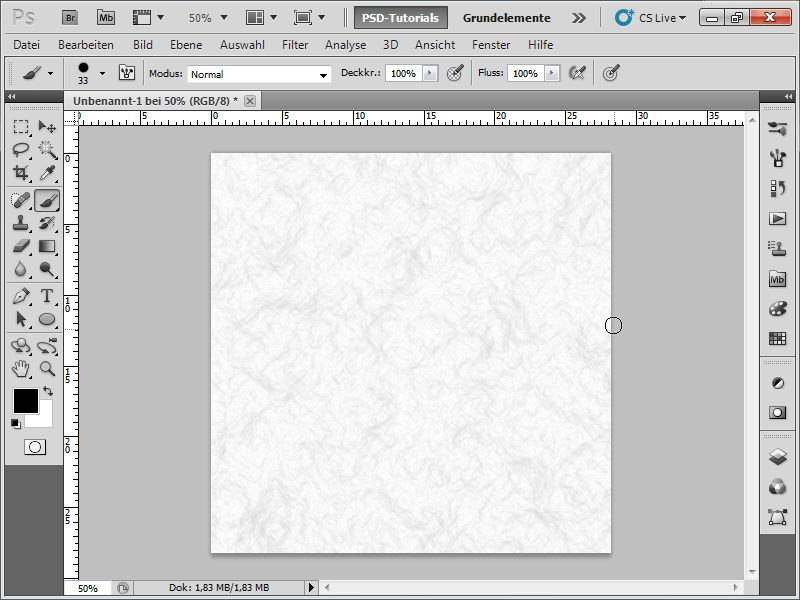
Step 5:
Then, in the menu, I go to Image>Adjustments>Levels and click on the Auto button.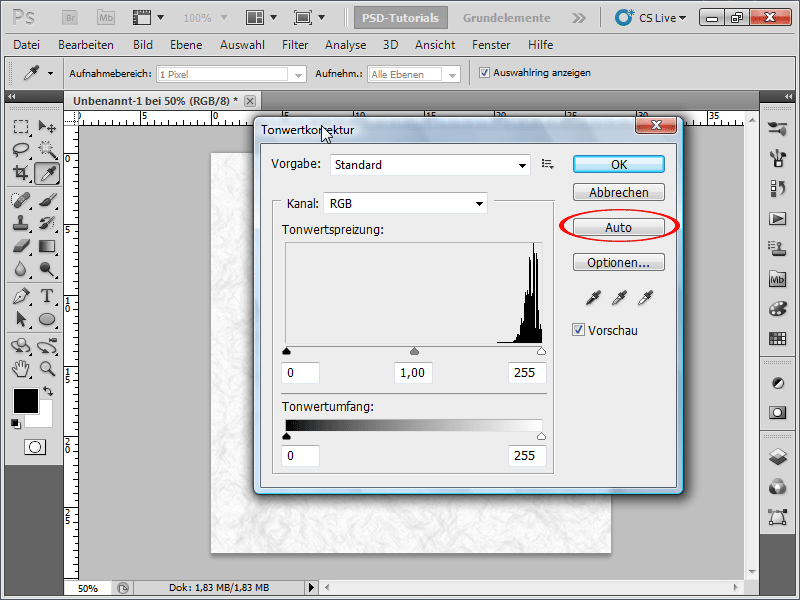
Step 6:
Now I apply another filter, specifically the Emboss Filter, which can be found under the Artistic Filters.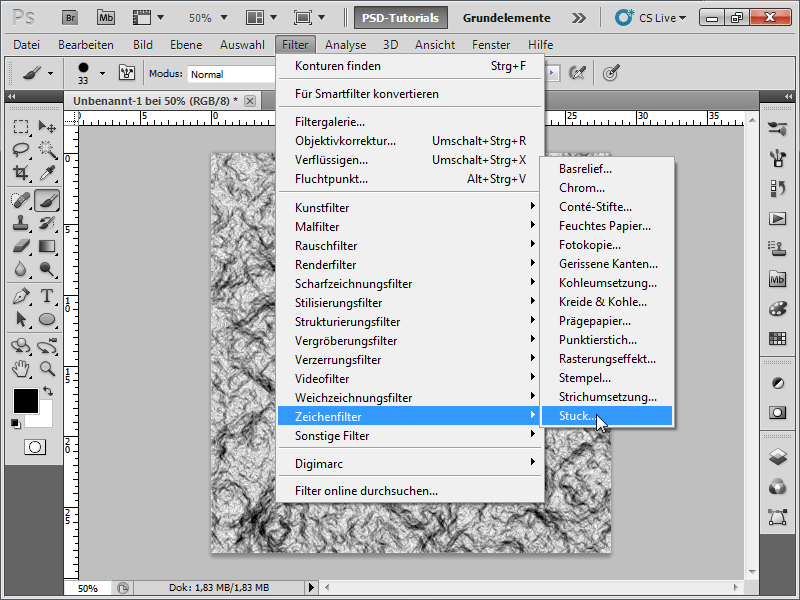
Step 7:
I make the following adjustments: Amount to 38, Smoothness to 15, and set Light to Top.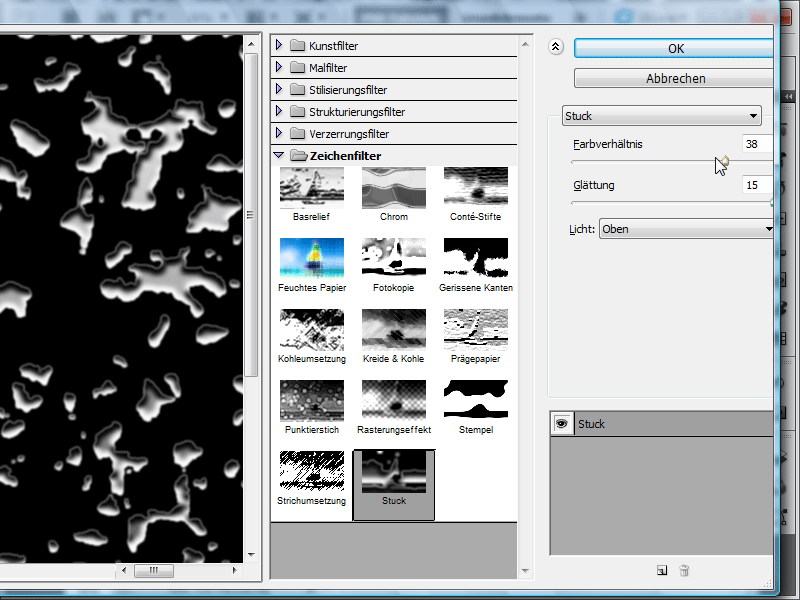
Step 8:
Now, by pressing Ctrl+M, I access the Curves and adjust them as follows: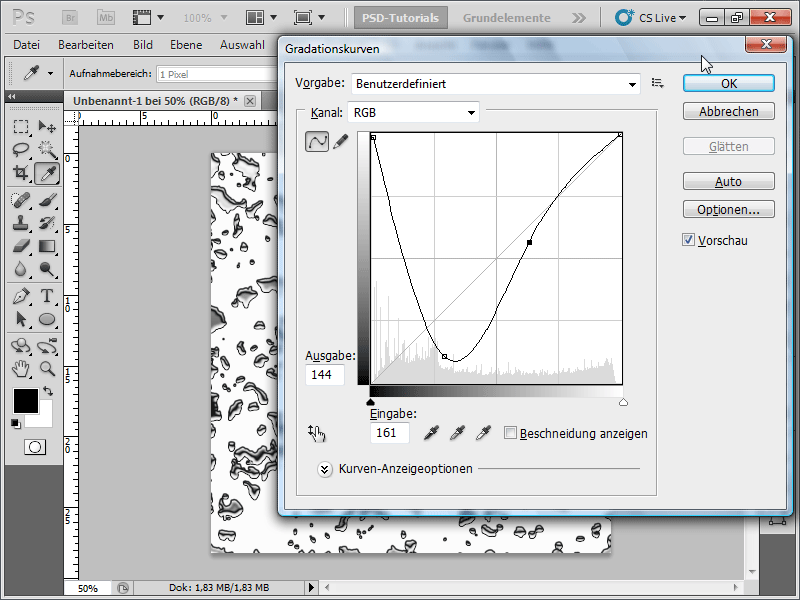
Step 9:
Using Ctrl+U, I open the Hue/Saturation settings, check Colorize, and adjust the values as follows: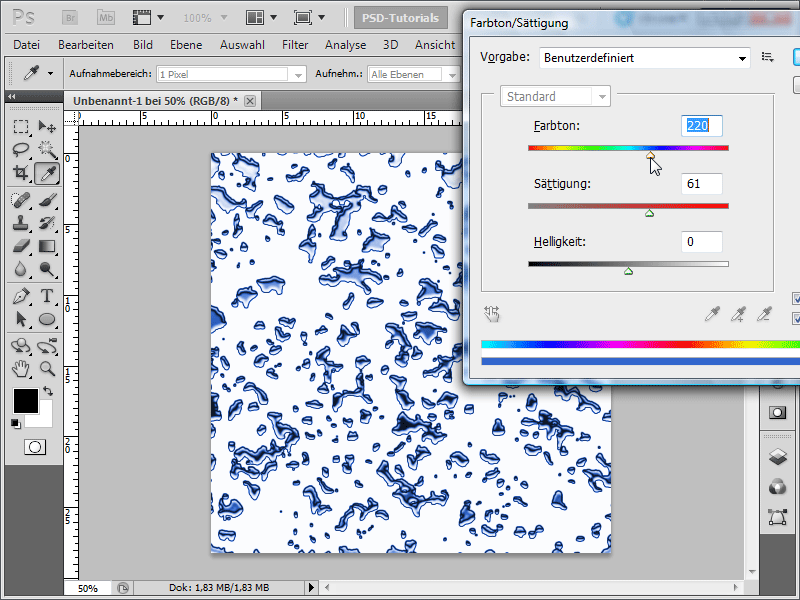
Step 10:
Now, I can stop recording my new action using the Stop button and then play it back at any time. For example, if I want to define the document size myself each time, I recommend checking the box for Toggle dialog on/off. This way, when playing the action, a dialog will appear each time where I can enter the document size myself, and then the action will continue running smoothly.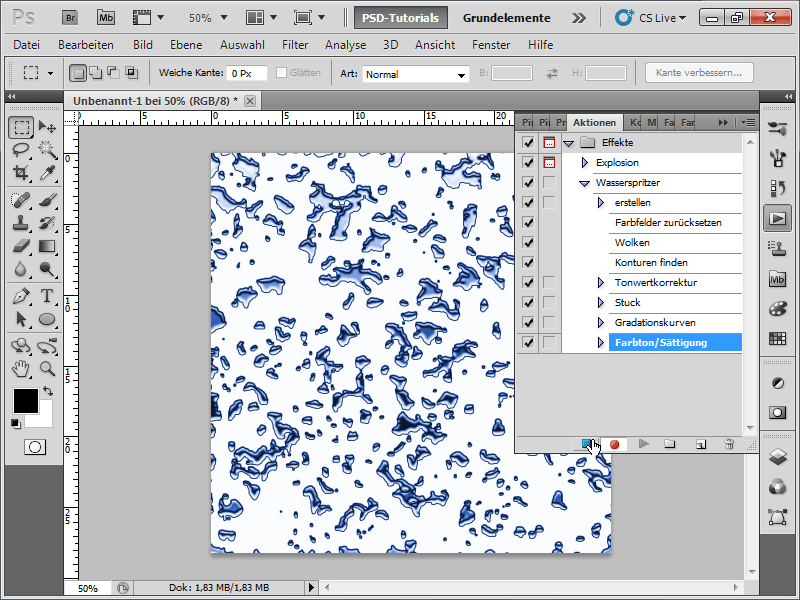
Step 11:
And this is how the water splashes look at 100% zoom: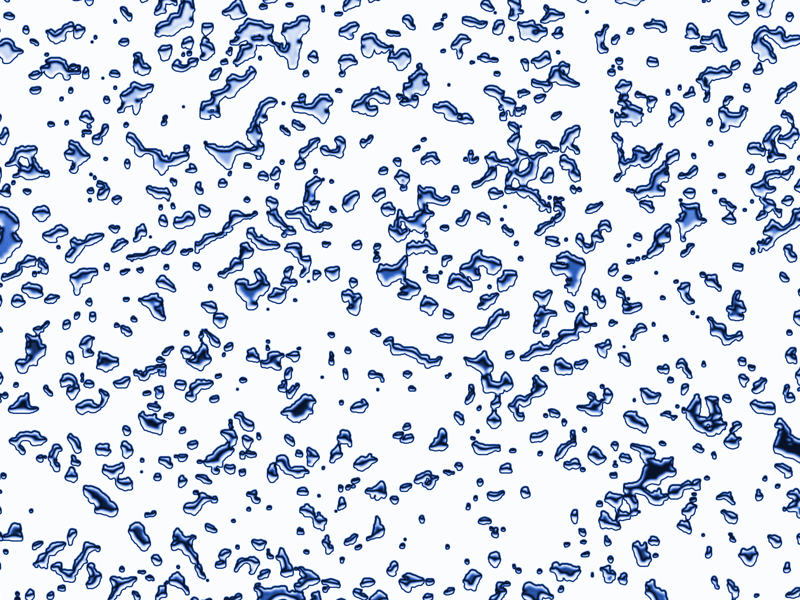
Step 12:
Now, I could do all sorts of things with this. For example, I could select everything, define the splashes as a pattern through Edit>Define Pattern, save it as a pattern, and then apply it as a layer style to text: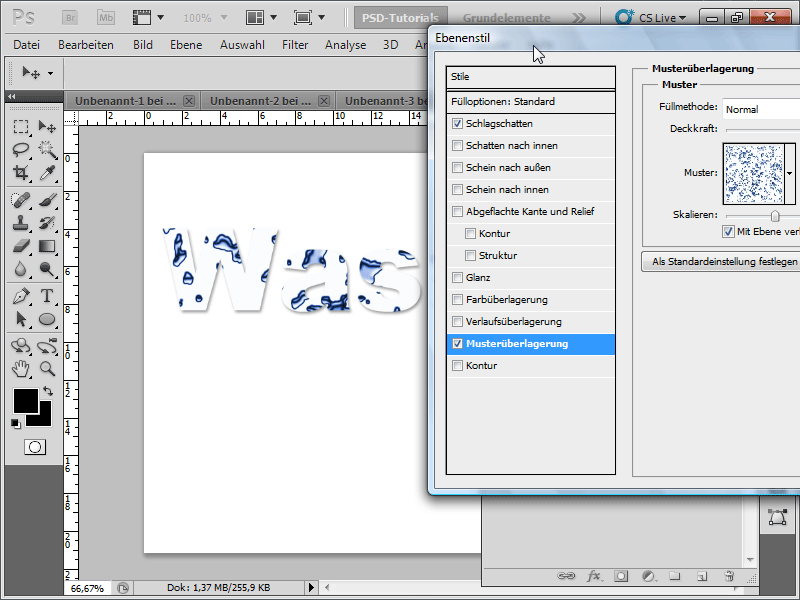
Step 13:
Or I could insert text onto my water splashes, then with Ctrl click on the text layer in the Layers panel to create a selection, and then click on the Mask icon in the water splashes layer. Now, I can expand/reduce the mask to enhance the appearance of the water splashes on my text. I have attached the action as a working file.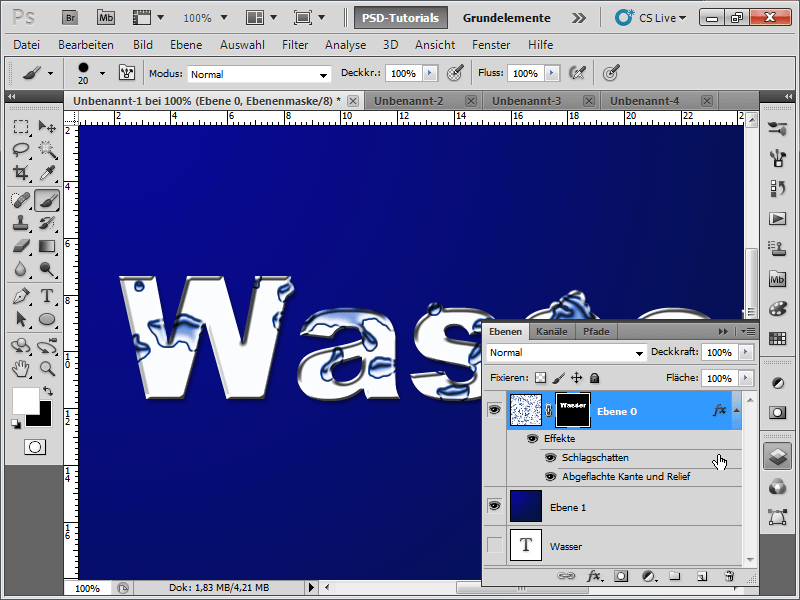
Step 14:
However, if I want to create realistic water drops, I recommend the following approach: I first create a new document, size doesn't matter. Then, I create a new layer on it, select my brush, and go into the Brush settings. In the Brush tip shape tab, I increase the Spacing.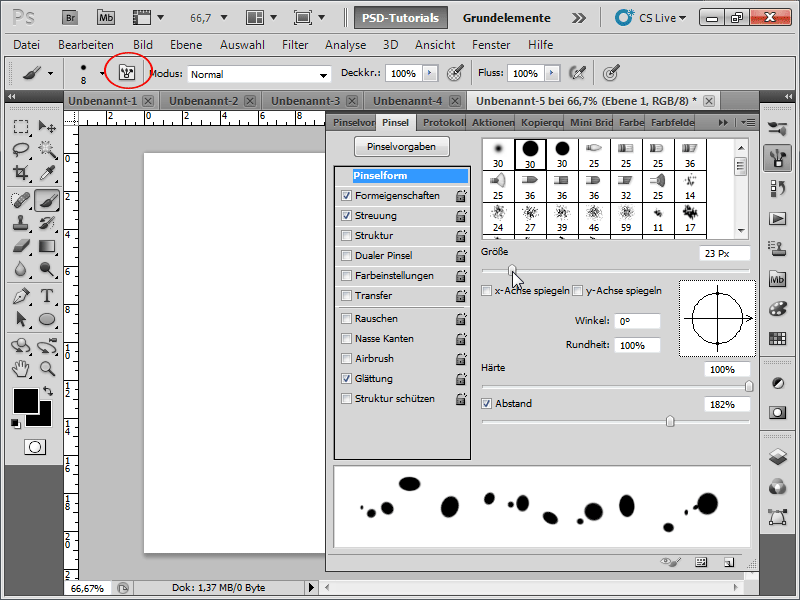
Step 15:
For the shape properties, I set these values: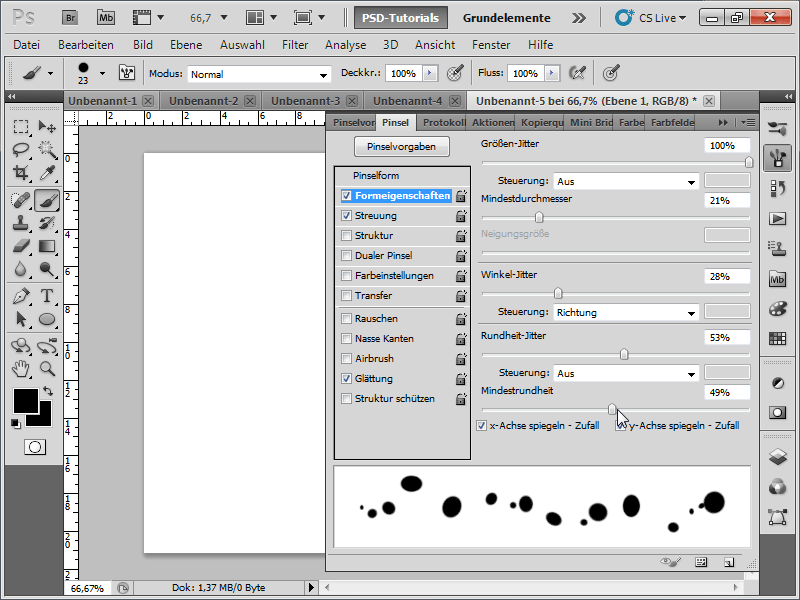
Step 16:
And for scatter, approximately these values (just try out values yourself):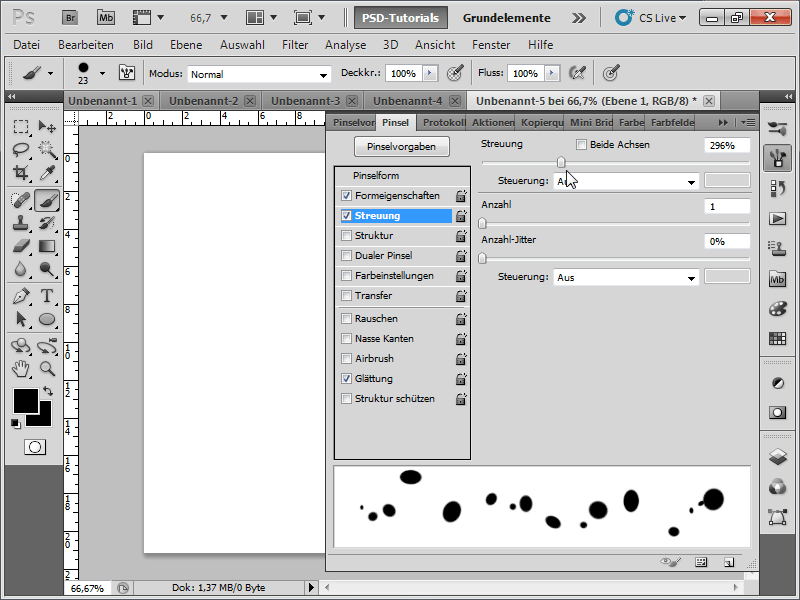
Step 17:
Next, I can click a few times on the image with the brush tool, occasionally changing the brush size. After that, I will insert a nice radial gradient in the background.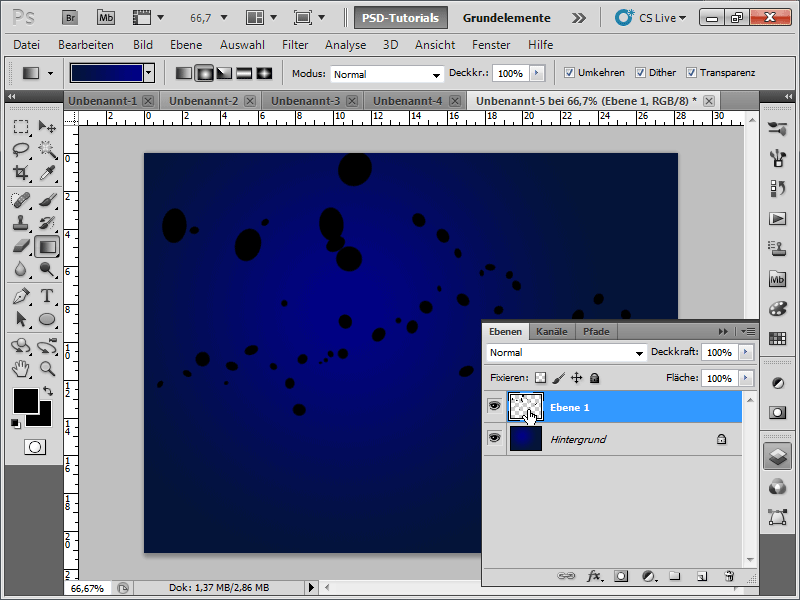
Step 18:
Next, I right-click on my Layer 1 and activate the fill options. Under advanced fill method, I set the opacity to 0%.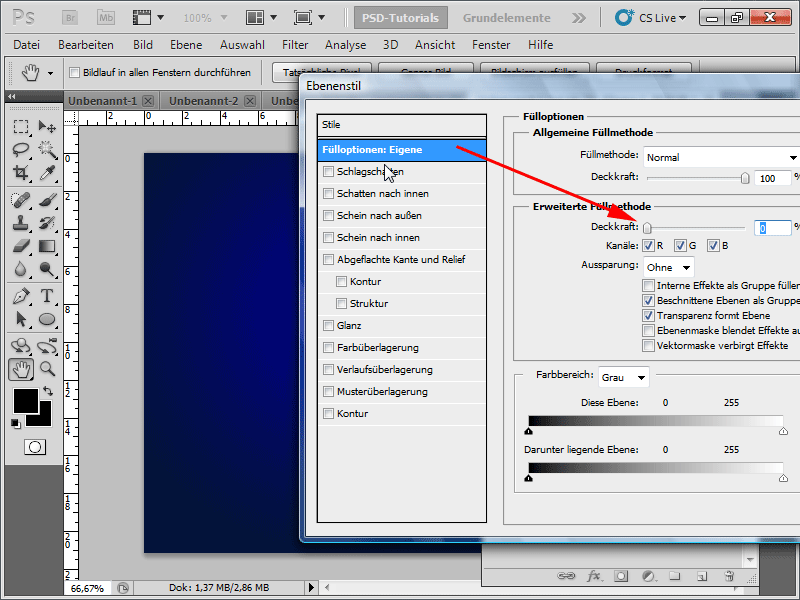
Step 19:
In the drop shadow options, I set the following values: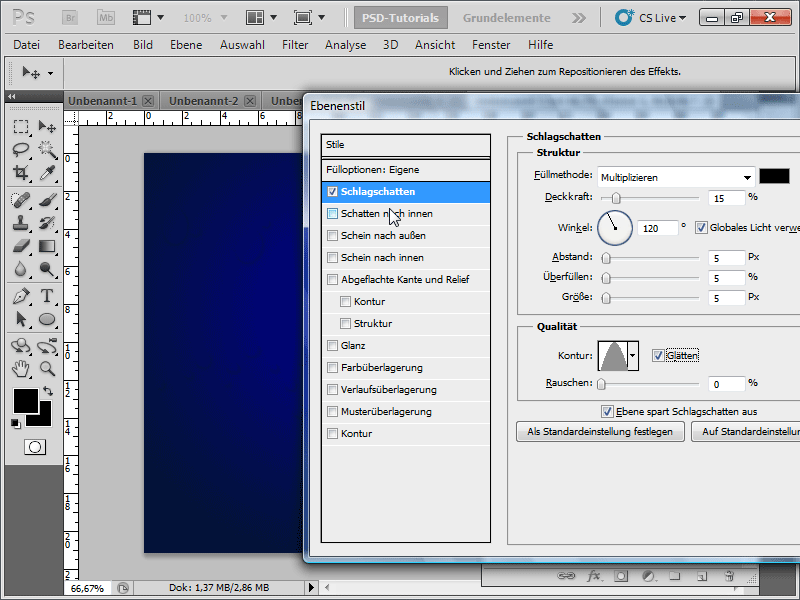
Step 20:
In the inner shadow options, I set the following values: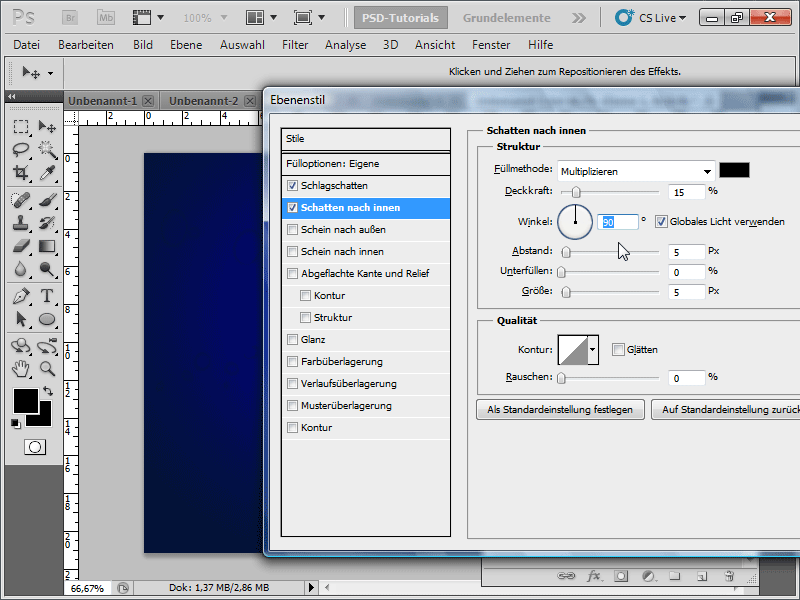
Step 21:
In the inner glow options, I set the following values: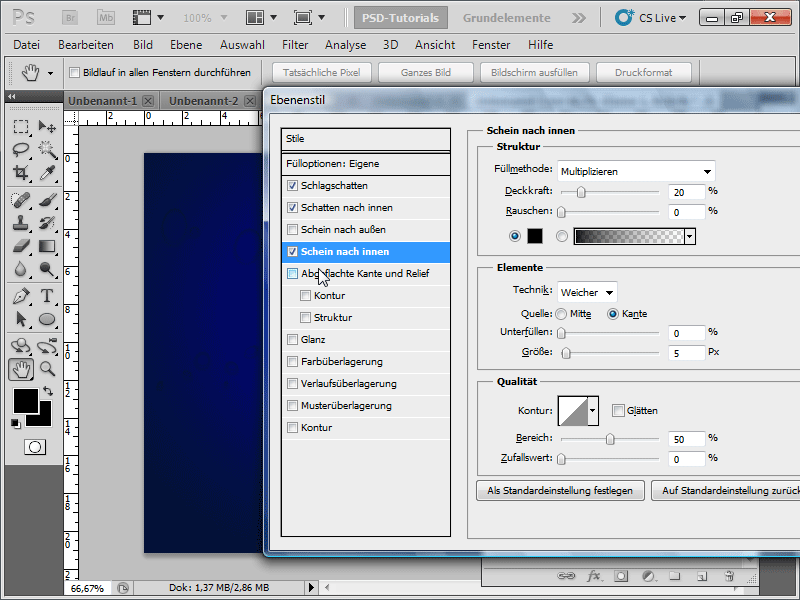
Step 22:
In the bevel and emboss options, I set the following values: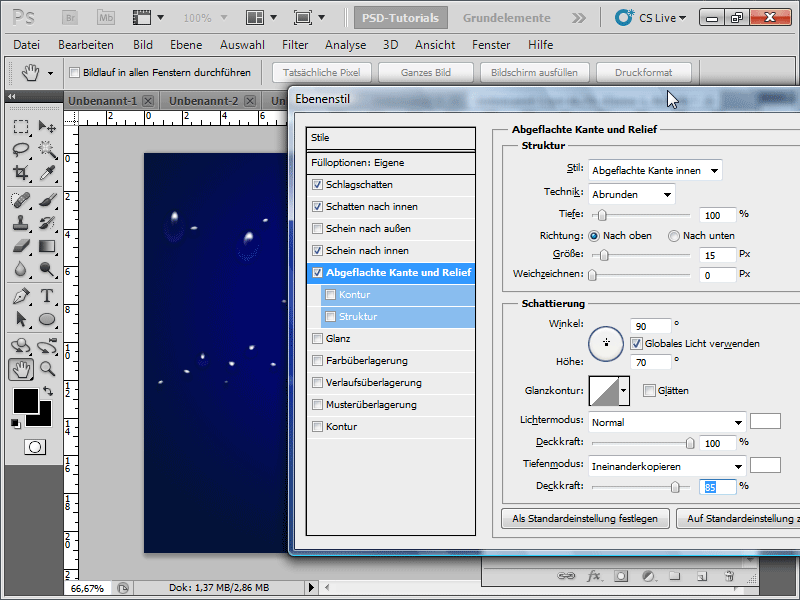
Step 23:
And this is the result: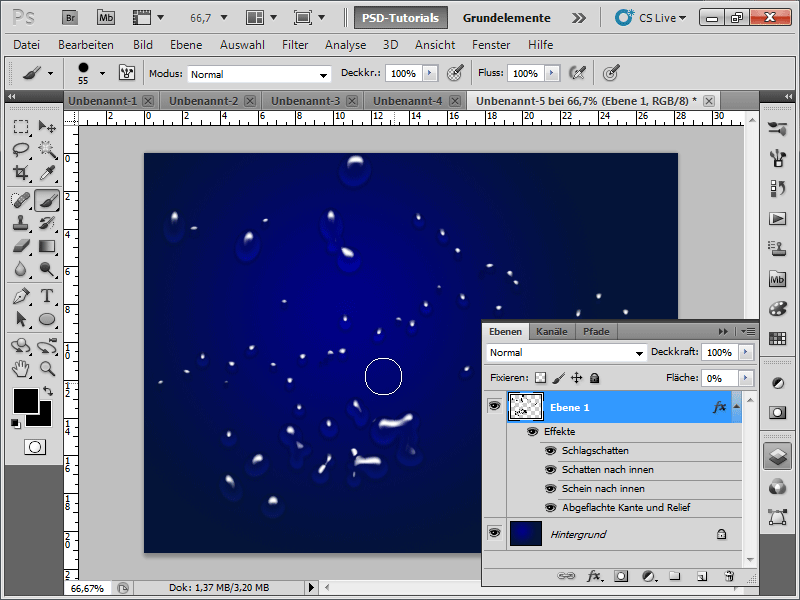
Step 24:
I could also create drops without a brush, for example, by using the ellipse tool for the layer. In my case, I should then have fill pixels activated at the top in the control panel.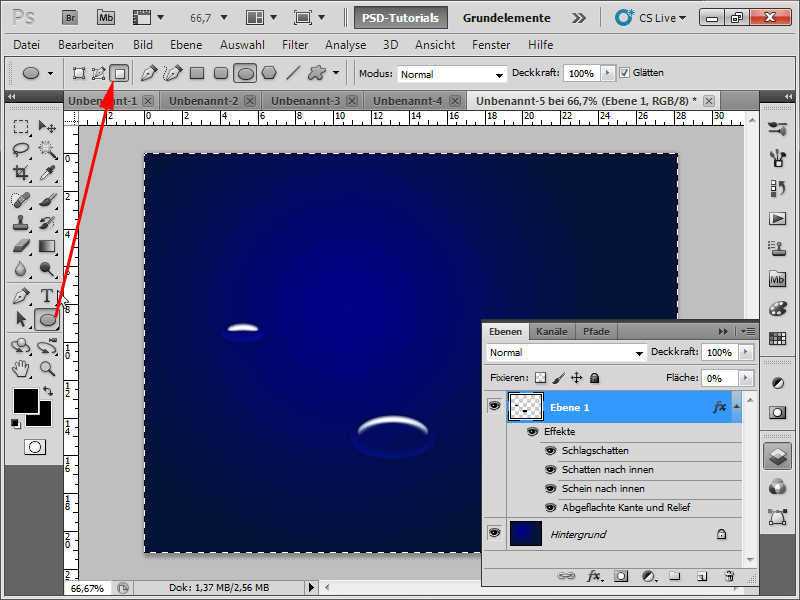
Step 25:
I can further optimize my drops with the smudge tool.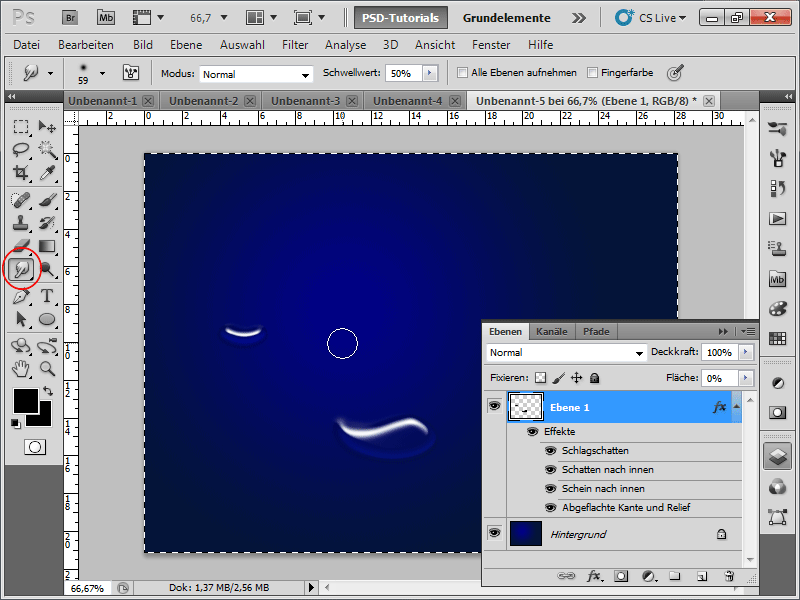
Step 26:
With a suitable background, the drops look much more realistic:
Step 27:
Tip: It's best to save the layer effect immediately as a style so that you can later apply it with a click of a button. The layer style is in the working file.

