
Learning Affinity Publisher/Layout: From a Blank Document to a Print-Ready Brochure

In the end, you won't just be holding a finished brochure in your hands – you'll have the complete layout workflow down, from document setup to print-ready export. Exactly the knowledge you need to confidently tackle any future layout project, whether it's a magazine, flyer, or annual report.
20 Videos, 125 minutes
Affinity Layout: 01 – Understanding the Layout Studio: Interface & Pages Panel
3 minYou get to know the interface of the Layout Studio and understand the Pages panel as its centerpiece. You grasp the most important difference from the other studios: You work in pages instead of on a single canvas.
Affinity Layout: 02 – Setting Up a Document Correctly: Bleed, Page Margins, Facing Pages
5 minYou create your brochure document with the right print settings: bleed, margins, and facing pages. This way you avoid costly mistakes when printing later.
Affinity Layout: 03 – Master Pages for a Consistent Layout
5 minYou will learn about master pages, which make recurring elements appear automatically on all pages. This saves an enormous amount of time and ensures a consistent layout.
Affinity Layout: 04 – Automatically Generating Page Numbers
4 minYou insert automatic page numbers via a field on the master page. Affinity counts automatically, even if you add or remove pages.
Affinity Layout: 05 – Creating & Linking Text Frames
5 minYou'll learn the difference between frame text and graphic text and link text frames together. This way, long text flows automatically from one frame to the next.
Affinity Layout: 06 – Placing Long Text with AutoFlow
4 minYou let long texts flow automatically across multiple pages with AutoFlow. Affinity automatically creates the necessary text frames and pages.
Affinity Layout: 07 – Creating Paragraph & Character Styles
8 minYou build a consistent typographic system from paragraph and character styles. If you change a style, all text passages update automatically.
Affinity Layout: 08 – Readability: Grids, Columns & White Space
10 minYou improve readability with multi-column layout, the baseline grid, and deliberate white space. This is how text on a page becomes true editorial design.
Affinity Layout: 09 – Using Picture Frames & Controlling the Image Crop
7 minYou work with picture frames as placeholders and control the image crop independently of the frame size. This way, every image sits exactly as you want it.
Affinity Layout: 10 – Placing Multiple Images & Photo Galleries
5 minYou build clean photo galleries with consistent sizes and even spacing. With the Align and Distribute functions, everything looks professional and organized.
Affinity Layout: 11 – Text Wrap Around Images
7 minYou let text flow elegantly around an image. With text wrapping and the right spacing, you create a professional editorial layout.
Affinity Layout: 12 – Pull Quotes & Visual Hierarchy
7 minYou use pull quotes and understand the principle of visual hierarchy. You learn to guide the reader's eye deliberately through the page.
Affinity Layout: 13 – Retouching images directly in the layout
6 minYou retouch images directly in your brochure without switching to another program. You simply switch to the Pixel Studio and use all the photo tools in the context of the page.
Affinity Layout: 14 – Embedding logos & vector elements directly
4 minYou create and edit logos, icons, and vector shapes directly in the layout. With the Vektor-Studio, everything stays sharp and infinitely scalable.
Affinity Layout: 15 – Practice: Designing the Cover of the Brochure
13 minYou design the cover as a visual highlight, bringing together all the techniques you have learned: title image, gradient, typography, logo, and visual hierarchy.
Affinity Layout: 16 – Practice: Finishing the Content Pages
19 minYou finish building the content pages of the brochure and go through them for consistency. You learn why care and proofreading are crucial before printing.
Affinity Layout: 17 – Preflight Check: Finding Errors Before Printing
4 minYou use the checklist (Preflight) to find problems before printing: image resolution that is too low, text overflow, or missing elements. This way you avoid nasty surprises.
Affinity Layout: 18 – Exporting a Print PDF (PDF/X) Correctly
4 minYou export a print-ready PDF in the PDF/X standard with CMYK and bleed. This is exactly the format that print shops expect.
Affinity Layout: 19 – Interactive PDF for Web & Shipping
4 minYou also create a digital PDF with clickable hyperlinks. This way, your brochure can be used optimally online and via email as well.
You might also like

Vector design in the new Affinity app – from the first anchor point to the finished logo, social media post, and AI workflow
From RAW photo to finished composite – professional image editing in the new Affinity app (formerly Photo)

Live your layout now!
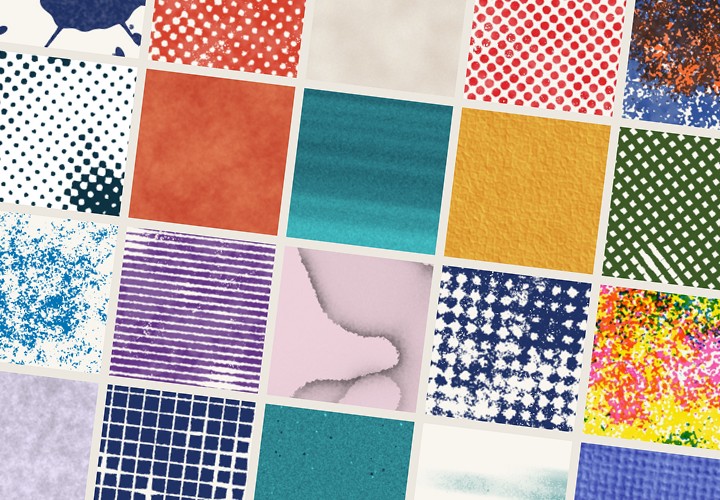
20 sets in 4K (4096 × 4096 px, 300 DPI) as JPG plus Photoshop patterns, calibrated to the fill method
Comment now „Learning Affinity Publisher/Layout: From a Blank Document to a Print-Ready Brochure“