

In this tutorial, I'll show you how you can cut and divide shapes in Adobe Illustrator. We'll together split a circle into four separate parts. By following these steps, you will acquire the ability to create not only aesthetic designs but also functional graphics. Let's get started!
The video is only loaded from YouTube when you play it – data (including your IP address) is then transmitted to YouTube/Google. More in the privacy policy
Key Takeaways
- You will learn how to draw lines with the line segment tool that are used for dividing shapes.
- By centering and adjusting lines, you can make precise cuts in your shapes.
- With the direct selection tool, you can easily select and edit parts of a shape.
Step-by-Step Guide
First, you need a shape that you want to edit. Let's start with a circle. To create one, select the shape tool and draw a circle.
Now that you have your circle, we want to divide it into four separate parts. For this, you need the line segment tool. While holding the Shift key, draw a vertical line slightly longer than the diameter of the circle.
In this step, you should now select the line and give it a black color for the stroke. Set the stroke value to around 3 to increase visibility.
To further subdivide the shape, draw another line across the circle while holding the Shift key. This line must also be longer than the diameter of the circle to allow for a perfect cut.

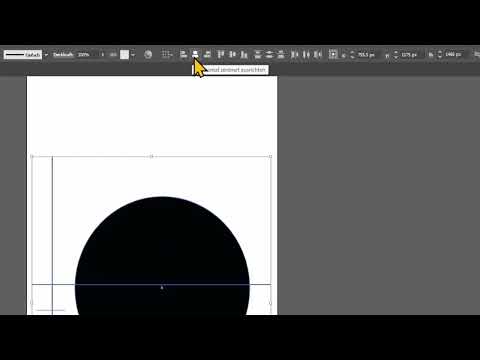
After creating both lines, it is important to align them correctly. Select all shapes by using the Ctrl+A (Windows) or Cmd+A (Mac) combination. Select both the circle and the lines.
Now switch to the selection tool. With this tool, center the lines both horizontally and vertically to your circle. This ensures that the intersections are right in the middle of the circle.

Now select everything again and choose the eyedropper tool. Click in the black area with the eyedropper to transfer the line color to the desired object.

Finally, use the shape builder tool. Click on the individual parts of the circle in sequence. These are the optional parts that we want to create.

After clicking on the parts, switch to the direct selection tool. Click in the empty space outside the circle to deselect and then pull out the individual parts as needed.
Summary – Cutting and Dividing Shapes in Adobe Illustrator
By following the steps above, you can cut and divide shapes in Adobe Illustrator. Cutting shapes opens up many creative possibilities in graphic design, allowing you to unleash your creativity.
Frequently Asked Questions
What is the line segment tool in Adobe Illustrator?The line segment tool is used to draw straight lines and is particularly useful for creating cutting lines.
Why do I need to hold the Shift key?The Shift key prevents lines from being drawn diagonally and ensures they remain perfectly vertical or horizontal.
How can I further edit the parts after cutting?You can select the parts with the direct selection tool and then move, transform, or color them.

