
You want to create an appealing promotional video for TikTok, but have no experience with video editing? In this guide, I'll show you how you can easily and quickly design a TikTok ad video using the platform Canva. Whether you are a beginner or just want to refresh your skills - here you will find all the important information!
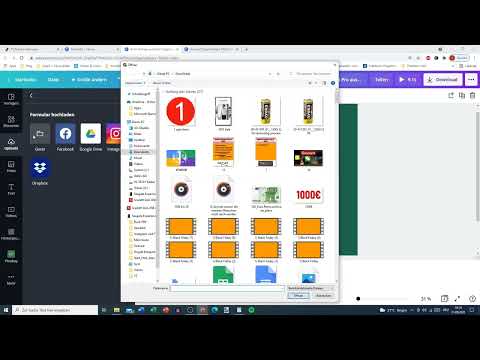
The video is only loaded from YouTube when you play it – data (including your IP address) is then transmitted to YouTube/Google. More in the privacy policy
Main Takeaways
- You can use Canva to choose both free and paid templates for your TikTok Ads.
- Customizing text, images, and videos is easily possible, allowing you to create your video uniquely.
- Using animations like panning and zooming can increase the engagement of your target audience.
Step-by-Step Guide
1. Access Canva
To start creating your TikTok ad, first navigate to canva.com.

2. Search for Templates
Enter "TikTok" in the search bar to find specific templates for TikTok videos. You will see a variety of layouts created specifically for this purpose.

3. Choose the Right Format
Select the correct video format - for TikTok, you need a 9:16 format with a resolution of 1080 x 1920 pixels.

4. Apply Filters for Free Templates
To only display free templates, you can use the filter option. Note that not all free elements are actually free or fully usable.

5. Select Elements
Choose a template you like or explore your options under various categories such as images, videos, or elements.

6. Customize Text
Use the text fields to insert your message. You can customize the text by changing the font, color, and size to make it more appealing.

7. Upload Videos
You also have the option to upload your own videos. Simply use the drag & drop function to add the desired video to your project.

8. Add Animations
To make your video more dynamic, add animations. Canva offers a variety of effects like panning and zooming to enhance the visibility of your content.

9. Adjust the Duration
You can adjust the duration of each section or clip. Simply click on the timestamp and trim the videos as desired.

10. Add Music
Make sure to choose appropriate background music. Ensure you consider the usage rights, or use TikTok's music library.

11. Create Your Own Video
If you like, you can also work without a template and design freely. Click on the plus sign to start a new empty project and create your content yourself.

12. Export and Share
Once your video is ready, save or export it. You can upload it directly to TikTok and make it available to your target audience.

Summary
You have now learned how to create appealing TikTok ad videos with Canva. Use Canva's versatility to design creative and individual content that effectively represents your brand.
Frequently Asked Questions
How can I find free templates in Canva?You can search for free templates in the filter area to display only those.
Can I use my own videos in Canva?Yes, you can upload your own videos and use them in your project.
What formats are suitable for TikTok?For TikTok, you need a 9:16 format with a resolution of 1080 x 1920 pixels.


