
Would you have thought that you could create a complete website with Claude Cowork without writing a single line of code? That is exactly what this tutorial shows. A small club got a complete one-page website, and you will see how a single prompt turns into a landing page for a discount campaign. Along the way, you will learn not only the steps but also what to pay attention to so that your results improve faster.
The video is only loaded from YouTube when you play it – data (including your IP address) is then transmitted to YouTube/Google. More in the privacy policy
Key Takeaways
- Always start a new task for every new project. If you continue working in an existing task, the context gets mixed up and the result becomes messy.
- Create a dedicated project folder right at the beginning. Without one, Cowork often saves files in a temporary folder, and the preview then does not work reliably.
- Bundle several change requests into one prompt. This saves tokens and time.
- Keep an eye on your token quota. A powerful model uses more, and for simpler tasks a smaller model is often sufficient.
- The created page is a single HTML file. It can be uploaded directly to your web space without a database or server logic.
- Features such as legal notice links or a hamburger menu may need to be explicitly requested in the prompt.
Step-by-Step Guide
1. The Result in Mind: What Cowork Can Do
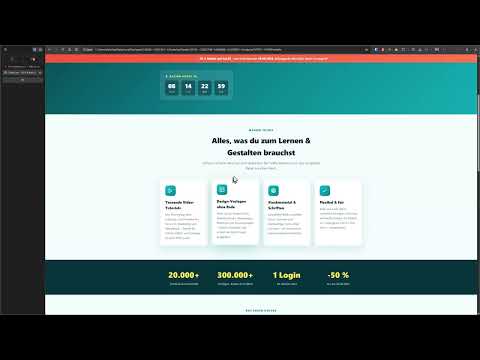
Before you get started, it is worth looking at an example. The video shows a website for a club that was created entirely by Cowork. The starting point was just a short prompt asking for a modern one-pager site in the colors of the logo. After that, the page was refined step by step, in total about two hours of work in dialogue with the AI. The animations, the counter, and the fade-ins were all created using natural language.

2. Starting a New Task
For every new project, you should create a new task in Cowork. To do so, click on the area for creating a new task instead of continuing to write in an existing one. The reason is simple: an old task carries the context of earlier projects with it, and as a result the AI may confuse or mix up requirements. A clean restart ensures clearer results.

3. Formulating the First Prompt
Now comes the actual prompt. Describe as specifically as possible what you want. In the example, it was about a modern, high-converting landing page as a single HTML file. It included a hero section with a punchy headline, the statement "50% discount on all products and memberships," and a subtitle with the content customers get access to. In addition, the validity of the offer until the end of the month was specified.
The more precisely you describe texts, colors, and sections, the closer the result will come to your vision. You do not have to formulate everything perfectly, because you can adjust later. Then send the prompt.

4. Selecting a Model and Keeping an Eye on the Token Limit
Before you send the prompt, you can select the model. This decision cannot be changed after sending. A token, put simply, is a building block of text that the AI processes. The more elaborate the dialogue and the more powerful the model, the more tokens are used. At some point a limit kicks in, and you usually have to wait three to four hours until it is reset.
You can find your current usage in the settings under the Usage section. There you can also see which model has used how much. For simpler tasks, older or smaller models are often sufficient, so that you conserve your quota.
5. Opening and Checking the Result
When Cowork reports that the file is finished, you can view it directly. Sometimes the preview in the interface does not work right away. In that case, open the folder where the HTML file is located and double-click it. The page will then open in the browser. Take your time to check whether texts, buttons, and structure match your expectations.

6. Fixing Errors in a Targeted Way
Not everything works on the first try. In the example, the legal notice was not yet linked, so a click led nowhere. You correct such gaps with a targeted follow-up prompt. Describe the problem and the desired behavior, for example that clicking "Impressum" opens a section that displays the details. You can also have the data taken directly from the existing website, so you do not have to type it in again.

7. Create a project folder
To make sure all files end up in a fixed location, you should define a project folder at the beginning. To do this, choose the option for adding a folder in the dialog and create, for example, a main folder with a subfolder for the project on your hard drive. This keeps everything organized, and Cowork works directly in this directory. If you only define the folder after starting, the AI often continues working in the temporary directory at first. Therefore: define the folder right at the beginning and grant permission if necessary.

8. Bundle multiple changes in one prompt
You don't have to request every little detail individually. It is often even more sensible to combine several requests in one prompt. This saves tokens because there is less back and forth. In the video, for example, the legal notice, the linking, and other details were requested in one go. You can also have data from the existing page carried over instead of describing it anew each time.

9. Fine-tune width, colors, and background
Now it's time for the design. If the page looks too narrow to you or the colors aren't right, describe exactly what you want to change. In the example, a wider page was requested and the main color was set to green, with the brand's colors forming the basis. You can also directly request a slightly animated gradient background. The big advantage: you can phrase your requests in German without knowing CSS values.
10. Check the responsive display
Shrink the browser window to see how the page adapts to smartphones. In the example, the layout adapted automatically because the responsive display had already been considered from the start. However, be aware that not everything happens automatically. The navigation menu had completely disappeared on the phone because no hamburger menu was requested. You should add such points to the prompt specifically when checking.


11. Add animations and small gimmicks
Animations make a landing page more lively. In the video, a balloon was subtly animated, counters were faded in, and boxes were gently faded in. In addition, a confetti effect was added that is triggered when the bank details are copied. One prompt was enough for this. Even a reaction when leaving the page, in which the balloon sadly disappears, could be described this way. Keep in mind that such effects only make sense if they support the purpose of the page and do not distract from the content.


12. Test a new version with a different model
Sometimes it's worth running the same prompt again with a different model. This is often faster and still delivers good results. Since AI outputs vary, a restart usually produces a different-looking result. If you want it to turn out more similar, describe each section in more detail, for example with colors and the desired text. In the example, the second version with more width was preferred, and the preview was available directly in Cowork.

13. Publish the page
The finished landing page is a single HTML file. You simply upload it to your server or web space and then link to it. You don't need a database or server-side programming. This makes discount promotions and short-term campaigns very straightforward, because you can create them in a short time and adjust them again.

Summary ??? Creating a landing page with Claude Cowork without programming
With Claude Cowork, you can create a modern landing page or a complete website in a short time. You describe your wishes in natural language, check the result in the browser, and refine it with targeted follow-up prompts. Make sure to use a new task for each project, a fixed project folder, a bundled phrasing of your changes, and a conscious approach to tokens and models. The results are not always perfect, but they offer a strong foundation that you can improve step by step without programming knowledge.
FAQ
Do I need programming skills to create a landing page with Cowork?No, you describe your wishes in natural language, and Cowork creates the code behind it.
Why should I start a new task for each new project?An existing task carries the context of previous projects with it, which can lead to mixed or unsuitable results.
Why is a project folder important?Without a fixed folder, Cowork often saves files in a temporary directory, which means the preview doesn't work reliably.
What happens when my token limit is reached?Then you usually have to wait three to four hours until the quota is reset. You can see your usage in the settings under Usage.
Can I still switch the model after submitting the prompt?No, the model selection must be set before submitting. To switch, you have to start a new task.
How can I fix errors such as a non-working legal notice link?Describe the problem in a follow-up prompt and phrase the desired behavior, for example that clicking opens a section with the legal notice.
Is the created page suitable for smartphones?That depends on your prompt. In the example, the page adapted automatically, but you should still specifically request elements like a hamburger menu.
How do I publish the finished landing page?The page consists of a single HTML file that you upload to your server or web space and then link to.
Is the code from Cowork always clean?Not necessarily. However, for a pure HTML file without a database or server-side logic, this is usually not critical.

