
Imagine you sit down at your desk, and an AI assistant fills out forms, compares prices, or tests coupon codes in your shopping cart. That is exactly what is possible with Claude Cowork and a Chrome extension. The assistant operates the browser the way you would with a mouse and keyboard: It opens tabs, clicks buttons, and enters data into input fields. In this guide, I walk you through the setup step by step, show you how to phrase tasks, and explain how to keep track of the process at all times.
The video is only loaded from YouTube when you play it – data (including your IP address) is then transmitted to YouTube/Google. More in the privacy policy
Key Takeaways
- Claude Cowork can operate your browser directly via a Chrome extension.
- You install the extension from the Chrome Web Store and then connect it in the settings under "Apps".
- Before starting, you choose the appropriate model and decide whether Claude should ask for confirmation first.
- You can watch every mouse movement live and cancel the process at any time.
- Execution is slower than working manually, but in the meantime you can use other programs. There are currently difficulties when uploading files on Windows.
Step 1: Find and install the extension in the Chrome Web Store
Open Google Chrome and go to the Chrome Web Store. Search for "Claude" there and select the appropriate extension. If you have already installed it, you can tell by the icon at the top right of the toolbar. If it is missing, simply click the "Install" button or a similarly named button, and the icon will appear in the browser shortly afterwards.


Step 2: Connect the extension to Chrome
For Claude to be allowed to access your browser at all, the connection must be established in Claude Cowork. To do this, open the settings in Claude and navigate to "Customize". There you will find the "Connect apps" section. Enter "Chrome" in the search and connect the application. If it does not appear here, the route via the Chrome Web Store will help, since the extension then establishes the connection.


Step 3: Pin the extension
So that you can access Claude quickly, it is worth pinning the extension to the bar at the top. To do this, click the extensions icon in Chrome, which often looks like a puzzle piece. A list of all extensions then appears. For Claude, select the pin icon. From now on, the icon is always visible, and you can reach the function with a single click.

Step 4: Open the side panel and select the model
A click on the pinned icon opens a side panel right next to your current web page. There you can chat with Claude while keeping the website in view at the same time. In the chat window, you now select the model. For simple tasks, the default model, which uses fewer tokens, is usually enough. If a task is more complex and the result is not convincing, you can switch to the most powerful model.

Step 5: Phrase the task precisely
Success depends heavily on how precisely you phrase the instruction. Describe the goal, not just the way to get there. In the example from the video demonstration, the task is: Search for valid coupon codes for the shopping cart, try them out directly, and let me know as soon as a very good code has been found. The more clearly you specify criteria such as minimum order value, validity, or desired discount, the more targeted Claude's work will be.

Step 6: Set the confirmation mode and review the plan
Next, you decide how often Claude should ask for confirmation. For your first use, the mode with confirmation prompts is recommended. That way you can check the plan before anything happens. Claude then shows you which pages it wants to visit, such as typical coupon portals, and which steps it plans. If anything seems ambiguous to you, you adjust the instruction. Otherwise, you confirm the plan, and execution begins.


Step 7: Watch the execution and intervene if necessary
While Claude is working, you can see the current status in the panel, and the mouse pointer visibly moves back and forth on the screen. This way you can see exactly what is happening at any given moment. However, the work doesn't proceed particularly quickly, which you should factor in. One advantage is that you can keep working in other programs during this time, because Claude remains restricted to the chat window and its group of tabs. Some websites block AI access, in which case Claude chooses alternative sources.
If you want to stop the process, click "Cancel" at the top. The automation then ends immediately.


Step 8: Practical example – Testing coupon codes in an online shop
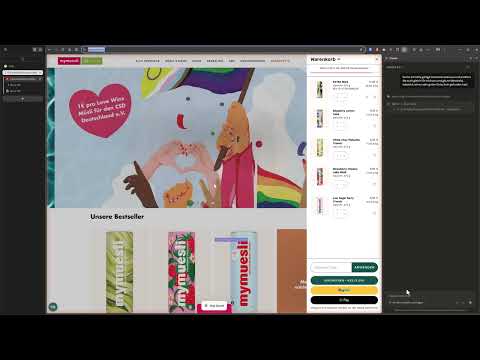
The video shows an ordering process at a muesli mail-order retailer. Claude tries out various codes in the shopping cart and reports back with the result. In the example, it finds a coupon with a ten percent discount, which, however, requires a minimum order value of 25 euros and is only valid until a certain date. You should check such details yourself after getting the result, because the decision to purchase remains with you.

Step 9: Another example – Creating a post in a forum
The function is also suitable for research and publishing. In the second example, Claude is supposed to write a message in a Photoshop forum presenting the three new features of the current version. Here the instruction worked without any follow-up questions, although the text contained an error in the version number. This clearly shows: always check results before you publish them. Claude initially only writes the post, and you decide whether to send it or revise it further.

Limitations: Uploading images on Windows
One current limitation concerns uploading files. The Windows Open dialog sometimes causes difficulties for the automation, and Claude then has to resort to workarounds. On the Mac, it is said to work more easily. On Windows, it is therefore advisable to upload images manually beforehand and only then assign Claude the actual task.

Practical example: Creating alt texts for many images
A particularly useful use case is describing images for alt texts, which search engines and screen readers use. With hundreds of images, doing this manually would be enormously tedious. Claude can now recognize what is shown in an image and can enter the descriptions directly into the field. This saves you a great deal of time, especially if you let the process run overnight.
Summary – Controlling Claude Cowork in the browser with AI: Chrome guide
With the Chrome extension for Claude Cowork, you can complete tasks in the browser without performing every click yourself. You install the extension, connect it to Claude, provide a clear instruction, and review the plan before it starts. The execution is slower, but you gain time because you can keep working in parallel. As long as you check the results and cancel the process if necessary, this tool is a practical helper for research, forms, and routine tasks on the web.
FAQ
Which browser is required for the function?The extension is installed for Google Chrome and works together with this browser.
Where can I find the extension?You can find it in the Chrome Web Store. Search for "Claude" and install the extension there.
How do I connect Claude to Chrome?In Claude, open the settings, switch to "Customize," and select Chrome under "Connect apps."
Can I stop the process during execution?Yes, using the "Cancel" button at the top you end the automation immediately.
Can I see what Claude is doing in the browser?Yes, you can see the status in the panel and the mouse movements on the screen.
Can I keep working in the meantime?Yes, Claude only works within its own browser group, so you can continue working normally in other programs.
Why doesn't uploading files on Windows always work?The Windows file Open dialog causes difficulties for the automation. It's therefore best to upload images yourself beforehand.
Should I always check the results?Yes, because even AI can make mistakes. Check coupons, prices, and texts before you confirm or publish anything.
