Imagine you have to set up a festival report spanning twelve pages. With every text frame you draw by hand and link to the next one, you lose time and nerves. That is exactly what the AutoFlow function in Affinity Publisher is for. It automatically distributes a long text across text frames and creates new pages when needed.
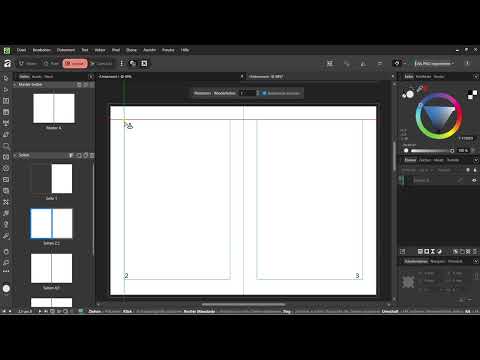
The video is only loaded from YouTube when you play it – data (including your IP address) is then transmitted to YouTube/Google. More in the privacy policy
In this tutorial, I will show you step by step how to place a Word or Google Docs text with AutoFlow, how to control the size of the frames, and what to keep in mind for extensive documents.
Key Takeaways
- AutoFlow automatically distributes long text across multiple text frames and pages.
- The size of the first text frame determines the size of all following frames.
- By holding down the Shift key and clicking the text flow connector of the frame, the text continues to flow.
- The frames remain linked to each other but can be adjusted individually afterwards.
- It is best to split very long texts into several documents before placing them.
Step-by-Step Guide
The Problem with Manual Text Frames
Until now, you have drawn text frames individually and linked each frame to the next. That works well for two or three pages. With a report spanning many pages, however, you constantly have to click on the arrows on the frame and keep creating new text boxes. AutoFlow takes exactly this work off your hands.

Prepare Sample Text and Remove Placeholder Text
For this example, a sample text about the Urban Coffee Festival is used. You can create it in Word or Google Docs and save it locally. A text of this length runs over a great many pages, which makes it ideal for AutoFlow.
Before you place the text, you remove the placeholder text in your document. To do this, click into the text box with the Lorem Ipsum text and delete it. It is crucial that you use the frame on page 2, because the report should start from there.

Place the File
In the File menu, choose the Place command and select your Word file. The mouse pointer then turns into a placement cursor. With this cursor, you can directly drag out a text box on the page into which the text should flow.

Define the Size of the First Text Frame
Now comes the most important point. Draw the first text frame exactly at the size that all following frames should have. If you want the text to always reach a certain line, adjust the frame exactly there. In the example, you use the entire page width so that the text runs across the whole page.
The frames automatically stay the same size. So do not change the size by accident before you let the text flow on.

Create Text Flow with Shift-Click
Instead of adding a new text box for each frame, you click on the arrow on the frame. If you hold down the Shift key while doing so and click once, Affinity automatically distributes the text across new frames. The text box always stays the same size, and you don't have to do anything else.

Adjust the First Frame Before Linking
Make sure you set the size of the first frame correctly before you perform the Shift-click. If you left the first frame empty and only drew it small, the following frames will take on exactly that size. The link remains in place, however, so you can edit the frames individually later.

Make Subsequent Adjustments
You can still change each individual frame after placing. If, for example, you need more space for an image on a page, you simply make that frame smaller. The link to the next frame is preserved, and the text adapts accordingly.

Automatically Create New Pages
If your text needs more space than the existing pages offer, Affinity automatically creates new pages when you Shift-click. So you don't have to estimate in advance how many pages you need. This is especially handy when the length of your text isn't yet determined.

Split Long Documents in Advance
With very long texts, things can become confusing if a single document spans twelve or more pages. So first check whether you can sensibly split the text across several documents, for example by chapters or by days of the festival. After that, you can use AutoFlow in each document in a targeted way. This keeps your file organized and makes later corrections easier.

Summary – Placing Long Text with AutoFlow in Affinity Publisher
With AutoFlow, you no longer have to laboriously link long texts frame by frame. You set the desired size of the first frame, place your file, and distribute the text across new frames and pages with a Shift-click. The frames stay linked and can be adjusted individually at any time. For very extensive texts, it's worth splitting them into several documents in advance.
FAQ
Do I have to set the size of the text frame before placing?Yes, the size of the first frame determines the size of all following frames. So drag it out in exactly the shape you want to have on all pages later.
Can I still change the size of individual frames after linking them?Yes, you can edit each frame afterwards. The link to the other frames remains intact.
Does AutoFlow create new pages automatically?Yes, if the text doesn't fit on the existing pages, Affinity creates new pages when you Shift-click.
What should I do with a very long document?Split the text across several documents in advance, for example by chapters. This keeps your layout organized, and you can use AutoFlow in each document in a targeted way.
Why isn't my text flowing onward?Check whether you are clicking the text flow connector of the frame while holding the Shift key. Without the Shift key, the text is not automatically distributed to a new frame.


