
Your edit is finished, the colors are right and the effects work. Still, something is missing: the clip is silent, and it remains uncertain whether the viewer really feels the atmosphere. This is exactly where sound design comes in. With Adobe Firefly, you can generate sound effects from a text description, select them, and insert them directly into your video, without spending hours searching through sound libraries.
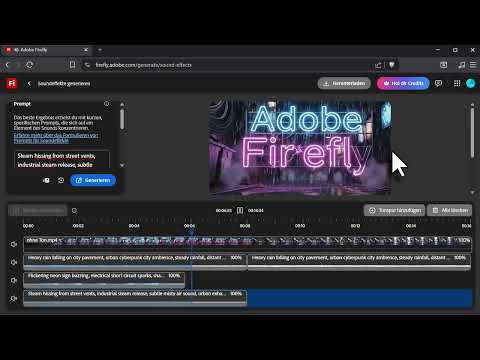
The video is only loaded from YouTube when you play it – data (including your IP address) is then transmitted to YouTube/Google. More in the privacy policy
In this guide, I walk you through the process step by step: from uploading your video, through creating rain, sparks, steam and thunderstorms, to the finished download.
Key Takeaways
- Firefly generates sound effects from text descriptions. You don't need your own sound library.
- Upload your video first so you can check the sound directly in context.
- Input currently only works in English. Therefore, write your prompts in English.
- By default, effects are generated at 8 seconds, with a maximum of 15 seconds possible.
- You layer several sound layers on top of each other, for example atmosphere, details and accents.
- Trim the tracks to fit the sequence of images so the sound doesn't run unnecessarily long.
Step 1: Open Firefly and find the sound effects generator
Open Adobe Firefly in your browser. In the video, the address firefly.adobe.com is mentioned, but the spelling was incorrect in the automatic subtitles. In the left menu you will find the item Generate. Click on it, scroll down a bit and select the Video section. There you will find the option Text to Sound Effects. As soon as you open it, you will already see the input field for your prompt as well as the option to upload your own media.

Step 2: Upload and test your video
Before you generate sounds, upload your video footage. This makes sense because you can then judge each sound effect immediately in relation to the visuals. After the upload, you can play the video directly in the preview. Pay attention to where sound is missing, for example in rain scenes, flickering lights or lightning. These moments will later become your starting points.


Step 3: Create the basic atmosphere with a prompt
Start with the foundation, the background atmosphere. In the video, continuous rain is generated. Describe the desired sound as concretely as possible, for example: „Steady heavy rain falling on a city street, distant thunder, calm atmosphere". The more precisely you describe the sound, the more fitting the result will be. Then click Generate. Creation usually takes only a few moments.
Step 4: Listen to variants and choose the right one
Firefly gives you several suggestions to choose from. Click the play icon to listen to each variant. If a sound is too loud, you can adjust its volume using the corresponding setting before you accept it. In the example, the third variant is chosen. One click on it immediately inserts the sound effect as an audio track. If none of the variants appeal to you, you can simply have another one generated and repeat the process.


Step 5: Set the duration of the sound effects
By default, Firefly creates sound effects with a length of 8 seconds. If you need longer sections, you can set up to 15 seconds at the bottom of the generator. A short flash of lightning or a spark strike is usually perfectly fine with 8 seconds. For a continuous atmosphere such as rain or wind, the longer option is often the better choice. So always set the duration to match the scene you want to add sound to.

Step 6: Add additional layers such as neon, sparks and flickering
A single rain sound quickly becomes monotonous. Tension only arises when you layer additional sound layers. So create a new sound effect, for example „Neon sign buzzing with electrical sparks and flickering light". Generate the sound, listen to the variants and choose the right one. Then place the effect at the point in the video where the light flickers. In the example, it is deliberately inserted right at the beginning so that the viewer is immediately drawn into the scene. If you listen to the result several times, you get a good feeling for whether the mix is right.


Step 7: Trim sound effects to the right length
An effect often feels too long or ends too late. Simply drag the edges of the audio track in the timeline to trim it. Make sure the cut doesn't happen in the middle of a distinctive sound, but ideally during a quiet phase. Then play the passage and check whether the transition sounds natural. A well-trimmed effect often feels more professional than a perfectly generated but overly long sound.

Step 8: Add steam, valves, and everyday noises
A believable city scene still lacks details. In the example, steam, valves, a trash can, and a storm drain are added. Write a separate prompt for each sound, such as "Steam hissing from a pipe with metallic valve release" or "Metal lid of a trash bin clanging". After generating, you choose the suitable variant and click Add audio track. Each new track appears in the overview and can be edited independently of the others. In this way, you build up a coherent soundscape layer by layer.


Step 9: Use a thunderstorm as an accent
If you see a flash of lightning in the video, a matching thunder should be heard as well. Create a prompt like "Single loud thunder clap after lightning". Since thunder usually lasts only a few seconds, 8 seconds of generation is enough. Then insert the sound into the timeline via Add audio track and place it exactly at the moment of the lightning flash. Since the track is often a little too long, you trim it afterwards. Precise synchronization of picture and sound is the decisive point for making the effect convincing.


Step 10: Check the result and download
Finally, play the entire video from start to finish. Pay attention to volume levels, transitions, and whether the effects overlap each other. If everything is right, click Download. Your video with sound is now finished and ready for further processing or publication.

Summary – Creating sound effects with Adobe Firefly: How to add sound to your video with AI
With Adobe Firefly, you create sound effects directly from text descriptions and thereby take your video to a new level acoustically. You upload your footage, generate the basic atmosphere, and add details such as sparks, steam, or thunder. Pay attention to suitable lengths, precise synchronization with the visuals, and a balanced mix. With a little practice, you can produce videos that not only look good but also sound convincing.
FAQ
Can I also use Firefly in German?Currently, prompts can only be entered in English. Therefore, write your descriptions in English.
How long can the generated sound effects be?By default, 8 seconds are generated. Using the settings at the bottom of the generator, you can choose up to 15 seconds.
How do I add multiple sound effects to a video?After each generation, use the Add audio track option. You can then move and trim each track to the desired spot in the video.
Can I still trim a sound effect after inserting it?Yes, simply drag the edges of the audio track in the timeline until the length fits the scene.
What do I do if I don't like any of the generated variants?Simply generate another variant or phrase your prompt more precisely to get a more suitable result.
How do I download my finished video?If you like the result, click Download.

