
Imagine you need a cover image for a newsletter, a cover for a video, or an illustration for a blog post within the next few minutes. You don't have to open a graphics program and spend hours designing. ChatGPT can generate images from a text description, and this works even without a paid subscription.
The video is only loaded from YouTube when you play it – data (including your IP address) is then transmitted to YouTube/Google. More in the privacy policy
In this guide, I walk you step by step through the entire process: from logging in, through the image description, to downloading in good resolution. It also covers the limits of the free version that you should know about before you get started.
Key Takeaways
- Image creation works in the free version of ChatGPT; you don't need a Pro account for it.
- You only need an account, for example with your email address.
- The free version has a daily limit. In the video it was about five images per day, but that number can change at any time.
- The more precisely your prompt is worded, the better the result will be.
- You can adjust created images afterwards directly in the chat, without starting over.
- The image is downloaded at a resolution of 1024 x 1536 pixels.
Step-by-Step Guide
Step 1: Open ChatGPT
Open your browser and go to the ChatGPT page. In the video, I used an incognito window so that the session wouldn't be influenced by existing settings. This is optional, though. You can also use a normal window. Enter directly into the input field what you want. If you write "Create image", for example, ChatGPT will prompt you to log in.

Step 2: Create a Free Account
A login is required for the image function. Either log in with your existing account or register a new one. Your email address is enough for registration, and the process takes only a few minutes. Make sure that after logging in you are really on the free version.

Step 3: Check the Free Version and Its Models
After logging in, you will see the model selection at the top. There, the label "free" shows you that you are using the free version. The personality settings, meaning options like "professional" or "quirky", are not necessary for image creation. You can ignore them or simply hide them.

Step 4: Activate the Image Function
To generate an image, click the plus icon in the input area. There you will find the "Create image" option. After selecting it, the chat is ready, and you can start with your image description.
Step 5: Write a Precise Prompt
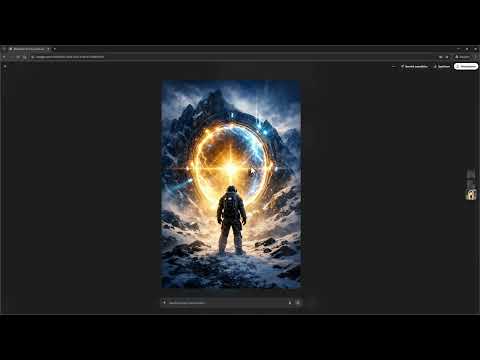
The prompt is the most important lever for a good result. Describe what should be visible, and add style, perspective, and mood. In the video, for example, I entered a "cinematic wide-angle shot of a lone explorer". The more specific you are, for example with details about lighting, colors, or framing, the closer the result will come to your vision. Text in the image is also possible, for example for an advertising campaign with a note like "50% off". The spelling of such texts now usually works without errors.
Step 6: Create Several Images in a Row
While one image is still being generated, you can already enter the next prompt. In the free version, creation can take a little longer, but the workflow remains smooth. In the video, I kicked off three images in a row this way, which then appeared one after another in the chat.

Step 7: Edit Images Afterwards
A big advantage: you don't have to start from scratch if you don't like a detail. Click on the generated image and describe the desired change in one sentence. In the example, I asked for a small space station to be added to the image. The motif was preserved, and the space station was integrated convincingly. Such adjustments are a quick alternative to a completely new prompt.

Step 8: Keep an Eye on the Daily Limit
The free version is limited. In the video, it was over after about five images, and then I had to wait a day before images could be generated for free again. ChatGPT shows you the restriction directly in the chat. Therefore, plan your images so that you create the most important ones first. For one to two images per day, the free version is usually sufficient.

Step 9: Download the Image
If the result fits, you save it to your device using the download function directly on the image. This gives you the file in its full quality and you can continue to use it.

Step 10: Check the Resolution
After downloading, open the file manager and check the image size. In the video, the resolution was 1024 x 1536 pixels. For social media or smaller web graphics, that is completely sufficient. However, if you are planning a large poster or a print, you need more pixels. There are free upscaling tools for this, with which you can enlarge the image without much effort.

Step 11: Optionally Use the Plus Trial Month
If the free version is not enough for you, ChatGPT Plus often offers a first month to try it out. When signing up, make sure to check the terms, and if necessary set a reminder so that you can cancel in time if you do not want to continue the subscription.

Summary – Creating Images for Free with ChatGPT: Step-by-Step Guide
You have now learned all the steps to create images in the free version of ChatGPT. You log in, select the image function, formulate a precise prompt, and adjust results in the chat if needed. Pay attention to the daily limit and download the images in time. With a little practice, convincing graphics for your projects can be created in a short time.
FAQ
Do I need a Pro subscription for image creation in ChatGPT?No, image creation is available in the free version. You only need an account.
How many images can I create for free?In the video, it was about five images per day. After that, you have to wait a day. The exact number may change.
Can I modify a created image afterwards?Yes, you can describe a change in the chat, such as adding an object. The image will then be adjusted accordingly.
Can ChatGPT also display text in images?Yes, text such as advertising slogans or titles can be displayed in images. The spelling is usually error-free in current versions.
At what resolution are the images downloaded?In the video, the resolution was 1024 x 1536 pixels. For larger prints, you can use an upscaling tool.
