
An image from a free AI generator often ends up in a resolution you can do little with. As soon as you want to print it, use it as a banner, or show it on a large screen, pixels and rough edges become visible. But you don't need an immediate subscription for that. With the free program Upscayl and the features of Topaz Photo AI or Photoshop, you can enlarge and sharpen images and add missing details using artificial intelligence. This guide shows you step by step how it works, where the strengths and weaknesses of each tool lie, and when the paid solution is worth it.
The video is only loaded from YouTube when you play it – data (including your IP address) is then transmitted to YouTube/Google. More in the privacy policy
Key Takeaways
- Upscayl is free, runs locally on your computer, and is well suited for getting started.
- The AI model you choose often influences the result more than the scaling factor itself.
- A double factor usually looks more natural than a fourfold enlargement.
- With portraits and fine skin textures, free models reach their limits more quickly.
- Topaz Photo AI delivers significantly better results with faces and text, but is generally paid.
- With generative upscaling, Photoshop offers another option that reconstructs details.
- The graphics card determines how long the calculation takes.
Step-by-Step Guide
Step 1: Download Upscayl
Open the official Upscayl website (upscayl.org). There you will find versions for Windows, Mac, and Linux. Select the appropriate operating system and download the installation file. Make sure to obtain the program only from the official site so that you don't install a tampered version.

Step 2: Install and Set the Language
Start the installation after the download. It is usually quick and requires little configuration. After the first launch, open the settings and set the language, which in the example is German. You can also choose a theme here. Both options can be changed at any time later.

Step 3: Load the Image and Set the Scaling Factor
Add your image to the program window via the file dialog or by drag & drop. In the video, a very low-resolution portrait is used. Then you choose the factor by which the image should be enlarged. In the example, it is initially three times. Keep in mind that a high factor increases the computing time and does not automatically make the result better.

Step 4: Select a Model and Upscale
Start with the default model and click the button to upscale. The duration depends heavily on your graphics card. In the video, an older Nvidia GTX 570 Ti is used, and the calculation still runs quickly. Afterwards you see the result. The woman looks sharper, but still somewhat artificial, almost painted. This is a typical sign that the model does not fit the subject well.

Step 5: Switch Models and Compare Before and After
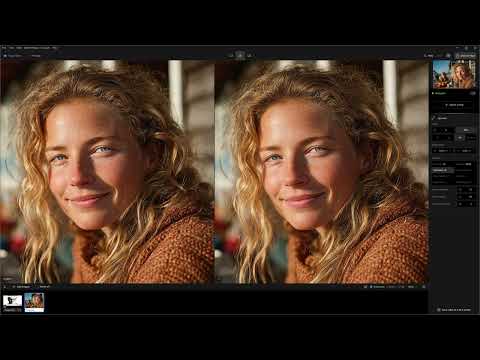
Try a different model and compare the result using the before-and-after view. In the test, the second model delivered more details, but the skin still did not look quite natural. It helps to work with a smaller enlargement first, such as the double factor. In the example, the result was much more coherent than the threefold version. When checking, always zoom in on the face, hair, and text, because that is where weaknesses show up fastest.
Step 6: Add Your Own Models
If none of the included models appeals to you, you can load additional models. Many of them are freely available and come from the internet, and some are published as open source. To do so, open the settings and add the downloaded model there. Make sure to use only models from trustworthy sources.

Step 7: Use Topaz Photo AI as a Stronger Alternative
If Upscayl reaches its limits, for example with portraits or text, it is worth taking a look at Topaz Photo AI. The software rebuilds the image more extensively, reconstructs fine details, and also sharpens text. In the video, the same portrait is enlarged twofold and fourfold with the default model, and the result looks very natural. The downside is obvious: the software is paid, and some functions only run in the cloud.

Step 8: Enlarge small images with the Wonder 2 filter
With very small source images, such as a photo of 400 x 533 pixels, a simple fourfold factor is often not enough. In Upscayl, the result looked too artificial in the test. The Wonder 2 filter in Topaz combines sharpening, enlarging, denoising, and reconstructing in a single pass. The result turned out significantly better. Note that Wonder 2 is only available in the cloud. Locally, you can only use Wonder 1. This AI can also misinterpret details: a stuck-out tongue was partially misinterpreted in the example. Therefore, always check the result critically.

Step 9: Use generative upscaling in Photoshop
If you own Photoshop, you can perform the upscaling directly there. Open your image and select the option for generative upscaling in the menu. Then you set the factor; in the video it is fourfold. You can choose between models from Topaz, such as Gigapixel, which adds creative elements, or Bloom. With the face reconstruction checkbox, faces that the AI did not recognize correctly are rebuilt. The result in the video looks pleasantly natural. Note that every calculation consumes credits. A subscription usually includes enough of them.

Summary – Images too small? How to upscale AI images for free
With Upscayl, you have a free entry into AI-powered enlargement. The key is to try out different models and to choose the factor carefully. For portraits, text, and small source images, Topaz Photo AI and generative upscaling in Photoshop often deliver more convincing results. At the end, critically check every image for details, because even the best AI can make mistakes.
FAQ
Is Upscayl really free?Yes, the program can be downloaded for free and runs locally on your computer.
Why does my upscaled image look artificial?Usually the chosen AI model does not suit the subject or the factor is too high. Try a different model or a smaller factor.
How long does upscaling take?The duration depends on your graphics card, the image size, and the factor. An Nvidia GTX 570 Ti still copes well in the video despite its age.
Do I need a Topaz subscription to use Photoshop?According to the video, no, because generative upscaling in Photoshop can be used without your own Topaz subscription. However, it consumes credits.
Can I use my own AI models in Upscayl?Yes, in the settings you can add additional models, which you obtain from the internet, for example.

