
Do you know the problem? You have an AI create a poster, a logo, or a greeting card, and the text on it turns out to be an illegible jumble of letters. This is exactly where Ideogram comes in. The AI image generator specializes in rendering text and often delivers results in which every letter is correct. In this guide, I'll show you step by step how to use Ideogram, which settings are available to you, and what to watch out for regarding credits and subscription features.
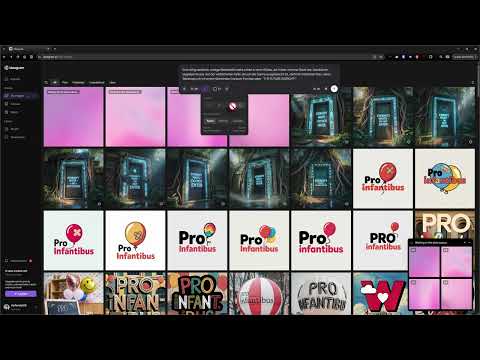
The video is only loaded from YouTube when you play it – data (including your IP address) is then transmitted to YouTube/Google. More in the privacy policy
Key Takeaways
- Ideogram specializes in text within images and usually reproduces the specified words reliably and without typos.
- Every generation uses up credits. The free plan includes only a few, which are replenished every three days.
- In the settings, you define the model version, number of images, format, style, color tone, and seed number.
- With Retry and Remix, you create variations, while Upscale and background removal are reserved for the Pro subscription.
Step-by-Step Guide
Step 1: Enter and submit the prompt
Start by writing your prompt in the input field. Write the desired text exactly as it should appear in the image, and also describe the look you want. The more precisely you put the text in quotation marks, the more likely the AI is to reproduce it one-to-one. Then click the button to start.

Step 2: Keep an eye on your credits
Before you get started, take a look at your account balance. Each run costs credits, and the free plan includes only a few. In my example, I had ten available, and they are only replenished after three days. So think carefully about which generations you really need, and don't start with ten half-finished attempts.
Step 3: Follow the progress and open the variations
While the AI is working, a field at the bottom right shows you the progress in percent. Once the generation is finished, a box with four variations appears. By clicking on the view, you open the images in large size and can examine them closely.
Step 4: Check the result for text accuracy
Take your time with the review. Compare the result letter by letter with your prompt. In my example, every word was correct, with no typos and no twisted letters. Especially with posters or logos, such errors are immediately noticeable, which is why this check is essential.

Step 5: Compare images and generate again
If you don't like a result, you don't have to give up. You can submit the same prompt again, even if the previous run is still in progress. Your prompt stays in the field after submitting, so you don't have to retype it. However, be careful not to accidentally click twice if you don't really need more variations, because every run costs credits.

Step 6: Use additional settings above the prompt
Above the input field, you'll find further options. You can add an image file as an attachment, which is then integrated into the new image. You also select the model version, or you let it be determined automatically. You also set the number of images and the desired format here.

Step 7: Adjust style, character, and color tone
With the style settings, you decide whether the result should appear in a cartoon look, for example. For characters, you can add your own specifications so that certain figures recur. With the color tone, you specify which direction the color scheme should take. This way, you steer the overall image without having to spell out every detail in the prompt.

Step 8: Create similar images with the seed number
Every image has its own seed number. It determines the initial noise from which the image develops. If you copy this number and paste it into the corresponding field, an image is created that closely resembles the original. This is handy if you want to deliberately develop a successful motif further. In my test, the results were very similar, but not identical.

Step 9: Enlarge images and use additional features
Clicking on an image displays it in a larger size. You can access further options via the three dots. With Retry you create the same motif again, Remix modifies it, and Upscale increases the resolution. However, Upscale as well as background removal are only available with the Pro subscription. So if you need larger print templates, you will have to make do with the free version for now or factor in the subscription price.

Step 10: Let your credits renew and try it out
The free credits are replenished every three days. If you use Ideogram regularly, it is worth looking at the subscription options. However, you will get to know the tool best by trying it out yourself. With each attempt, you will more quickly notice how the prompt should be worded so that the text fits perfectly.
Summary – Ideogram Guide: Creating Images with Error-Free Text
Ideogram is an AI image generator that is particularly well suited for images with text. You enter your prompt with the desired wording, check the variants for errors, and refine the result via style, color tone, and seed number. The credits are limited in the free offering, so you should plan your attempts deliberately. Upscale and background removal remain reserved for the Pro subscription.
FAQ
Do I have to pay for Ideogram?You can use the basic functions with free credits, which are renewed every three days. Advanced features such as Upscale or background removal are only available with the Pro subscription.
Why is the text in Ideogram often better than in other image generators?Ideogram is specifically designed for displaying text in images, which is why words and letters are often reproduced correctly. The more precisely you specify the text in quotation marks, the better this works.
What is the seed number for?With the seed number, you can use an existing image as a starting point and have similar variants generated, which is well suited for the targeted further development of a motif.
Can I incorporate my own images into the generation?Yes, via the file attachment you add an image that is integrated into the new result.
What do I do if the results don't fit?Create new variants via Retry or adjust the prompt. It helps to put the text in quotation marks and to describe the style and color tone more precisely.

