
Imagine you type in a single prompt and get back two images from two different AI models at the same time. That's exactly what the Arena at arena.ai makes possible. Instead of opening each model individually, reconnecting, and laboriously laying the results next to each other, you see the differences directly in comparison. In this guide, I'll show you how to use the "Side by Side" mode, select suitable models, run your prompt, and rate the images. By the end, you'll know how to find the right model for your own image idea.
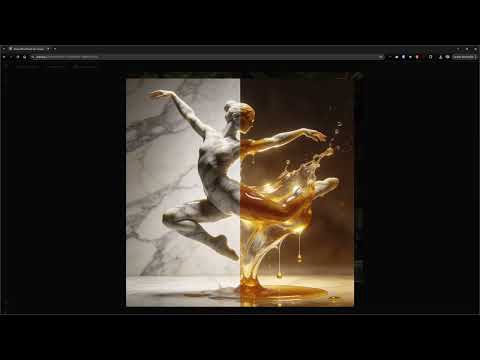
The video is only loaded from YouTube when you play it – data (including your IP address) is then transmitted to YouTube/Google. More in the privacy policy
Key Takeaways
You compare multiple image models directly side by side without having to switch between tools. The "Side by Side" mode is the right starting point for this.
The choice of model determines the result. Deliberately select two or more models so that the comparison is meaningful.
Not every model runs reliably. If you get error messages, it's worth switching to a different model, and some models require an uploaded image as a starting point.
The evaluation is up to you. Enlarge the images, pay attention to details such as realism and coherence, and then vote for the better result.
Downloads are possible right away. The images can be downloaded in a usable resolution and without watermarks.
Step-by-Step Guide
Step 1: Activate Side-by-Side Mode
Open arena.ai in your browser. At the top you'll find the selection for the comparison mode. Choose "Side by Side" there. This sets two models to compete against each other at the same time. The mode is the core of the Arena, because without it you would only be querying a single model.

Step 2: Select the Image Category
Next, you decide what kind of output you want. In the video, the "Image" category is selected. This way the Arena only shows models that can generate images. This saves you time because you don't have to look through text models or other categories. The list of available models is long, so the filter is worthwhile.
Step 3: Choose Two Models for the Comparison
Now you select the models that should compete against each other. In the video, ChatGPT is chosen as the first model and Flux as the second. Make sure to combine two different providers if you want to see differences in style and execution. By the way, with Flux the second model comes from Germany, which gives you an interesting overview of where the models come from.
Step 4: Enter the Prompt and Start the Comparison
Enter your image description in the input field. The prompt is identical for both models, so the comparison stays fair. If you write a clear and detailed description, the difference between the models will be more pronounced. As soon as you submit the prompt, both models start generating images in parallel.
Step 5: Watch the Generation
Now you can see both models creating their images. You don't have to do anything except wait. The speed differs depending on the model and server load. In the video, one run with Gemini even produced an error message indicating an overload. If a model hangs, try again after a short while or choose an alternative.
Step 6: View the Results Enlarged
Once both images are finished, click on an image to view it larger. Especially with details such as hands, faces, or backgrounds, the quality only shows up when enlarged. Don't just compare the first impression, but consciously look at realism, composition, and mistakes. An image can look appealing at first glance and show weaknesses on closer inspection.

Step 7: Vote for the Better Image
Below the images you'll find the option to vote. Decide on the result you like better and cast your vote. In the video, this is done with the label "A" or "B". Your rating is subjective, and that is exactly where the value of the comparison lies. Over time, you learn which models suit your style.

Step 8: Test a Second Prompt with Different Models
Now start a new round with a different prompt and new model combinations. In the video, Seedream and Grok Imagine Pro are selected for this, for example. Feel free to switch models more often, because each model has its own strengths. A model that excels at landscapes may struggle with portraits. This kind of testing is the real benefit of the Arena.
Step 9: Download the Images
If you like a result, you can download it directly. The video emphasizes that the images are available without watermarks and have a resolution of about 1200 pixels. For presentations, social media posts, or your own projects, that is sufficient in many cases. Before any commercial use, however, always check the terms of use of the respective models.

Step 10: Dealing with Error Messages
Not every combination works. In the video, an error message appears for one model because it requires an uploaded image. In this case, you simply choose a different model that works without a template. The combination of Lucid and Gemini with Nano Banana Pro then produces a result. Gemini takes a bit longer here, but also delivers usable images. Patience and flexibility are therefore part of working with the Arena.

Summary – Comparing AI Image Models: Step by Step in the Arena
The Arena on arena.ai brings several AI image models together in one comparison. You activate the "Side by Side" mode, select the image area, and choose two models. Then you enter a prompt, watch the generation, and evaluate the enlarged results. With your vote, you decide which image is more convincing. Downloads are straightforward and possible without watermarks. If you work with image generators regularly, this approach saves you a lot of time and helps you find the model that fits your idea faster.
FAQ
Does using the Arena cost anything?The video emphasizes that you can download the images for free and that no watermark is visible.
Why does an error message sometimes appear?The cause can be an overload of the service or the requirement that an image must be uploaded. In this case, switch the model or try again later.
Which models can I compare with each other?In Side-by-Side mode, you can select different image models, such as ChatGPT, Flux, Seedream, Grok, or Gemini with Nano Banana Pro.
How long does image generation take?The duration depends on the model and the current load. Some models are noticeably slower than others.
How do I vote for the better image?After generation, you can decide between the two results and cast your vote for the image you like better.
What resolution do the downloaded images have?The video mentions about 1200 pixels. That is enough for many applications, but for large prints you may want to choose a different format.

