
Anyone who has ever tried to find a suitable image for a blog post, a presentation, or a birthday card knows the problem: stock photos often look interchangeable, and your own photos aren't always available. With AI image generators, you can simply describe an image and have it created within seconds or minutes.
The video is only loaded from YouTube when you play it – data (including your IP address) is then transmitted to YouTube/Google. More in the privacy policy
Microsoft offers several ways to create such images in the browser without a subscription. This guide shows you step by step how to use Microsoft Designer, Bing, and Copilot, adjust the results, download them, and even create a short video.
Key Takeaways
- Microsoft Designer, Bing, and Copilot create AI images for free in the browser, without a subscription.
- On each platform, you repeatedly receive a limited number of free credits.
- The quality of your result depends heavily on the description (the prompt). The more precisely you phrase it, the better the image will be.
- You can choose the format, have style variations created, and check the resolution before downloading.
- In Microsoft Designer, images can be edited afterwards, for example with text, speech bubbles, or cut-out objects.
- If an image isn't displayed even though it was created, reloading the page usually helps.
Step 1: Open Microsoft Designer and describe the image
Microsoft works closely with OpenAI on its AI features. As a result, the same powerful image models are built into several Microsoft services, and you can use some of them free of charge. To get started, open Microsoft Designer in your browser and sign in with your Microsoft account.
Among the suggestions, you'll find the section for images. Select it, and you'll land in an input field where you write the image you want. The more precise the description, the more targeted the result. In the video, the example describes an astronaut floating weightlessly through space.

Step 2: Choose the right format
Before you start the creation, you set the image format. You can choose between a square format, a portrait format, and a landscape format. For presentations or banners, landscape is usually recommended; for social media posts, square is better. In the example, the landscape format is selected.

Then you start the process. The animation during creation shows you that work is in progress. Depending on the load, this takes a few seconds to a few minutes, since Designer usually generates several variants at once.

Step 3: Switch between variants and styles
You don't have to stick with the first version. Designer usually delivers four suggestions from which you can choose the right one. The style can also be varied. In the example, a grim Viking is created once as an oil painting. To do this, you click the corresponding style option and have the image re-rendered.

Especially with images containing many details, it's worth comparing several variants. One result often looks cartoonish, while another looks realistic. This shows how important it is to write style and mood directly into the prompt.
Step 4: Check the result and verify the resolution
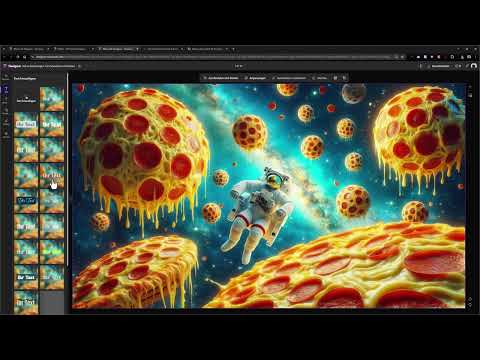
Take a close look at each result. In the example, the astronaut appears in an environment with giant pepperoni pizzas, which I had deliberately specified as an image element in the prompt. Such unusual combinations are the real appeal of AI image generation.

If you like a result, you can download it. Alternatively, Designer offers to copy the image directly, for example to edit it further in Photoshop, or to send it to your smartphone. To download, select the corresponding button.

After downloading, check the resolution. The displayed size should match the actual file size. In the video, the stated size matches the downloaded image, which is important for use in print or on larger screens.

Step 5: Use Bing Image Creator
The second platform is Bing. There you can use the same prompt and compare how the result turns out. One advantage: Bing offers the option to choose between different AI models. To do so, look for the model selection in the interface and, if necessary, try a different model.

Pay attention to the aspect ratio here as well. In the example, the horizontal format is chosen. With this variant, the number of images is fixed, so you can't choose between several variants, but instead evaluate the result directly. Then you start the creation and wait until the image is finished.

Step 6: Use Copilot for image ideas
The third way is via Microsoft Copilot. Here you can write directly in the chat that you want to generate an image. Copilot then automatically suggests creating an image and opens the appropriate input field. Enter your prompt there and start the creation.

The result in the example looks significantly more realistic than the comic version from the Designer. The pizza looks deceptively real. The resolution is slightly lower than with the Designer, but still sufficient for many purposes. Here too, you can download the image directly or recreate it with a new prompt.

With Copilot, the creation can take a bit longer. In the video, one to two minutes are mentioned. Plan for this waiting time, or start the next prompt while the current image is still being generated.
Step 7: Edit images in Microsoft Designer
The Designer can do more than just generate images. If you open a result with the "Edit" button, you arrive at an interface reminiscent of simple image editing programs. You can cut out objects, add text, and move elements. In the example, the text is inserted into the image and then dragged to a suitable spot.

With the layer management, you keep track of all elements. Here you can hide, move, or delete individual layers. In addition, visual elements such as a speech bubble can be inserted. In the example, the astronaut says in the speech bubble "Help, I'm getting hungry". This is how humorous motifs for social media or presentations are quickly created.

Step 8: Display missing images correctly
Sometimes the Designer reports that the image is finished, but it doesn't appear in the preview. This initially seems like an error, but is usually just a display problem. In this case, reload the page by pressing the F5 key or using your browser's reload button. After that, the image should be visible.

Remember this trick, because it saves you unnecessary attempts and repeatedly generating motifs that are actually already finished.
Step 9: Create a short video
Finally, the video shows another feature: creating a short AI video. In the "Create" section, select the "Video" option and enter your description. In the example, the same city scene that was already created as an image is used. You can set the duration; in the example it is eight seconds.

After a short wait, the video is finished. It is short, but already shows movement and atmosphere. A certain swaying back and forth of the scene is typical for such results, so it's worth taking a critical look before you reuse it.

Summary ??? Create AI images for free: Microsoft Designer, Bing & Copilot
You have seen that you can create AI images without a subscription using Microsoft Designer, Bing, and Copilot. The Designer scores with format selection, multiple variants, and an editing interface. Bing offers the choice of different models, and Copilot often delivers very realistic results. With a precise prompt, the right format, and knowing about refreshing the page, you can quickly arrive at usable motifs.
FAQ
Is image creation really free?The platforms regularly offer a limited number of free credits, so using them for occasional projects is usually free of charge. Restrictions may apply for larger volumes.
How do I write a good prompt?Describe the subject specifically, and state the style, mood, and desired elements, for example "An astronaut floats weightlessly through space, with pepperoni pizzas in the background, photorealistic".
Which format should I choose?For presentations and banners, landscape format is usually suitable, for social media posts the square format, and for posters or phone wallpapers the portrait format.
Can I edit the images later?In Microsoft Designer, you can add text, objects, and speech bubbles and manage layers. For more advanced editing, you can also copy the image and open it in a program like Photoshop.
What do I do if a finished image is not displayed?Reload the page. The image is usually displayed correctly afterwards.

