A logo that becomes blurry in the layout as soon as you enlarge it quickly costs you nerves and quality. Vector graphics solve this problem, because they stay razor-sharp regardless of size. In Affinity Layout, you don't even have to switch programs for this. The Vector Studio is directly integrated, and you can draw icons, adjust logos, and edit shapes there while your layout stays open.
The video is only loaded from YouTube when you play it – data (including your IP address) is then transmitted to YouTube/Google. More in the privacy policy
In this tutorial, I'll show you how to bring existing vector elements into your project, create new icons directly in the layout, and recolor a finished logo afterwards. Using a coffee bean as an example, we'll go through the entire process step by step.
Key Takeaways
Vector elements can be copied between the Vector Studio and the Layout Studio without having to save a file first. Shapes created in the Vector Studio remain editable, even if you're already working in the layout. When drawing with the Pen Tool, you should activate Pen Mode, not Smart Mode. You can recolor logos via the Vector Studio at any time and then switch back to the layout.
Step-by-Step Guide
Bringing a Vector Element from the Vector Studio into the Project
The easiest way to start is by bringing in an existing icon. Open the file with your vector element and select it. Then copy it with Ctrl+C and paste it into your layout with Ctrl+V. Alternatively, you can simply drag and drop the element into your project. This way, your logo lands right where you need it, for example on the cover.

Editing Individual Parts of a Vector
After pasting, the components of an icon are often separate. You can edit the entire group to move or scale the logo as a whole. However, if you only want to change one part, a double-click on the desired element is enough. This option is not limited to the Vector Studio, but also works within your layout.

Creating New Icons Directly in the Layout
It's especially practical that you can design new icons in the same workspace. You don't have to switch between programs or create a separate file. In the example, a coffee bean is created, which will later serve as a design element in a brochure. The process begins with a simple basic shape.

Drawing the Basic Shape with the Shape Tool
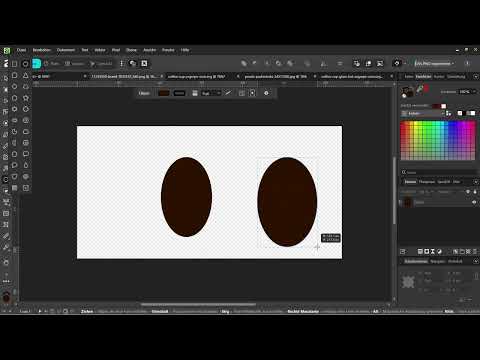
Select the Shape Tool for ellipses and drag out a shape. Do not hold down the Shift key while doing so, as otherwise an exact circle will be created. For the coffee bean, however, you need an oval. The shape forms the basis for the further design, and you can adjust its size and proportions at any time later.

Setting Up the Pen Tool in Pen Mode
Before you work with the Pen Tool, you shouldn't overlook an important step. In the top bar, activate Pen Mode and not Smart Mode. Only then do you have full control over the points and curves of your path. Also set the outline color to white. Since the line is only an outline, you can leave the interior transparent.

Drawing a Curve and Closing the Path
Place the first point of the pen path in the center of your ellipse until it snaps into place. Then, holding down the left mouse button, drag toward the bottom right to create a slight curve. Next, place the last point at the very bottom of the path and finish editing. This creates the typical center line of a coffee bean. Color this line white and set the stroke width to six points. After that, the icon already looks finished and easy to read.

Copying the Finished Icon and Transferring It to the Brochure
If you like the result, copy it as usual with Ctrl+C and paste it into your layout with Ctrl+V. You don't have to save the file beforehand, even though that always remains sensible for important work. The ability to create icons spontaneously directly in the layout saves you a lot of time with smaller graphics.

Subsequent editing in the Vector Studio
The icon remains editable even after pasting. Double-clicking the element in the layout opens the Vector Studio, so you can continue to adjust shapes, points or stroke widths. Note, however, that in the Layout Studio, not all tools are visible without an active vector mode. As soon as you switch back to the layout, the special vector tools are missing. Clicking the Vector button makes them visible again.

Recoloring a logo afterwards
Existing logos can also be easily adjusted. To do this, go into vector mode and change the color or other properties of the element. Then you switch back to the Layout Studio and continue your work as if nothing had happened. This process is particularly suitable when a logo needs to fit a new color concept.

Summary – Vector Graphics in Affinity Layout: Integrating Logos and Icons Directly
Thanks to the Vector Studio, vector elements in Affinity Layout stay sharp and scalable. You can take them over from other files, create them anew, or recolor them afterwards without leaving your layout. With the pen mode, the basic shapes, and switching between layout and vector, you keep full control over your icons and logos. The collaboration of all the studios in one program is an advantage that saves you a lot of work, both as a beginner and as an experienced designer.
FAQ
Do I have to save a vector element before pasting it?No, you can create an icon directly in the Vector Studio and transfer it to the layout via copy and paste. Saving is still sensible in order to have a backup copy.
Can I still edit a pasted logo later?Yes, double-clicking the element opens the Vector Studio. There you can adjust shapes, points and colors at any time.
Why are some tools missing after switching to the layout?The special vector tools are only visible in vector mode. Via the Vector button, you make them visible again.
Which mode should I choose for the Pen tool?Use the pen mode and not the smart mode. Only this way do you have full control over the points and curves.
Can a finished logo also be recolored afterwards?Yes, switch to vector mode, change the color of the element, and then return to the layout.


