
An invitation with boring lettering quickly looks like a form from a government office. Yet often just a few clicks are enough to turn a headline into an eye-catcher you almost want to touch. That's exactly what I'll show you in this tutorial with Adobe Express and the Text Effects section of Adobe Firefly. You don't need a graphics program or any prior knowledge, just a browser and a few minutes of time.
The video is only loaded from YouTube when you play it – data (including your IP address) is then transmitted to YouTube/Google. More in the privacy policy
We'll go through the process from the first text input to the finished download. In the end, you'll be able to design text effects for birthday invitations, greeting cards, or posters yourself.
Key Takeaways
- You create text effects entirely in the browser, without installing Photoshop.
- Via Firefly you get directly to Adobe Express, where you can start working with your text right away.
- Besides ready-made effects, you can have custom effects generated using a description.
- You can change the text and the font at any time afterwards, and the effect adapts automatically.
- PDF and PNG files are suitable for printing, with PNG offering the advantage of transparent backgrounds.
Step-by-Step Guide
Step 1: Open Firefly and explore the features
Go to the page firefly.adobe.com in your browser. On the left side you'll find the Generate section. Click on it, and you'll see a selection of features. Interesting for our project is the All Features section, which you open via the corresponding button. There you'll find all the tools that Firefly offers collected in one place.

Step 2: Choose the text effects section
Within the features, look for the entry Image and Text Effect and click on it. Firefly redirects you directly to Adobe Express. You don't really leave Firefly with this; you're basically starting the design editor in which you do everything else.

Step 3: Enter the text
In the editor, you next enter your text. In our example, you simply write the word Einladung. You can of course use any term you like, such as the birthday child's name or a saying. Make sure to choose short texts, because long words quickly look cluttered with elaborate effects.

Step 4: Browse ready-made effects
Now Adobe Express offers you a selection of effects. Click on Show all to see the complete library. There you'll find categories such as reflective, grouped, or natural effects. Particularly popular are variants in the style of paintings or colorful effects that suit cheerful occasions. Take your time looking at what you like, and just let yourself be inspired.

Step 5: Create your own effect using a description
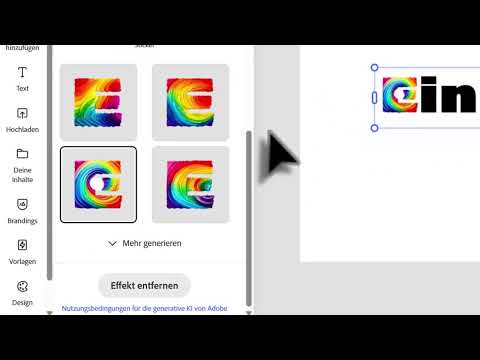
If none of the templates fits your idea, you can generate an effect yourself. To do so, click on the pencil icon. Then, in an input field, you describe what the effect should look like. An example would be rainbow, relaxed and playful. You don't necessarily have to work realistically; an embellished, artistic description often works even better. Then click on Generate. The calculation usually takes about half a minute. Afterwards, four suggestions appear.
Step 6: Compare the variants and choose one
The four examples are inserted into your text one after another. A small wheel spins until every single letter has received the effect. This takes about ten seconds per variant. The first variant is preselected by default. Try out the others by clicking on them. Some effects look very striking at first glance, but on closer inspection are too busy and make the text barely legible. Therefore, compare the suggestions carefully and choose the effect that conveys your message best.

Step 7: Adjust the display
If you like an effect, you can enlarge the text to see details better. This helps you judge whether the effect is really convincing. Especially with complex patterns, this close-up look is worthwhile. If in the end you decide on the first variant after all, simply switch back. The selection remains flexible until you start the download.

Step 8: Download the File
If you are satisfied, click Download. You can choose between PNG and PDF formats. The PNG format is usually the best choice because the background stays transparent and you can easily place the image on colored cards. The PDF is particularly suitable for printing, as it is optimized for print. You can also set the size here. If you overdo it, however, Adobe Express will warn you about possible blurriness. Therefore, choose a size that is sufficient for your purpose, and confirm the download.

Step 9: Change the Text Afterwards
A big advantage of this method: You don't have to start over if your text changes. Simply click on the text again and select Edit. Here you can adjust the wording or choose a different font. The effect is automatically applied to the new font style. This way, a draft can be adapted to your guests' needs in a few seconds.

Summary – Text Effects with Adobe Express: Step by Step
With Firefly and Adobe Express, you can create text effects in just a few minutes that enhance any invitation. You start via the Image and Text Effects section, enter your text, and choose from predefined or self-generated effects. Before downloading, you check the variants, adjust the size, and save your result as PNG or PDF. Subsequent changes to the text are possible at any time. Since everything takes place in the browser, there is no need to install complex software.
FAQ
Do I need an account to create text effects?To use Adobe Express and Firefly, a free registration with an Adobe account is generally required.
Which file format should I choose for an invitation card?The PNG format is a good choice if you need transparent backgrounds. For printing, PDF is usually the better choice.
How long does it take to generate a custom effect?Creation usually takes about half a minute. Afterwards, you receive four suggestions to choose from.
Can I still change the text after inserting the effect?Yes, using the Edit option, text and font style can be adjusted at any time. The effect is applied automatically.
Why does Adobe Express warn me about very large sizes?If the file is set too large, the image may appear blurry. Therefore, choose a size that is sufficient for your intended use.

