
Do you know this? Your design is perfect, the colors are right, and then comes the message: You also need the whole thing as a LinkedIn banner, as an Instagram story, and as a YouTube thumbnail. In the past, that meant recreating elements by hand, adjusting formats, and realigning text. In this tutorial, I'll show you how to create many social media formats from a single design in Adobe Express without rebuilding every element.
The video is only loaded from YouTube when you play it – data (including your IP address) is then transmitted to YouTube/Google. More in the privacy policy
Introduction
Adobe Express can convert an existing design into multiple sizes at once, automatically adapting text, images, and elements to each format. You select the target formats, let them be generated, and only fine-tune the details. The guide walks you through the complete process: from the template to format selection to export.
Key Takeaways
- In Adobe Express, a design can be converted into many formats with just a few clicks.
- You can select multiple platforms at the same time, for example Instagram, Facebook, TikTok, or Google Ads.
- The automatic adjustment is good, but you should briefly check each result and readjust elements if necessary.
- For individual target formats, you can create specific variants, for example a landscape Facebook ad.
- You can export as PNG, JPG, or PDF, including a printable version.
Step-by-Step Guide
Step 1: Log in and choose a template
Log in to Adobe Express. After that, you can either upload your own design or use one of the templates. In the example, you open the template overview, scroll through the selection, and choose a template with text and design elements. This combination is particularly suitable because you can immediately see how the automation handles different components.

Step 2: Customize the template and start resizing
Click "Customize template" to edit the template. Then open the "Resize" function. Here you decide for which formats the design should be created later. It is important that you only change the size once the basic design is finished. Adobe Express usually carries over changes to text and images cleanly into all variants later.

Step 3: Select target formats
In the "Resize" menu, you first see the most recently used formats. Below that, you can search by category, such as Social Media and Advertising, Video, Photo, Document, Website, or Print. For this guide, you choose the "Social Media" category. There you will find the common platforms, for example Instagram and Facebook. You can also get directly to the platforms via the quick selection at the top.

Step 4: Select multiple platforms at once
You can select multiple formats in one go. In the example, an Instagram format, a Facebook post, and a Google Ads ad come together. For TikTok, you don't have to enter the dimensions yourself, because the suitable formats are suggested to you. This saves time and prevents typos in the pixel values.
Step 5: Have the formats created
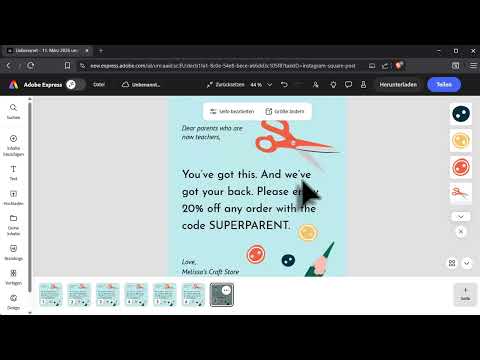
Once all desired platforms are selected, you click "Duplicate and resize". In the example, this creates six variants at the same time. Adobe Express creates a separate page for each format, so you can compare all the results side by side.
Step 6: Check the results and readjust
The automatic adjustment is usually good, but not every layout fits perfectly. In the example, one format looks a bit too cramped because the elements are not ideally placed. You can move the elements at any time. Hold down the space bar to move the view. To select multiple elements at once, drag a selection frame while holding down the left mouse button. This way you can quickly realign groups without editing each element individually.

Step 7: Fine-tuning width and layers
For text boxes, you can set them to take up the entire width of the format. Images and layers can also be repositioned if needed. Since switching between the variants is very fast, it's a good idea to take a look at all formats before you start the export. Many mistakes, such as text cut off at the edge, only become noticeable then.

Step 8: Download the design
When you are happy with all the variants, click "Download". Then you choose the file format: PNG, JPG or PDF. With PDF, you can also create a printable version. Also decide whether you want to export selected pages or all pages. For multiple formats, you will receive a zipped file with all the individual images at the end.

Step 9: Create a single variant for one format
There are also cases where you only need one specific format. In that case, you select just one platform in the "Resize" menu. In the example, a Facebook ad in landscape format is to be created. Adobe Express suggests several layouts for this. One suggestion stays close to the original, while another enlarges the text and rearranges the elements. Choose the suggestion you like best and apply it with "Keep".

Step 10: Create a portrait format for Instagram Stories
Templates that are already in landscape format can also be converted. In the example, choose the "Instagram Story" format, which is created in portrait format. Not every result is perfect right away, but often the automation is already very good. Check the layout and decide which variant you want to keep. Then download the result as usual.

Summary – Adobe Express: Scale a design for all platforms with one click
With Adobe Express, you only have to design once. Then you select the target platforms, generate all formats at the same time, and correct the results where needed. For individual formats, you can choose variants with different layouts. This saves time and avoids the tedious detail work of manual adjustment. A quick check of each format is still worthwhile, because the automation does not replace a reviewing eye.
FAQ
Can I also use my own design instead of a template?Yes, you can upload your own design and convert it into multiple formats in the same way.
Which file formats can I export?You can export as PNG, JPG or PDF. The PDF is also suitable for a printable version.
Can I create multiple formats at the same time?Yes, you select several platforms and click "Duplicate and resize". Adobe Express then creates all the variants in one go.
How do I find formats for TikTok if I don't know the dimensions?You don't have to enter the dimensions yourself. Adobe Express directly suggests suitable formats for the platform.
Do I still have to edit the automatically created layouts?Usually not completely, but a quick look is worthwhile. You often have to move elements or readjust text.
What do I do if I don't like a layout?For individual variants, you are often offered several suggestions. You can choose a different suggestion or adjust the result manually.
Can I export multiple pages at once?Yes, you can export selected pages or all pages. With multiple files, you receive a zipped file.

