
Do you know this? You sit for hours in Photoshop, cutting out subject after subject and clicking your way through image after image in a stack that seems to never end. This is exactly what the batch processing in Adobe Firefly is for, taking this work off your hands. In this tutorial, I'll show you step by step how to remove the backgrounds of many images in a single pass and export them directly as transparent PNG files.
The video is only loaded from YouTube when you play it – data (including your IP address) is then transmitted to YouTube/Google. More in the privacy policy
Key Takeaways
Key Takeaways
- The batch action "Remove Backgrounds" in Adobe Firefly processes many images at once and requires only a few clicks.
- For a transparent background, you select the corresponding option and export in PNG format, since JPEG does not support transparency.
- Instead of transparency, you can also set an image or a solid color as the new background.
- You can track the progress in the job log, and afterwards you download the finished results all together.
- A spot check in Photoshop with a gradient or checkerboard pattern as a test background shows whether the cutout was done cleanly.
Step-by-Step Guide
Step 1: Open the batch action "Remove Backgrounds"
First, go to the website firefly.adobe.com in your browser and sign in with your Adobe account. On the left side you'll find the "Production" area. Click on it to open the list of available tools. There you'll find the "Batch Action" category, which is intended for processing multiple files. By the way, the number of functions in this area is constantly growing, so the view may look a bit different for you.
In the batch action, select the first entry named "Remove Backgrounds". The function has the description "Remove or replace backgrounds with images or solid colors". This is exactly the option you need for your project.

Step 2: Upload all images at once
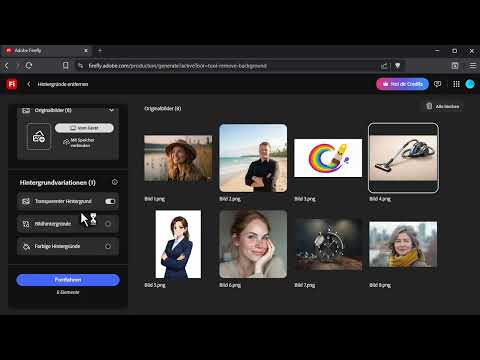
In the next step, you upload your image files. You can use your device's file selection dialog for this. Alternatively, drag & drop also works, where you drag the files directly from Explorer or Finder into the window. In the video I use the dialog. Open the folder with your subjects, select the desired images, and confirm. With the keyboard shortcut Ctrl+A (Cmd+A on a Mac) you can select all files in the folder in a flash. Make sure that the folder really contains only the images you want to edit, because every file in the stack will be processed.

Step 3: Define the desired background
Now you decide what the new background should look like. The option that is most useful for cutouts is called Transparency. With it, the subject is kept without a background, and you can later place it into any layout you like. Alternatively, you can choose an image as the background, for example a sky or a landscape, or assign a solid background color. These variants are suitable if you need a finished image right away without further editing.
For this example, I'll stick with the transparent variant. The type of subject hardly matters here. In the video, realistic photos are included as well as cartoon illustrations, and the result is convincing in both styles.

Step 4: Assign a job name and choose the right file format
Next, you can give the job a name. This is especially helpful if you are working on several stacks in parallel and want to keep track of them later.
After that, you choose the output format. For transparent backgrounds, only PNG is an option, because the JPEG format doesn't support transparency and would fill the background with a solid color. In theory, you can also choose the PSD format or export multiple formats at the same time. Keep in mind, however, that additional formats consume more credits. If you only need the cutout subjects, PNG is entirely sufficient. Then confirm your selection by clicking "Process".

Step 5: Track the progress in the job log
After the start, Firefly begins processing. You don't have to wait idly, because in the job log you can see at any time how far the processing has progressed. The status "Still working on it" appears there as long as the stack is running. The duration depends on the number and size of the images. In the example there were eight subjects, and the entire processing took just over a minute.

Step 6: Download the Results
As soon as the status "Done" appears in the job log, you can download the results. To do so, click the small arrow next to the job. The files will then be saved to your computer. I recommend creating a separate folder for the cut-out images right after the download, so that the originals and the results don't get mixed up.

Step 7: Check the Result in Photoshop
Finally, you should check the results. To do this, open a few of the PNG files in Photoshop. A simple test is to place a gradient or a checkerboard pattern as a new layer beneath the cut-out subject. If the background is truly transparent, the pattern shines through everywhere, and you can immediately see whether edges or details have been cleanly cut out. In the example, the edges held up to close inspection even with difficult subjects such as hair or fine textures.

Summary – Removing the Background with Adobe Firefly: Cutting Out Dozens of Images in a Batch
With the batch action "Remove Backgrounds" in Adobe Firefly, you get done a job that would otherwise take you hours in Photoshop. You upload all the images at once, choose a transparent background option, export in PNG format, and download the finished files after a short wait. If you regularly cut out product photos, portraits, or illustrations, you save a lot of time for the creative parts of your work. Simply try out the function with a few of your own images to get a feel for the results.
FAQ
How many images can I process at the same time?In the video, eight images are processed in one batch, but the number depends on the current conditions of your Adobe account and the limits of the function.
Why should I choose PNG instead of JPEG?PNG supports transparency, whereas JPEG does not, so with JPEG the background does not stay transparent.
Does processing use credits?Yes, processing uses credits, and additional formats such as PSD or multiple formats at once increase consumption.
Can I choose a different background instead of transparency?Yes, you can set a background image, for example a sky or a landscape, or a solid background color.
Where can I see how far along the processing is?The progress is shown in the job log, and the status appears there as soon as processing is complete.

