
Hair, fur or leaves in front of a busy background are the nightmare of every cutout. You can save yourself hours of working on individual strands of hair with a brush. Adobe Firefly handles this task with an AI tool in just a few seconds. In this guide, I'll show you step by step how to upload a photo, remove the background and check the result. I'll also introduce you to other quick actions that save you time in everyday work.
The video is only loaded from YouTube when you play it – data (including your IP address) is then transmitted to YouTube/Google. More in the privacy policy
Key Takeaways
- Adobe Firefly removes the background directly in the browser, so you don't need to install any program.
- You can find the "Remove background" function under the quick actions.
- You can upload images up to 40 MB in JPEG, PNG, WebP or HEIC format.
- Even difficult subjects with fine hair or an irregular background often work with just one click.
- For further editing, you can download the result or open it in Adobe Express.
Step 1: Open Adobe Firefly in the browser
Getting started is as easy as it gets. Open Adobe Firefly in your browser by visiting the website. No installation is necessary, and that saves you time, especially if you want to quickly edit a single image.

Step 2: Select the quick action "Remove background"
Once the page has loaded, take a look at the left sidebar. There you'll find the Quick actions section. Scroll down a bit until you see the entry "Remove background" and click on it. The interface is deliberately kept simple so that you can find your way around immediately.

Step 3: Upload your photo
Now it's your image's turn. Make sure the file is no larger than 40 MB and is in JPEG, PNG, WebP or HEIC format. The video shows a portrait of a woman as an example, whose hair blends into the blurry background of flowers, bushes and trees. Subjects like this are considered the supreme discipline of cutting out, because every single strand of hair has to be detected.
Step 4: Examine the result
After a few seconds, the cutout is finished. In the example, the process took about three seconds. Take a good look at the result before you continue. The preview shows you how well the AI has detected the contours. However, this preview still lacks a zoom tool. If you want to check fine details closely, you will therefore have to open the image elsewhere.

Step 5: Download or continue editing
After that, you have two options. You can download the cutout image directly. Alternatively, you can open it in Adobe Express and continue editing it there, for example with new backgrounds, texts or effects. For quick use, the direct download is usually enough.
Step 6: Check the result in Photoshop
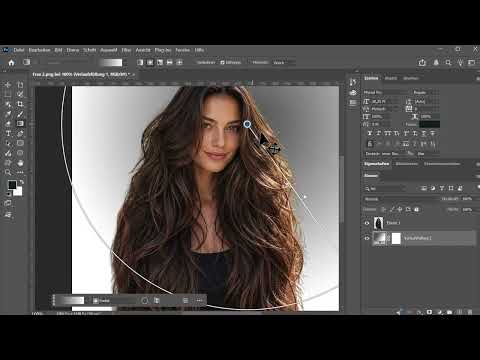
If you want to be completely sure that the cutout is clean, a test with a colored background helps. To do this, open the cutout image in Adobe Photoshop. Create a new layer with a gradient underneath it. If light or dark remnants are visible at the edges of the hair, they will quickly point you toward the need for post-processing. The video shows that the cutout turned out very well here too, so you can save yourself the time for manual corrections.

Step 7: Test more examples
A single subject says little about the quality. Therefore, upload more photos, for example a cat with an irregular background. Here too, the preview shows a convincing result within a few seconds. Also try a horse in front of a sky with a meadow in the foreground. You'll find that animals with a lot of fur can be cut out just as well as portraits.

Step 8: Discover the other quick actions
The "Remove background" function is just one of many quick actions. Scroll through the list and try out the other tools. These include cropping images, creating a QR code, converting to SVG and changing the image size. Especially if you regularly have to adapt images for different platforms, these tools are worth a look.

Step 9: Adjust image size and crop
As an example, you can select a dog and crop the image to its face. To do this, drag the crop area to the desired spot. After cropping, you immediately see the new size. Then you download the result directly. The whole process takes only a few clicks.


Conclusion for your everyday life
Adobe Firefly shows how much work AI tools can take off your hands. Upload your image, start the background removal with one click, and check the result. If necessary, fine-tune it in Adobe Express or Photoshop. It's best to test it right away with your own photos, because that's exactly how you'll see where the tool shines.
Summary – Removing backgrounds with Adobe Firefly in seconds with one click
With Adobe Firefly, you remove backgrounds directly in the browser. You open the website, choose the quick action "Remove background", upload your image, and after a few seconds you get a cut-out result. Then you download it or continue editing it in Adobe Express. The quick actions also offer tools for cropping, resizing, creating QR codes, and converting to SVG.
FAQ
Which image formats can I upload with Adobe Firefly?You can use JPEG, PNG, WebP, and HEIC, as long as the file is no larger than 40 MB.
Do I need to install a program for background removal?No, the function runs directly in the browser, and you don't need any additional program for it.
How long does the cut-out take?In the video, the process took about three seconds, but depending on the image it may take a little longer.
Is the tool also suitable for hair and animals?Yes, in the example with a woman, a cat, and a horse, fine hair and irregular backgrounds also turned out well.
Can I edit the cut-out image further?Yes, you can download it or open it in Adobe Express and continue designing it there.
Can I zoom into the image in the preview?In the version of the preview shown, this is not possible, so for a precise check it is recommended to download the image and inspect it afterwards.
What other quick actions are there?These include, among others, cropping images, changing the image size, creating QR codes, and converting to SVG.

