
When you first open it, Google Ads feels like a cockpit full of switches. However, setting up a campaign follows a clear sequence, and once you have understood it, every further campaign goes much faster. In this guide, you set up a Display campaign and configure location, duration, exclusions, budget, and bidding strategy. We will cover the actual targeting with keywords and demographic characteristics in the next video.
The video is only loaded from YouTube when you play it – data (including your IP address) is then transmitted to YouTube/Google. More in the privacy policy
Key Takeaways
- A Google account, a stored payment method, and a linked website are the basic requirements for every campaign.
- You set the campaign goal before the campaign type. The goal determines what you want to achieve, while the type determines where your ad appears.
- For locations, you should choose "Presence" so that you only reach people who are actually in your delivery area.
- Google's reach estimate should be taken with a grain of salt. What matters for your results are budget and target audience.
- For the bidding strategy, automatic maximization is a good starting point, provided your goal is conversions.
Step-by-Step Guide
1. Check the prerequisites and open the dashboard
Before you start, you need a Google account, a stored payment method, and a linked website. After that, you land in the dashboard. The interface changes from time to time, but the basic structure stays the same. To start a new campaign, click the blue "New campaign" button. If you don't see it, switch to the "Campaigns" tab and click the plus icon there.

2. Select the campaign goal
Google offers you various goals, for example sales, leads such as newsletter sign-ups or forms, website traffic, app installs, brand awareness, or local visits. Choose the goal that fits your business model. If you would rather configure the campaign completely yourself, that is also possible. Here you only set the goal itself; you choose the campaign type in the next step.

3. Choose the Display campaign type instead of Search
The Search ad appears when users are actively searching for something on Google, and usually consists of text. The Display ad, on the other hand, runs on websites, articles, and blogs that sell ad space. An example: when you scroll through a Google search for "Dog Toys", you see shops, articles, and overlays between the results that look like pop-ups. These are exactly Display ads. This variant is well suited for beginners because you can take images directly from your website. I am deliberately leaving out Performance Max, Video, App, and Shopping in this guide.

4. Define the goal, website, and campaign name
In this example, you select page views as the goal. Then you click "Continue" and enter your website. If you don't have a website yet, you can use a test page for now. Once a website is stored, you can later drag and drop images directly from the website into Google, which saves you a lot of time. Finally, assign a meaningful campaign name, for example "Dog Toys". This helps you keep track even with several campaigns.

5. Define the location and include countries
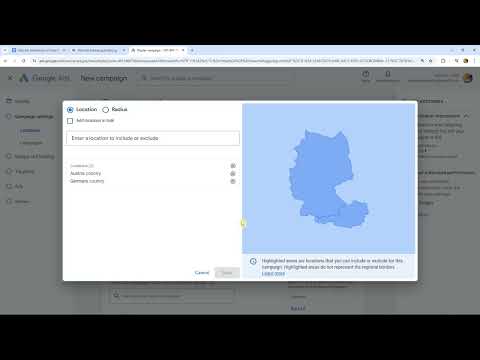
The location depends on where you sell or offer services. In the example, you select Germany and Austria. For each entry, you can specify whether it should be included or excluded. An exclusion can make sense if you know, for instance, that certain cities are hardly relevant for your product, or if a competitor is regionally focused. In the example, you exclude Berlin, which however plays no role for the test project.

6. Define a radius around a place
Instead of entire countries, you can work with a map via the advanced search. There you either select a place that you want to include or exclude, or you set a center point using pin mode and define a radius. In the example, you select Paris with a radius of five miles, i.e. around eight kilometers. This approach is particularly suitable for local businesses or services that only work within a clearly limited area.

7. Target Only People with Actual Presence
This is where it gets important: expand the arrow in the location settings. Google distinguishes between people who are regularly in your location and people who are merely interested in that location. The second group includes, for example, people who are searching for vacation destinations or will be traveling soon. However, if you ship within Germany, this doesn't help you much, because many of these people will never order from you. Therefore, choose "Presence" so that you truly reach the people who are currently in your delivery area.

8. Define Languages and Estimate Reach
In the next step, you select the languages of your target audience, in the example German and English. Google then shows you an estimated number of impressions per location and language. In the example, this number is over ten billion. Such figures sound impressive, but they are hardly helpful for planning. What matters is how much budget you actually invest, and you will set that in a moment.

9. Set Duration, Start Date, and Ad Rotation
Under the settings, you can set a start date and define how long the campaign should run. In the example, it starts today and runs for two weeks. You can also determine how Google serves your ads. You can have the best-performing ads preferred or have all ads rotate evenly. Serving the best-performing ads first is the more sensible approach in most cases. Additionally, you can set a schedule, for example if business ads should only run between 9 a.m. and 5 p.m.

10. Exclude Unwanted Content
Google allows you to exclude certain content next to which your ads should not appear. This includes, for example, sexual content or posts about social conflicts and news dramas. If your brand should not appear in such environments, you activate the corresponding exclusions. You should never skip this step, as it protects your brand image.

11. Set the Daily Budget
Now you set the budget. You can specify a daily budget, in the example 20 euros per day. Google immediately shows you an estimate, which for this budget is between 460 and 1,600 clicks. This range is still imprecise because the actual click costs only become visible based on the keywords that you will set up in the next video. Therefore, plan the budget rather cautiously and adjust it as soon as real data is available.

12. Choose Optimization Goal and Bidding Strategy
Now you decide what the campaign should be optimized for. If sales or clicks are important to you, choose conversions. For a pure awareness campaign, on the other hand, optimizing for impressions is a good option. Then you choose the bidding strategy. You can set the click prices yourself or let Google maximize automatically. For getting started, automatic maximization is a good approach because Google primarily focuses on good performance.
13. Check Targeting and Move On to the Next Step
After clicking "Next," you will see that the targeting is already optimized automatically. So you don't necessarily have to set anything. If you want to control the target audience specifically, click on "Add targeting." There you can define keywords, demographic characteristics, and other criteria. This is exactly what the next video is about, in which we refine the target audience step by step.

Summary ??? Setting Up Google Ads: Your First Display Campaign Step by Step
You have now created the basic framework of your campaign. You have chosen a goal, set the Display campaign type, entered your website, and narrowed down the location via countries, radius, and presence. You have also defined language, duration, exclusions, budget, and bidding strategy. With this foundation, in the next step you can refine the target audience with keywords and demographic characteristics.
FAQ
Do I need to have a website to start with Google Ads?For Display campaigns with a website goal, you need a website. If you don't have one yet, you can initially use a test page.
What is the difference between a search ad and a display ad?Search ads appear on Google for active search queries and usually consist of text. Display ads run on partner sites such as blogs and articles and often work with images.
Why should I set the location to presence instead of interest?With the presence option, you only reach people who are actually in your delivery area. With the interest option, people who are only searching for the place, for example for a trip, are also targeted, and therefore often don't order from you.
How high should my daily budget be?That depends on your goal and your click costs. Start rather cautiously and adjust the budget as soon as you have real data on click prices and conversions.
Should I use the automatic bidding strategy?For getting started, automatic maximization is a good choice because Google focuses on good performance. You can control your own click prices specifically later if needed.
Why should I exclude content?With exclusions, you prevent your ads from appearing next to content that doesn't fit your brand. This protects your image and your credibility.


